

- Your firm: the administrations of all your clients, and the settings of your firm.
- One administration: the figures, reports, meetings and forecasts of one client.
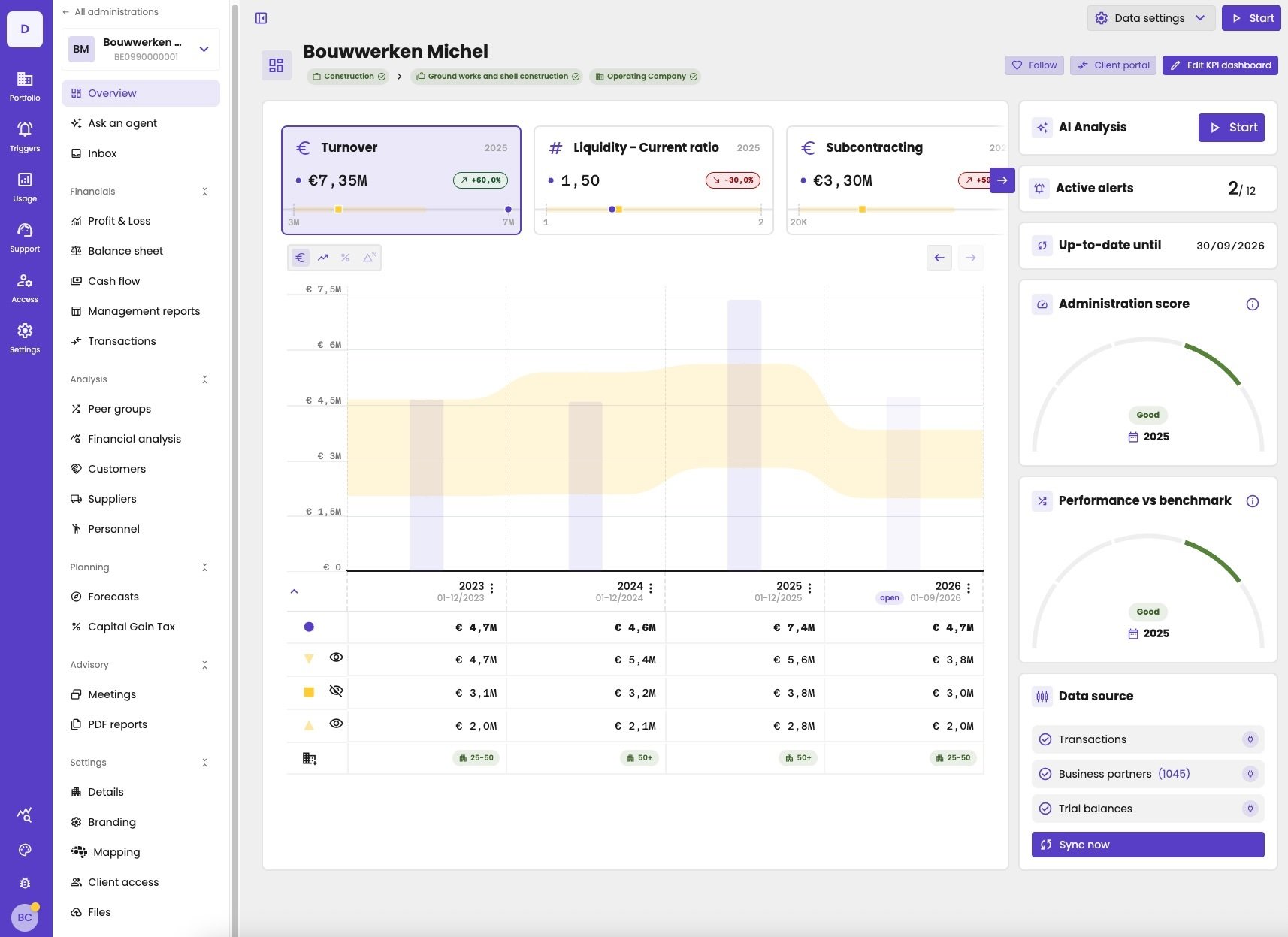
The new layout, inside an administration: the main rail, the administration menu, and the dashboard.
The new and the legacy layout
aiGust has a new layout. We’re refreshing aiGust step by step: the new menu is ready, and the other pages follow. The first time you open aiGust, it asks whether you want to try the new layout. Click Try the new menu to switch, or Maybe later to keep the legacy layout. After you choose, aiGust normally doesn’t ask again.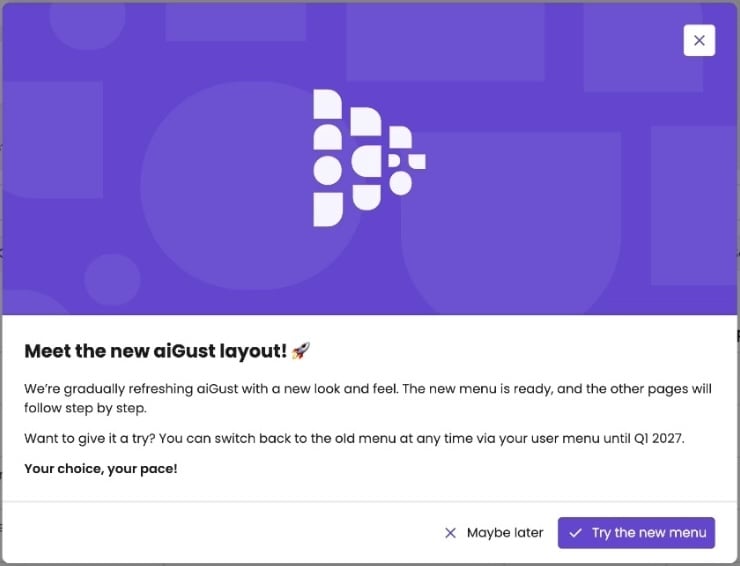
aiGust asks whether you want to try the new layout.
Find an administration
After you sign in, you land on Administrations: the list of the administrations aiGust found in your firm’s connectors. It’s your home page. You get back to it with Portfolio › Administrations in the main rail, or with the back button in the administration menu.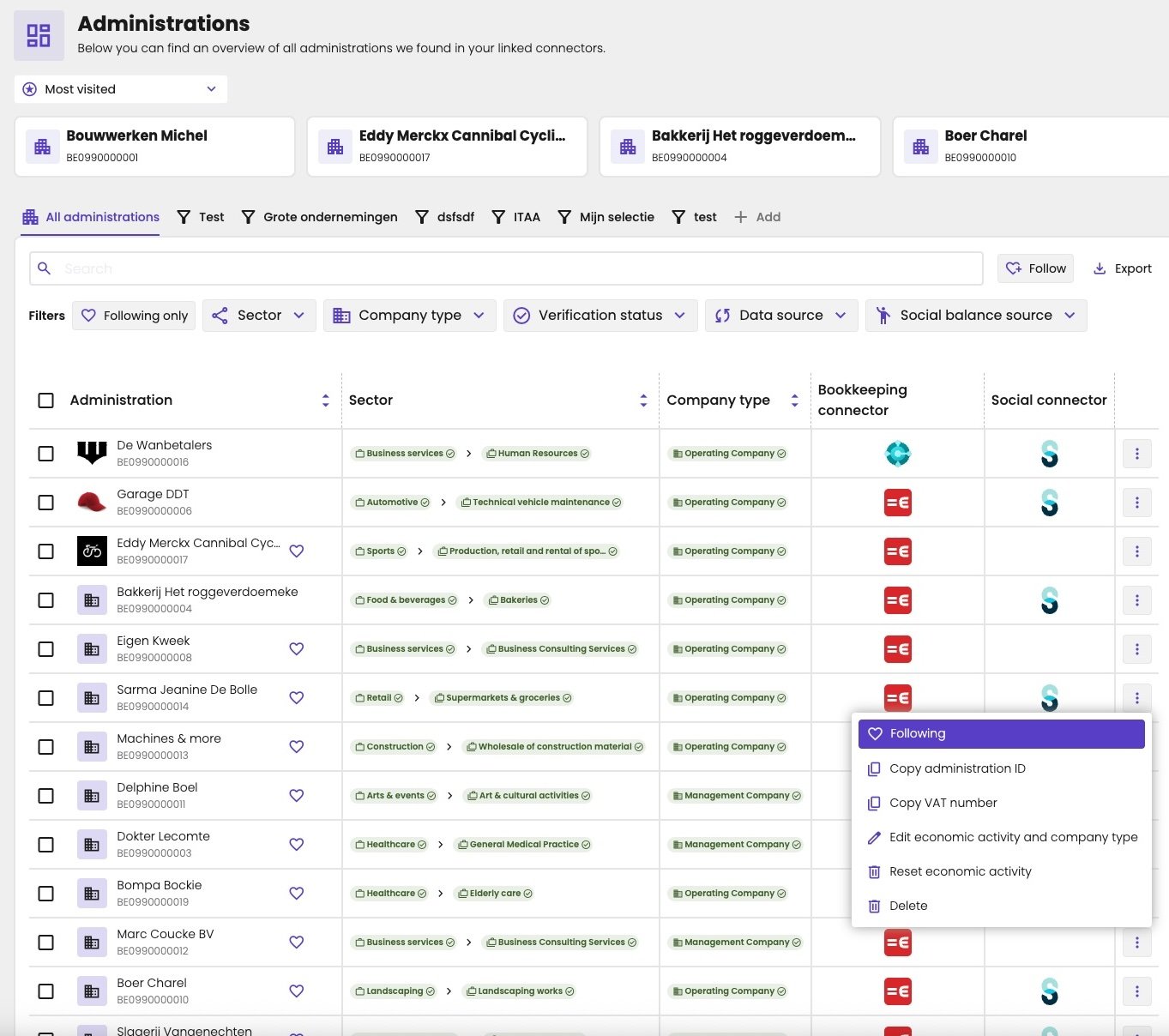
The list of administrations, where you land after signing in.
Last visited and most visited
At the top, aiGust shows the administrations you opened recently, so you get back to them in one click. The first time you sign in, this is still empty. It fills up as soon as you open administrations. Choose Last visited or Most visited in the list above them. aiGust remembers your choice for the next time.Search and filter
Type in Search to find an administration by its name, VAT number, sector or subsector. To narrow down the list, use the filters:
Click Export to download the list.
Verify the sector and company type of many administrations
In the list, the sector, subsector and company type of each administration show whether they’re verified: with a check mark, in green. To verify or change them for many administrations at once:- Select the administrations with the check boxes.
- Click Selected at the top right, for example 3 Selected.
- Choose what to do:
- Confirm economic activity, to verify the sector and subsector;
- Change economic activity, to give them all another economic activity;
- Confirm company type;
- Clear selected, to clear the selection.
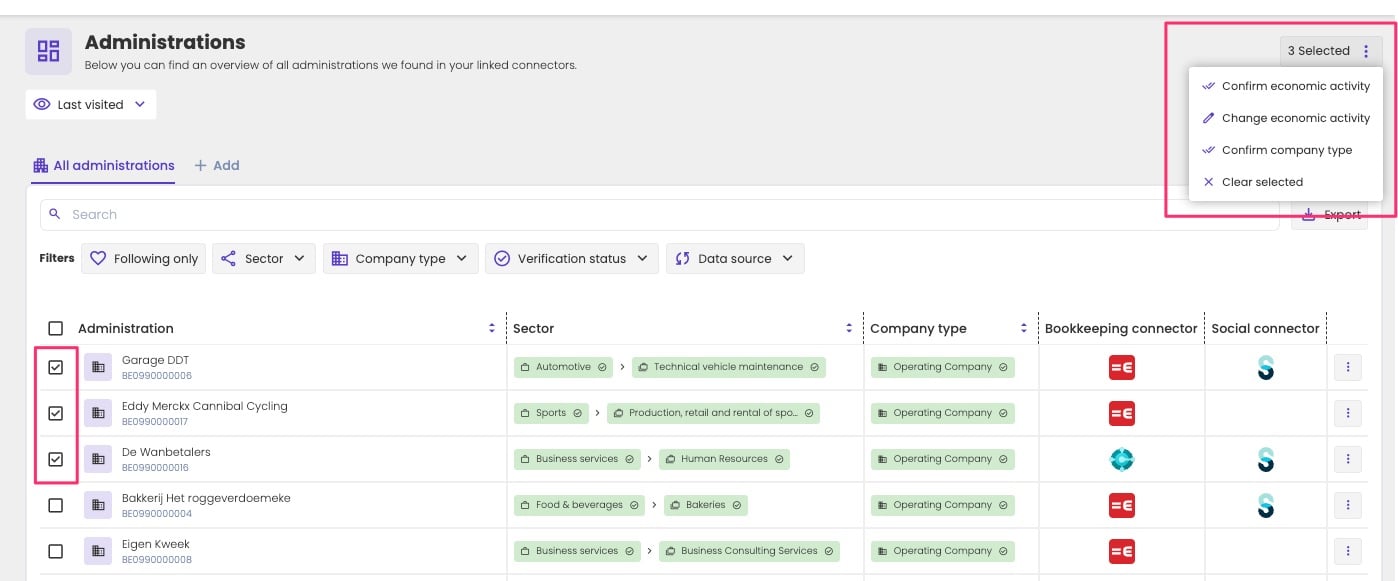
Confirm the economic activity of three administrations at once.
Follow the administrations you work on
Most of the time, you only work on part of your firm’s administrations. Follow them, like starring an email, to find them quickly:- In the list, click the heart next to an administration, or click the three dots and choose Follow. For an administration you follow, the menu shows Following: click it to stop following.
- In an administration, click Follow at the top of its dashboard.
More options
The three dots next to an administration also let you:- Copy administration ID;
- Copy VAT number;
- Edit economic activity and company type, without opening the administration. See Verify and change the sector and company type;
- Reset economic activity, back to what aiGust suggested.
The main rail
The main rail is the column on the left, in your firm’s colours. It stays in place everywhere in aiGust.
The icons with a chart and a magnifying glass and with a palette, at the bottom of the rail, are only for the aiGust support team. You won’t see them.
Click Portfolio, Access or Settings to open its menu next to the main rail. Each menu groups its items under headings that you can collapse. To hide the menu and make room for your figures, click the panel icon at the top left of the page.
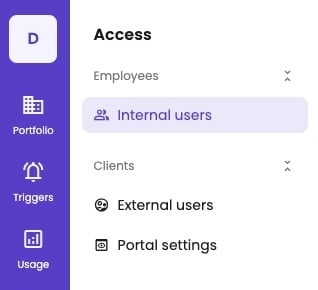
The main rail with the Access menu open.
Access
Settings
The administration menu
When you open an administration, the Portfolio menu becomes the menu of that administration.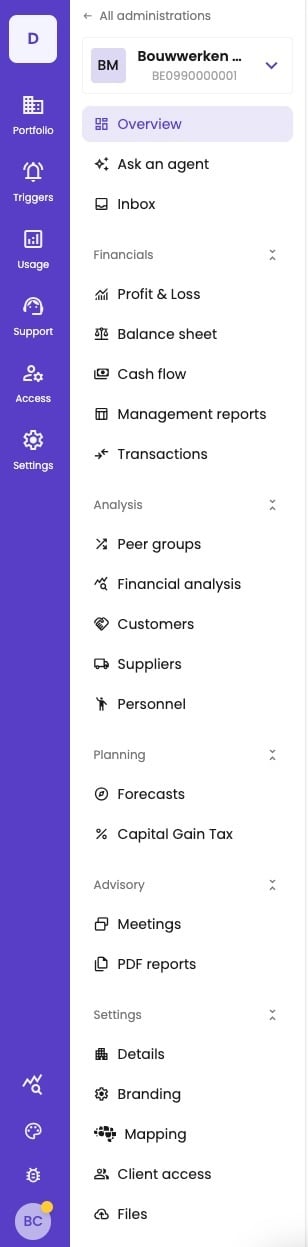
The menu of an administration, with all sections open.
- All administrations takes you back to your portfolio.
- The administration’s logo, name and VAT number open a list to switch to another administration, without going back to the list.
The KPIs on Financial analysis are also available as widgets. Add the ones you use to the dashboard or to a meeting.
The top bar
Inside an administration, the top bar is at the top right.
The top bar of an administration.
Your user menu
Click the round button with your initials, at the bottom of the main rail, to open your user menu. It holds your settings, the appearance, the product updates, the help and this documentation, and Use new menu: the switch between the new and the legacy layout. See Personalise aiGust and Help, news and ideas.Where did it go?
Most pages still exist, but some moved or are now combined on one page with tabs.
For everything key users set up, see the Key user guide.