

Only key users can create and edit meeting flows.
The meeting flows overview
Click Settings in the main rail, and choose Meeting flow. The Meeting flows page shows a tile per flow, with:- A badge: aiGust for the flow aiGust provides, Tenant for your firm’s own.
- The name in each language: nl, en and fr.
- Meetingtype and Company types: which meetings and companies the flow is for. See Which flow aiGust proposes.
- Last update.
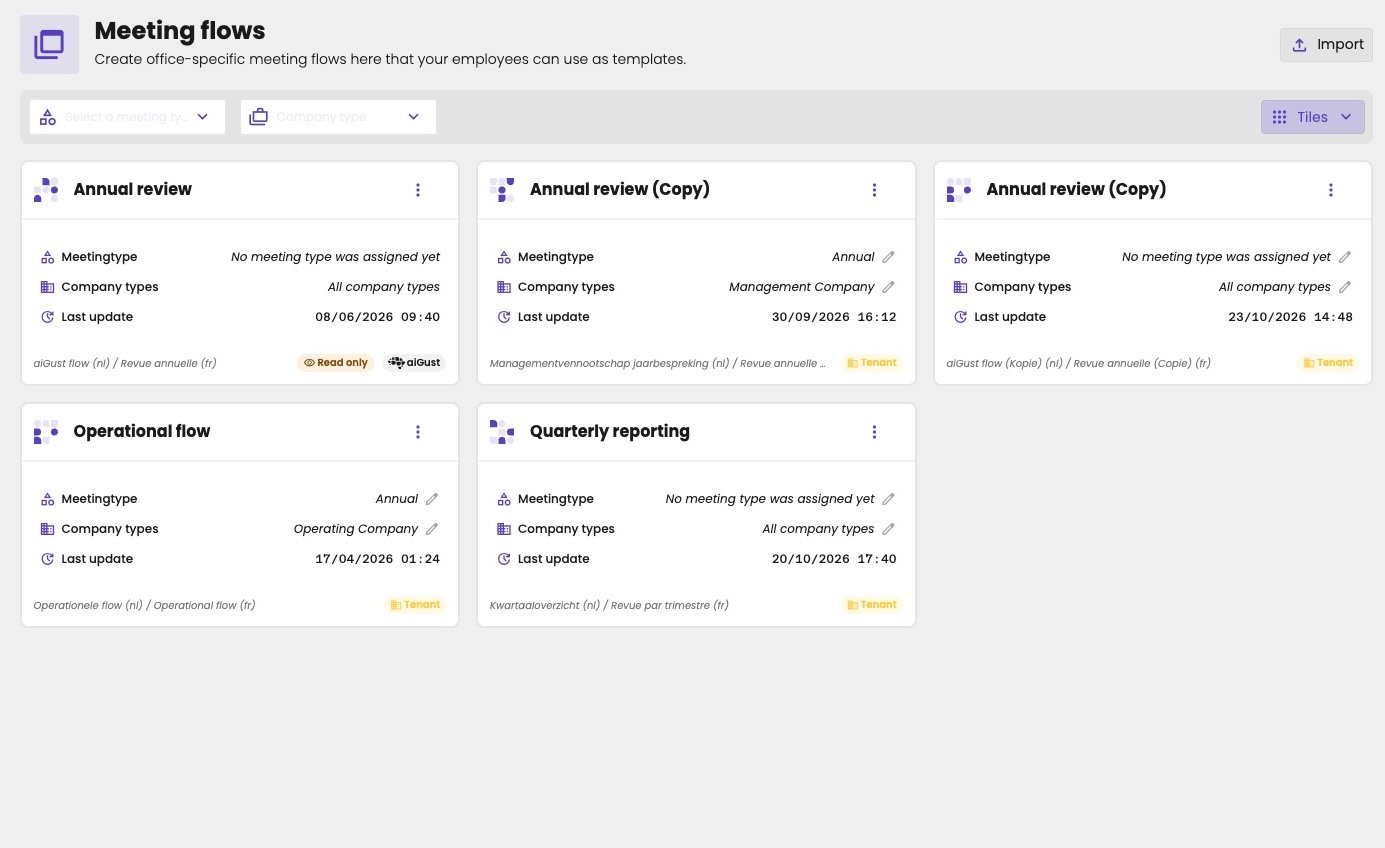
The meeting flows of a firm.
The aiGust meeting flow
aiGust provides one meeting flow out of the box. It’s a starting point, not the best flow for every firm. You can’t change it, but you can copy it: click the three dots on its tile and choose Duplicate. The copy becomes your firm’s own flow, and you adapt it.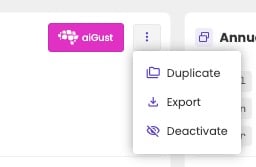
The options of the aiGust flow.
- Deactivate: the flow is no longer available when accountants create a meeting. Use it for the aiGust flow once your firm has its own.
- Export and Import: Export downloads the flow’s definition as a JSON file, and Import at the top right of the page adds it again. Use it as a backup, for example before you make big changes. Only import files you exported from aiGust: an edited file that no longer follows aiGust’s format can’t be imported.
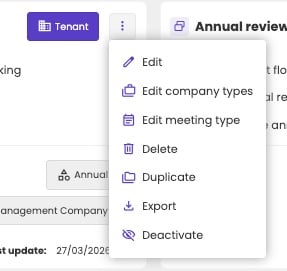
The options of one of your firm's flows.
Create a flow
There’s no button to create an empty flow. To create one, duplicate an existing flow, for example the aiGust flow, and adapt the copy.Edit a flow
Click the three dots on a flow and choose Edit.Choose a preview administration
aiGust first asks which administration to use as a preview. A flow is only a definition: this text here, that chart there. The slides always show real figures, so aiGust needs an administration to show you how they look. The flow doesn’t belong to that administration. You can change the preview administration later in the slide settings.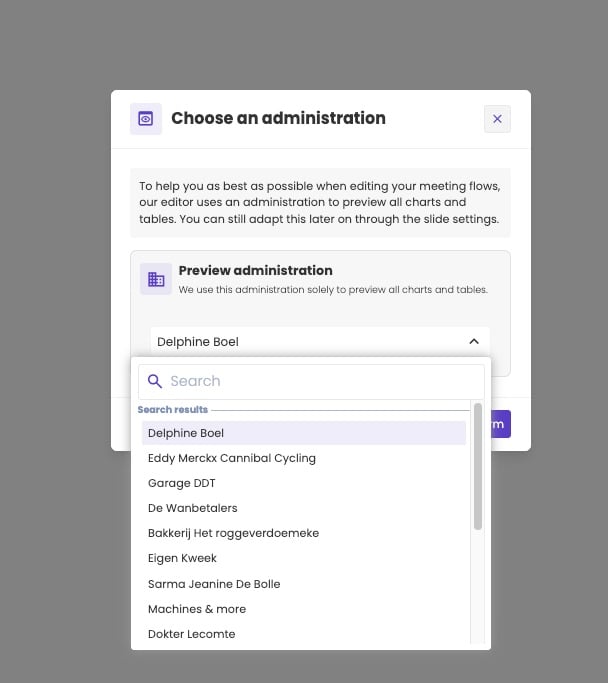
Choose the administration to preview the flow with.
Build the slides
You build a flow in the same editor as a meeting. Add slides, group them into sections, choose a layout for each slide, and choose the widgets. See Meeting editor and Widgets. Follow these rules:- Fill in the titles and navigation names, in every language. Titles aren’t generated: every meeting takes them from the flow.
- Text is optional. If a slide has a text zone but no text, aiGust writes the text for each meeting the first time it’s run, based on the administration’s figures. A text you write in the flow ends up in every meeting, whatever the figures say.
- Choose the widgets for each zone. For a management report, choose a library report, or let the accountant choose the report in each meeting.
Set up every language
A meeting is in the language of the client: English, French or Dutch. The accountant chooses it when they create the meeting, and the meeting shows the titles of the flow in that language. So set up every slide of the flow in all the languages your firm presents in. Each title and navigation name exists in three languages. In the flow editor, switch between them with nl, en and fr at the top of the field. When the field is empty in a language, a sparkle button appears next to it. Click it to translate the text you entered in your own language. Check every language before you save. An empty field, or a text left from before, shows up in the meetings in that language. In a meeting, accountants only change the titles in the language of that meeting. See Language.
A navigation name, with the language buttons and the translate button.
Which flow aiGust proposes
When an accountant creates a meeting, aiGust proposes the flow that fits the administration best. To make that work, link each flow to:- One or more meeting types, such as an annual review. Click the pencil next to Meetingtype, or choose Edit meeting type in the menu. See Meeting types.
- One or more company types, such as management company or operating company. Click the pencil next to Company types, or choose Edit company types. See Sectors and company types.