

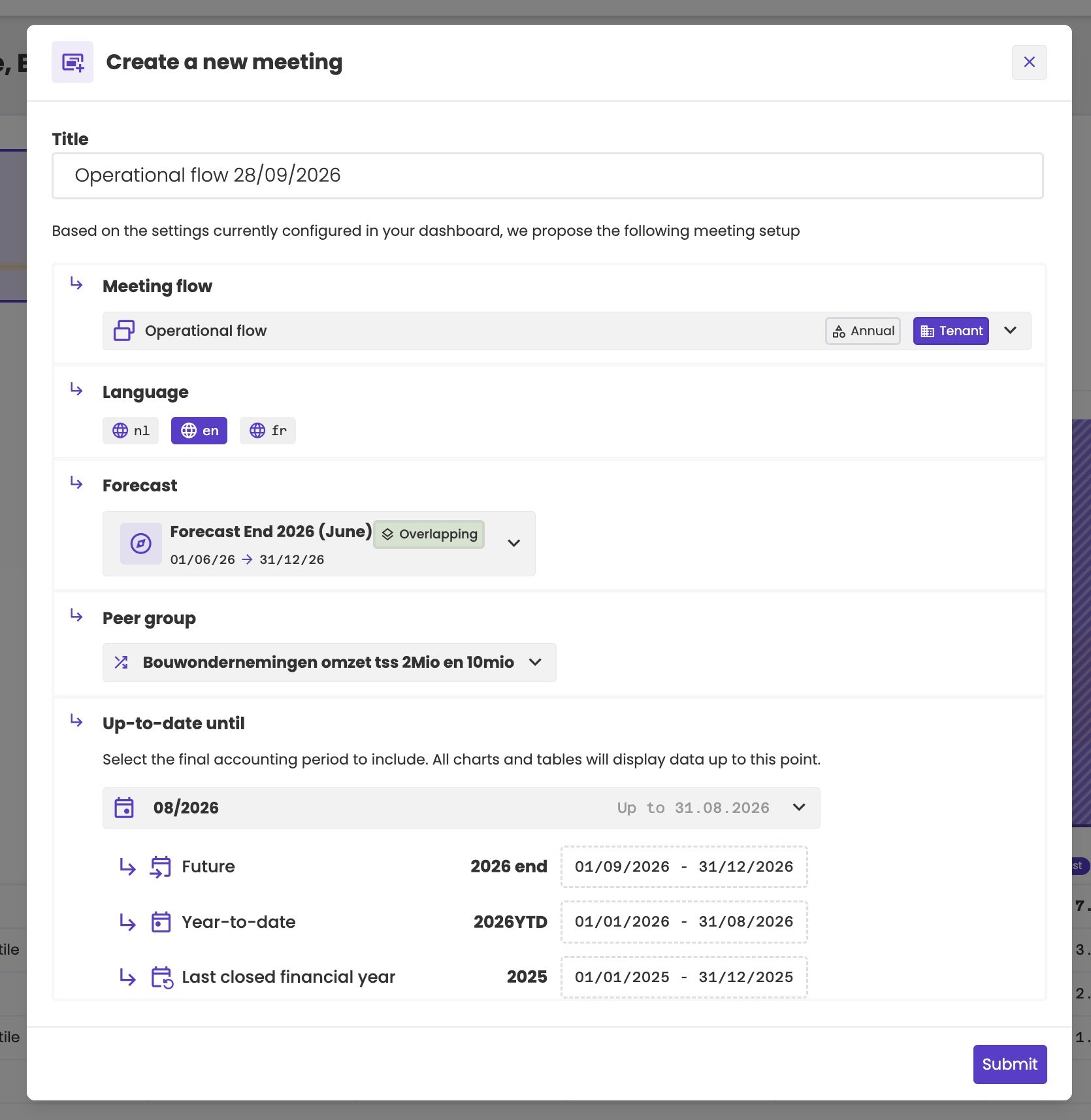
The properties of a new meeting.
The properties are stored with the meeting. If you open it again next month, it still shows the figures up to the same date, even if newer figures are available.
Language
Present in the language of your client. The language of the meeting decides:- The titles and navigation names the slides show.
- The texts aiGust writes for the slides.
In the meeting flow
Your key users set up every slide of a meeting flow in all the languages your firm presents in: English, French and Dutch. For each slide, they fill in:- The title and the navigation name, in every language. Each of these fields exists in English, Dutch and French. When a field is empty in one language, the translate button fills it in from your language.
- The text, only if they want to. Text is optional. If a slide has a text zone but no text, aiGust writes the text the first time you run the meeting.
In the meeting
A meeting is a copy of its flow, with the titles in all three languages. It only shows the language you chose in the meeting settings. When you change the titles or the texts of a meeting, you only change them in that language: the language of your client. You don’t have to fill in or change the other languages. When you switch the language of a meeting, the titles, navigation names and texts of the old language stay as they are, but the meeting no longer shows them. It shows the values in the new language, as they were copied from the flow. For example, you created a meeting in English:- The meeting shows the English titles, and aiGust writes the texts in English when you present it. The Dutch texts stay empty.
- You switch to Dutch. The meeting shows the Dutch titles from the flow, and empty texts.
- You present the meeting. aiGust writes new texts in Dutch. It doesn’t translate the English texts, or look at them.
The past, the present and the future
Everything depends on the up-to-date-until date
Each meeting has its own up-to-date-until date, stored with the meeting. One meeting can have figures up to date until 31/12/2024, another until 30/06/2025. When you open or present a meeting, aiGust uses that date instead of the up-to-date-until date that applies everywhere else. aiGust then behaves as if the figures were up to date until that date. See The up-to-date-until date. So a meeting stays the same presentation, also months later:- The figures only change if the underlying data changes, for example when a booking in that period is corrected. The reports then show the new figures.
- The texts never change. aiGust doesn’t rewrite a text that exists.
The three time periods
A conversation with a client usually moves through three stages: how did last year go, where do we stand now, and what’s coming. Each slide is set to one of these:
The meeting settings show the periods each one covers.
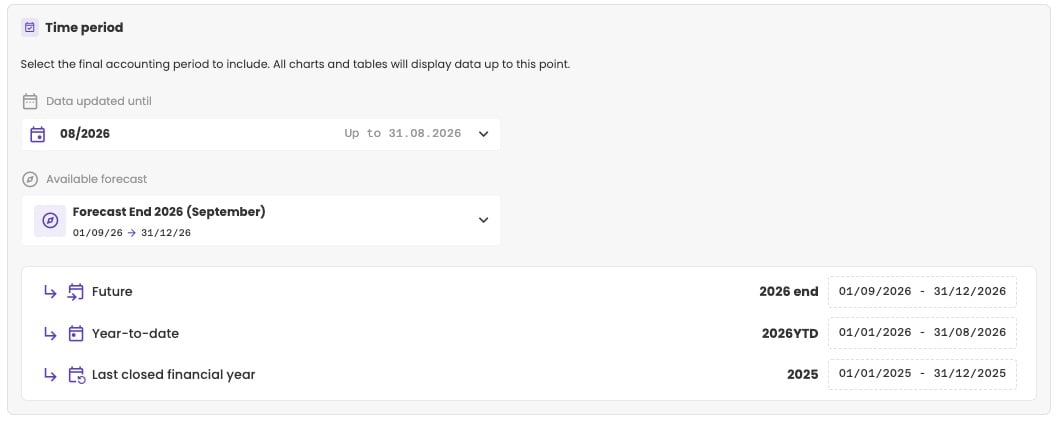
The time periods of a meeting with figures up to date until 08/2026 and a forecast.
- Last closed financial year is the financial year that closed on 30/06/2026.
- Year-to-date is July and August 2026.
- Future is the financial year from July 2026 to June 2027: actual figures for July and August, and the forecast from September.
Past
- Reports, cards and charts show financial years.
- The open financial year is hidden by default, so the slide focuses on the last closed financial year.
- With the reporting level set to quarters, the slide shows quarters.
Present
- Reports show year-to-date figures by default.
- The open period is shown: the year-to-date period of the open financial year. It’s compared with the same periods in the previous years.
- No year-to-date at the end of a financial year. When the up-to-date-until date is the last period of a financial year, that year is closed, and there’s no year-to-date: it would be the whole financial year. aiGust shows No year-to-date data available for the selected period.
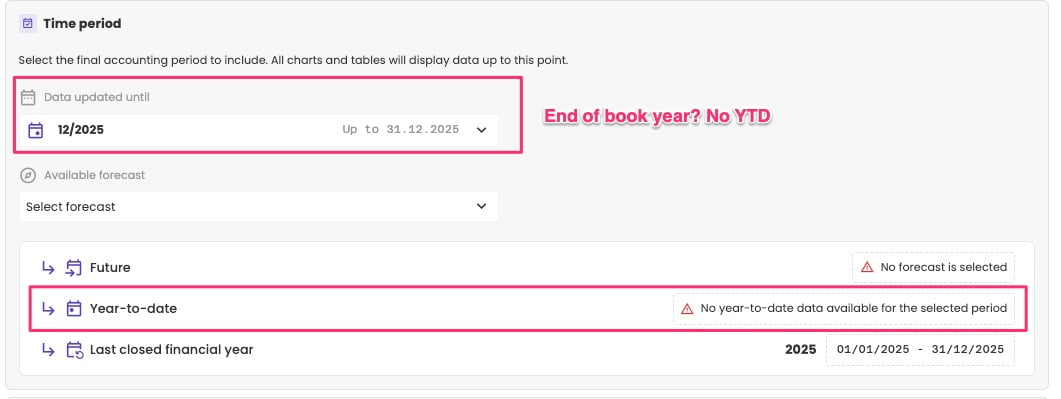
Up to date until the end of the financial year: no year-to-date.
Future
- A view of the whole open financial year. aiGust takes the actual figures up to the up-to-date-until date, and completes the remaining months with the forecast.
- Only with a forecast. Without one, aiGust shows No forecast is selected. See Forecast.
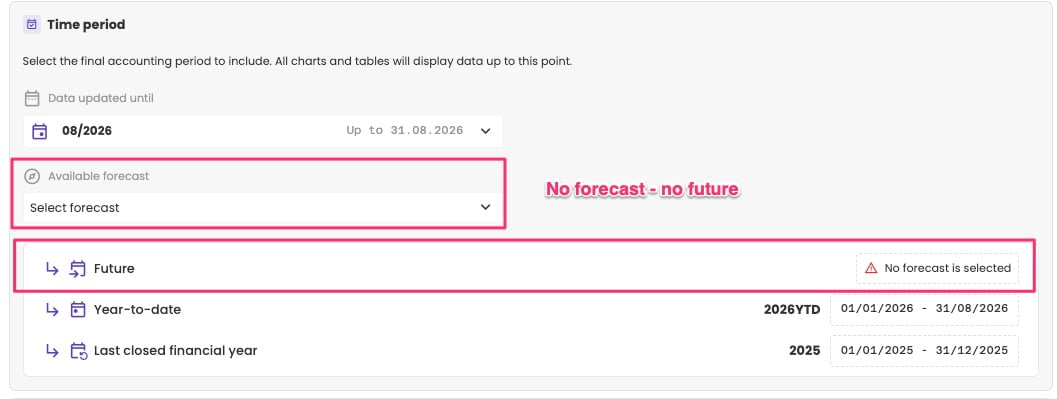
No forecast, no future.
Time periods in flows and meetings
In a meeting flow, you can give a slide any time period. When you start a meeting, aiGust checks which time periods are available. It marks the slides with a time period that isn’t available as hidden. For example, without a forecast, the slides about the future are hidden.Sections and time periods
The aiGust flow goes from the past to the present to the future, section by section. That’s not a rule: you can mix time periods as you like. A section has a time period too. When a slide has a different time period than its section, the meeting editor shows a warning sign next to it. For example, a slide about the future in a section about the present. It isn’t an error. It’s a reminder to check that this is what you want.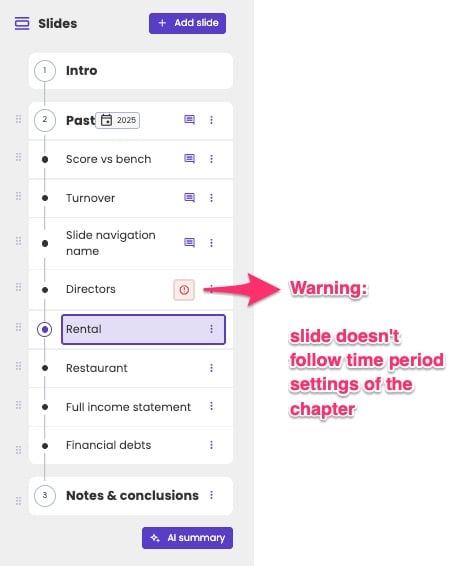
A warning on a slide with a different time period than its section.
Forecast
A slide about the future needs a forecast. Choose one of the administration’s forecasts when you create the meeting. Next to each forecast, aiGust shows whether it’s outdated or overlapping, compared to the up-to-date-until date of the meeting. See Forecasts. Choose a forecast without a gap. It has to start at the latest in the period right after the up-to-date-until date:- A gap is a problem. With figures up to date until 30/06 and a forecast that starts in August, July is missing.
- An overlap isn’t. When the forecast starts before the up-to-date-until date, aiGust uses the actual figures up to that date and the forecast after it. It doesn’t count anything twice.
Change the properties
A meeting is never fixed. Before or after you present it, you can change its properties. On the Meetings page, click the three dots on the meeting and choose Meeting details, or click Settings in the meeting editor:- Meeting details: Title, Language, Description and Type. Turn on Add slide that summarizes meeting notes to add a slide with the notes at the end, and Show administration logo to show the client’s logo on the slides. See Your client’s logo.
- Time period: Data updated until, and the Available forecast.
- Benchmark group: the peer group. To show the slides without any benchmark, choose Disable benchmarking at the bottom of the list.
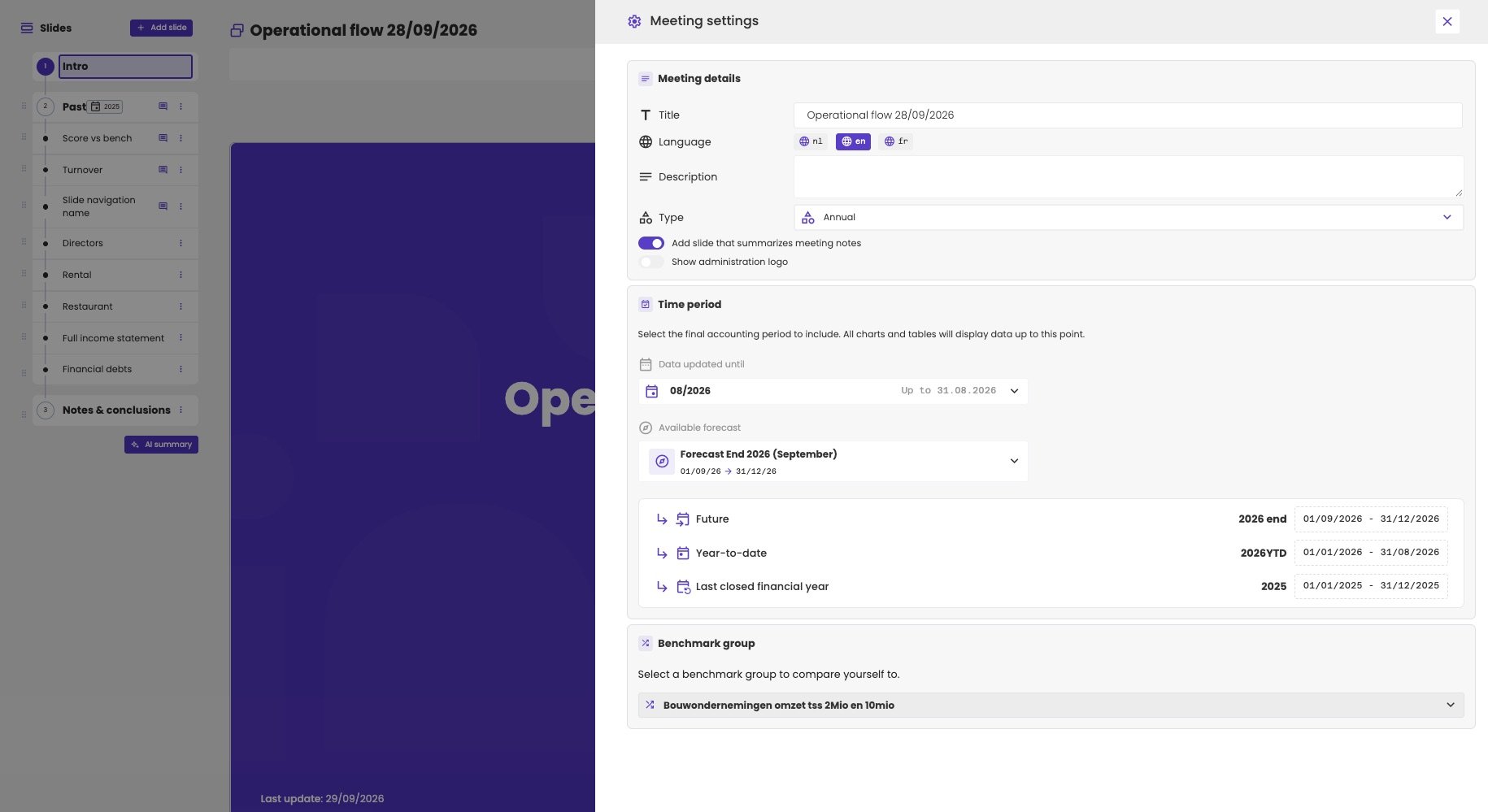
The settings of a meeting.
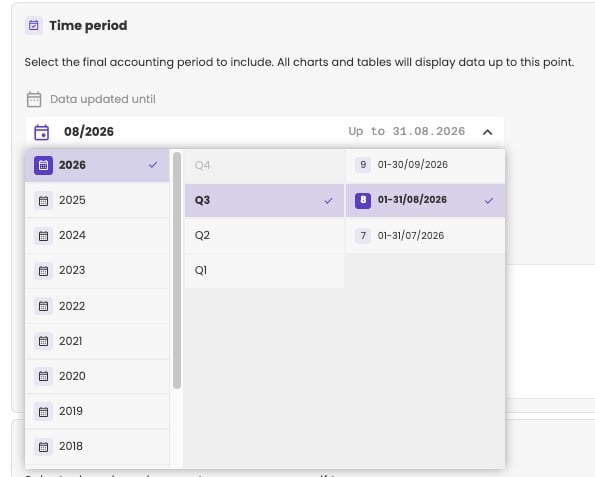
Pick the last period of the figures.