

- From a report or widget, with the filters already set. This is what you’ll use most. See Transactions behind a figure.
- On the Transactions page, where you set the filters yourself. See Search all transactions.
Only for bookkeeping connectors
Only a bookkeeping connector delivers transactions. An administration from a compliance file, such as Silverfin, only has balances per account. You can’t see its transactions, and Transactions isn’t available in its menu.Transactions behind a figure
Wherever aiGust shows a figure, you can usually click it to see the transactions behind it:- In the financial reports: click a figure, and open the Transactions tab. See Transactions.
- On the Customers and Suppliers pages: click an amount. See See the transactions.
- In the Top contributors & trends widget of a meeting. See Top contributors & trends.
Search all transactions
Click Transactions under Financials in the administration menu. The list stays empty until you set at least one filter: an administration easily has thousands of bookings.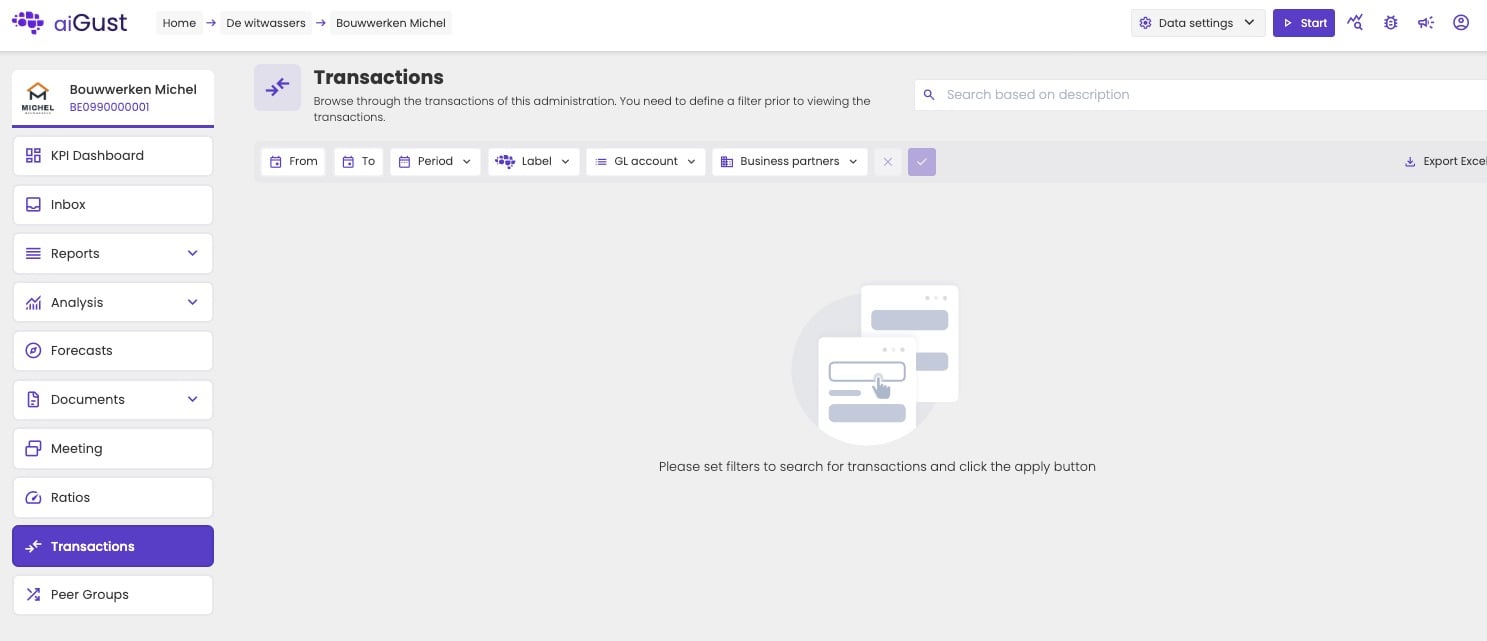
The Transactions page before you set a filter.
1
Set one or more filters
The filters work together. Once you set one, the others only offer what still fits. Choose the account for energy costs, for example, and Business partners only lists your energy suppliers.
2
Click the check mark to apply them
The button next to the filters applies them. The cross clears all filters.
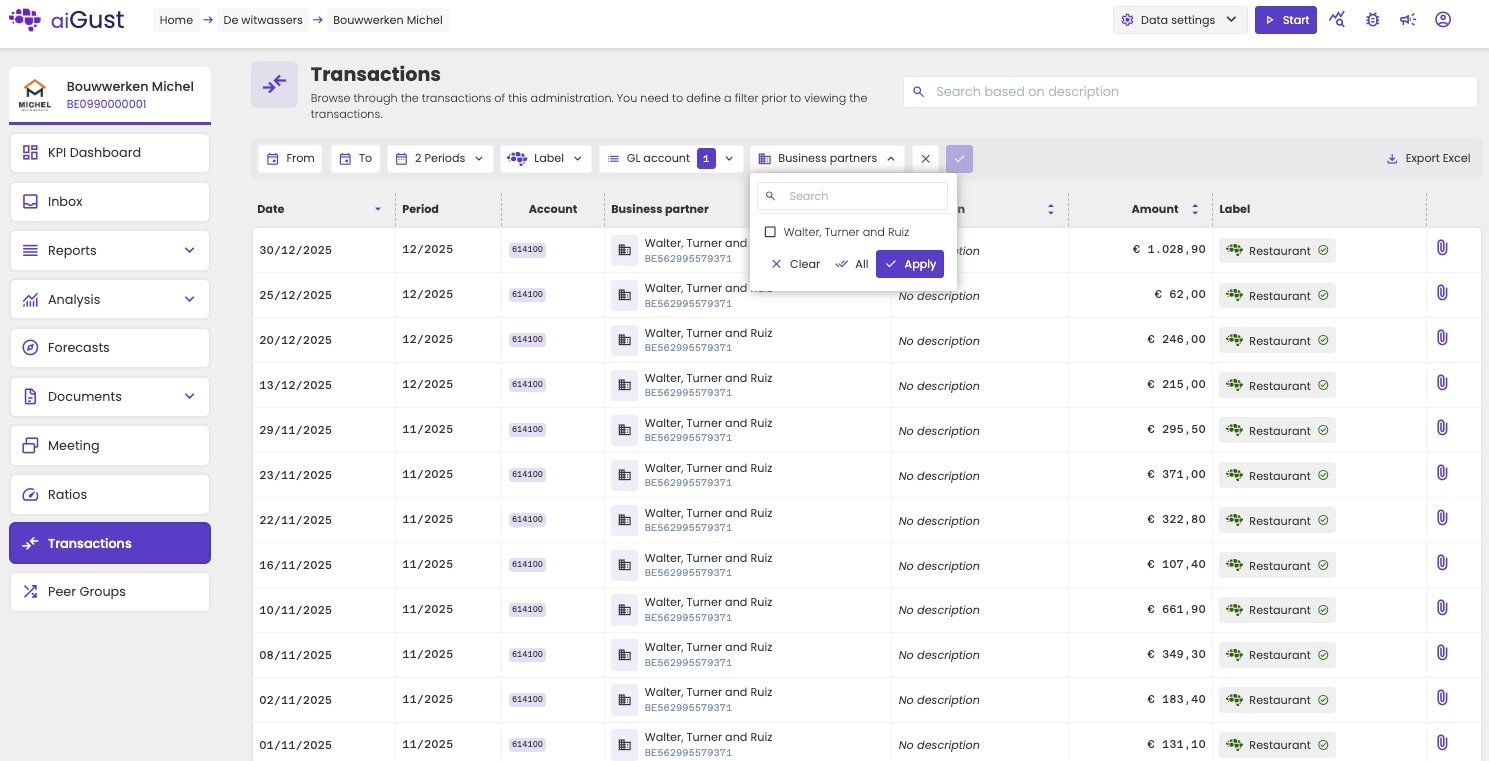
The transactions on the restaurant account in two periods, with the Business partners filter open.
- Search in the description with Search based on description.
- Sort by date, description or amount.
- Export the list with Export Excel.
Find options in a filter
Some filters have many options, such as GL account with hundreds of accounts. Type in the search field at the top of the filter to find them.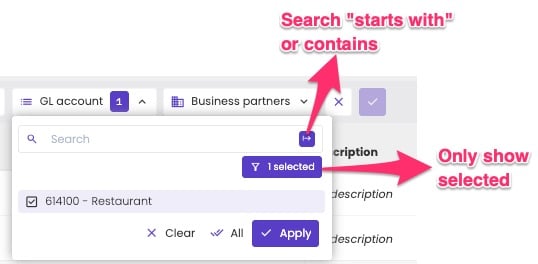
Search in a filter, and show only what you selected.
- Contains or starts with: by default, the search finds options that contain what you type. Type resta to find 614100 - Restaurant. Click the button next to the search field to find only options that start with what you type instead. Type 6141 to find all accounts that start with 6141, and not the ones with 6141 somewhere in the middle.
- Only what you selected: click selected, for example 1 selected, to show only the options you ticked. You don’t have to scroll through the whole list to check them.
- Clear unticks everything, All ticks everything, and Apply confirms your choice.
Transaction details
Click a transaction to open its Transaction details.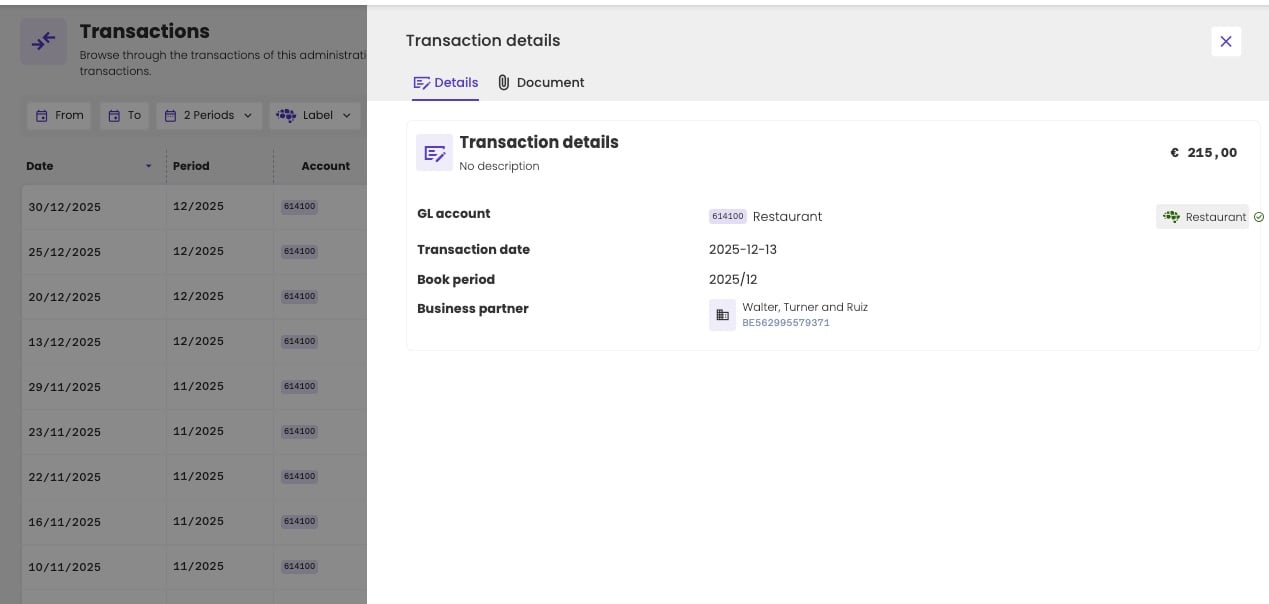
The details of one transaction.
- Details: the description, amount, account and its label, the date, the financial period and the business partner.
- Document: the attached document, such as the invoice. The paperclip icon in the list shows that a transaction has one.