

See the alerts of an administration
The Active alerts card on the administration dashboard shows two numbers: the active alerts, out of the triggers that apply. 2 / 6 means 2 active alerts out of 6 applicable triggers.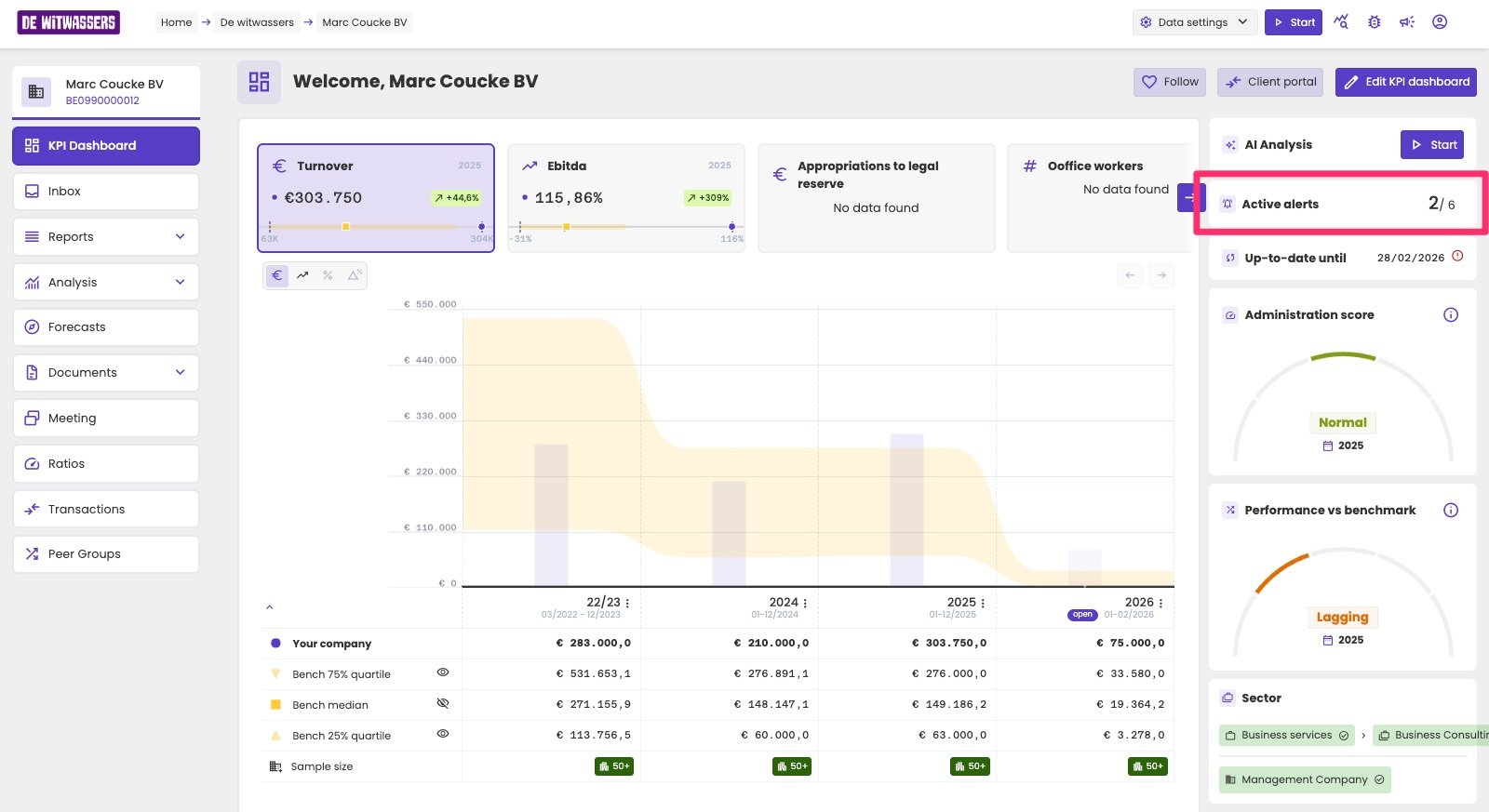
The Active alerts card on the administration dashboard.
- Its name, and a badge that shows whether it’s a built-in trigger (aiGust) or one of your firm’s own (Tenant). An alert badge marks an active alert.
- Its description, which explains what the trigger looks for and what to check.
- Each criterion, with the administration’s actual value next to the condition. That tells you why the alert is active, or why it isn’t.
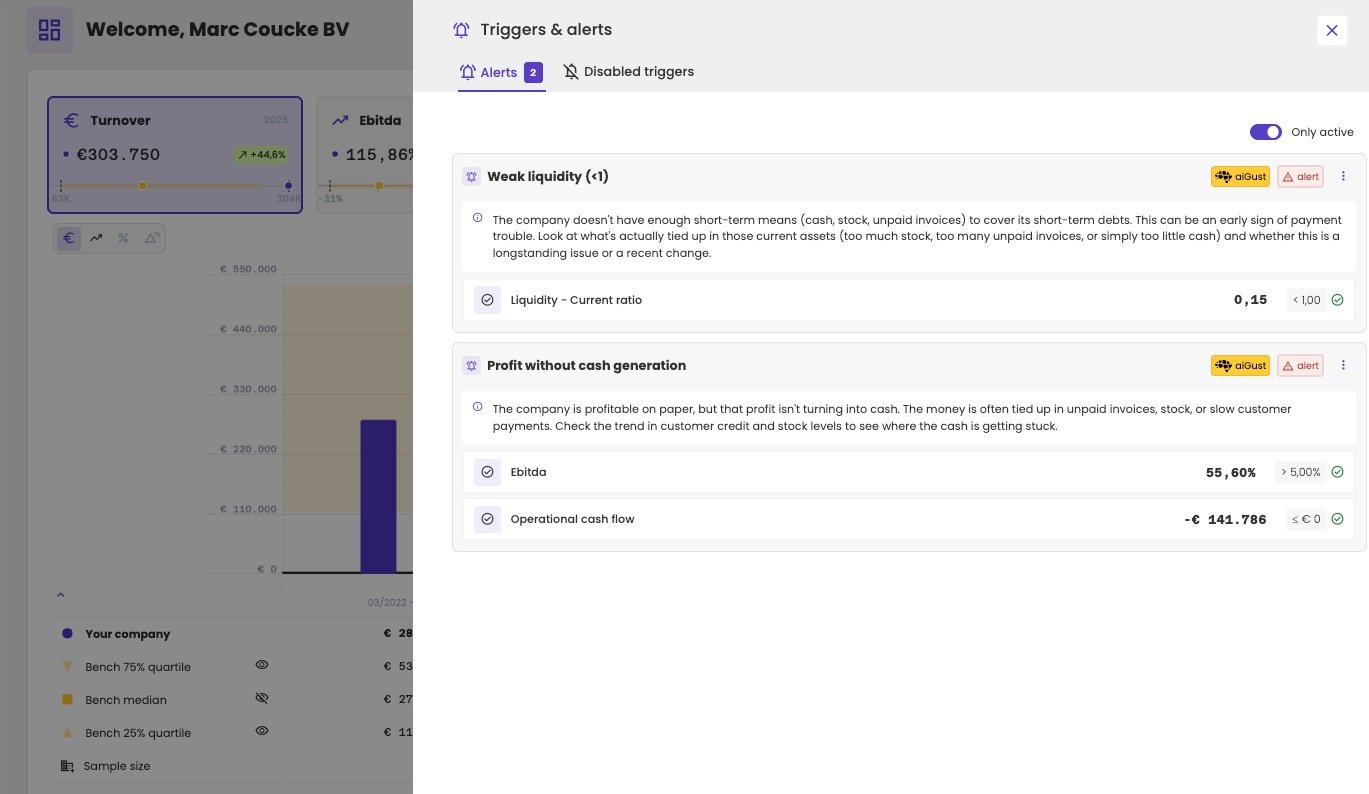
Two active alerts. The Operational cash flow of −€141,786 meets the condition ≤ €0.
Snooze or disable an alert
Not every alert needs action. A profit with a negative cash flow is usually worth looking into, but for a management company that has just bought a car, it’s easy to explain. Click the three dots on the alert, and choose: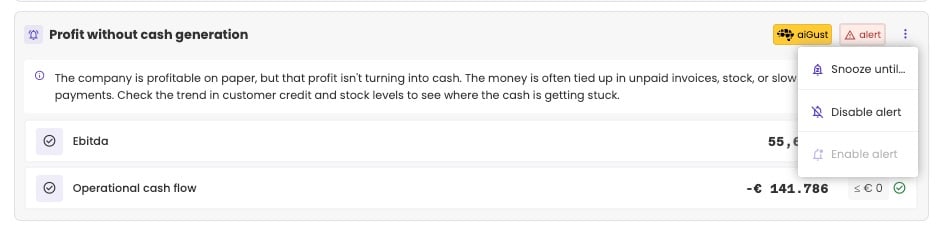
The options of an alert.
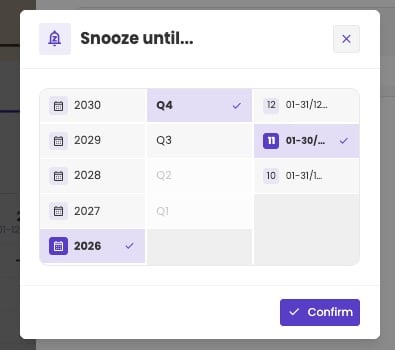
Choose the period until which the alert is snoozed.
Enable an alert again
The Disabled triggers tab of the side panel lists the disabled and snoozed alerts. A snoozed alert shows the date until which it’s snoozed. To show an alert again, click the three dots on it and choose Enable alert. This works for disabled and snoozed alerts: it ends a snooze early. To see all administrations that snoozed or disabled a trigger, open the trigger and click the crossed-out bell. See Open a trigger.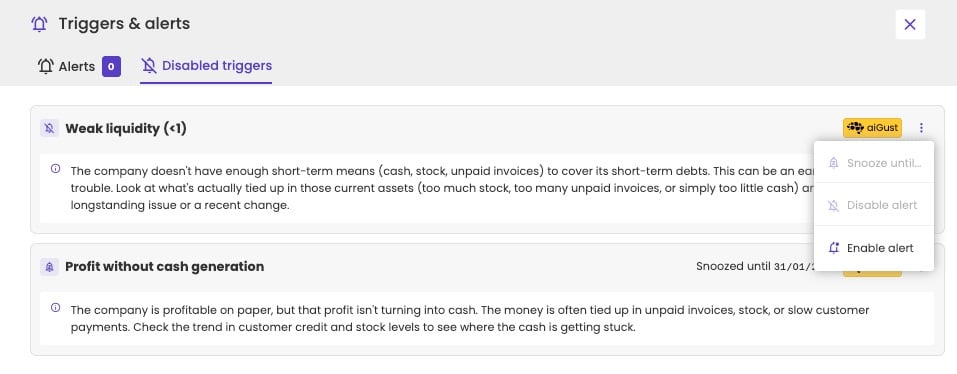
The Disabled triggers tab, with a disabled and a snoozed alert.