

- External user (read only) sees the client portal.
- External user (admin) can also give others at their company access, if your firm allows it. See Client roles.
Give access
- Open the administration, and go to Settings › Client access in the administration menu.
- Open the External users tab. It lists everyone with access to the client portal of this administration.
- Click Grant Access.
- Enter the Email of the person, and click Next.
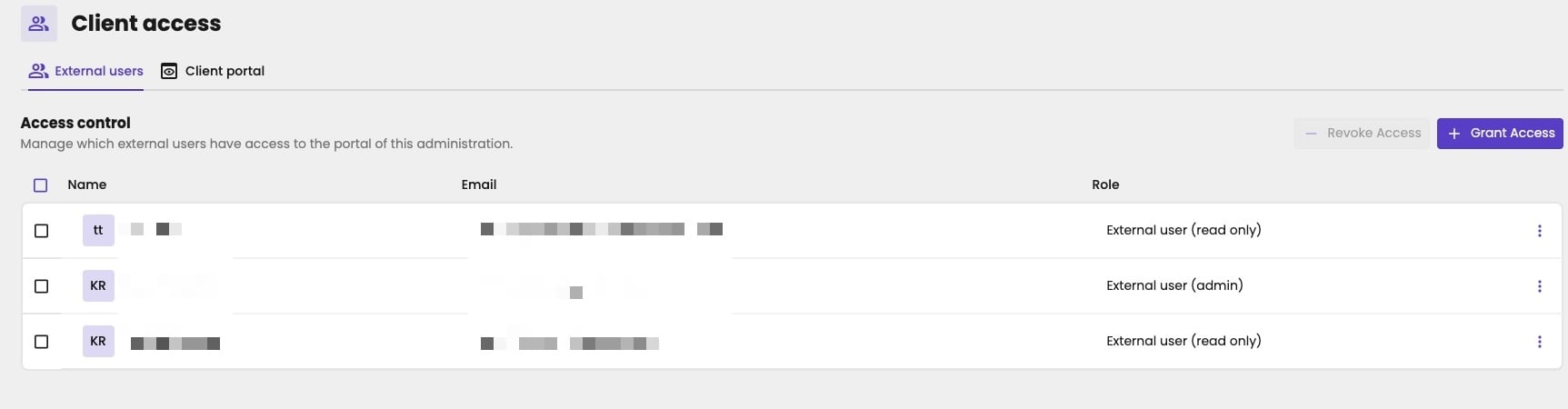
The client users of an administration.
- The client user already exists, for example because they already have access to another administration. aiGust says so. Click Next to add this administration to the ones they can see.
- The email address can’t be used, for example because it belongs to a user at your firm. aiGust shows: “The provided email already exists but cannot be used as an external user.”
- The email address is new. Enter the First name, Last name, Language and Role. Choose whether to Send a welcome mail, and click Next. aiGust creates the client user, with access to this administration.
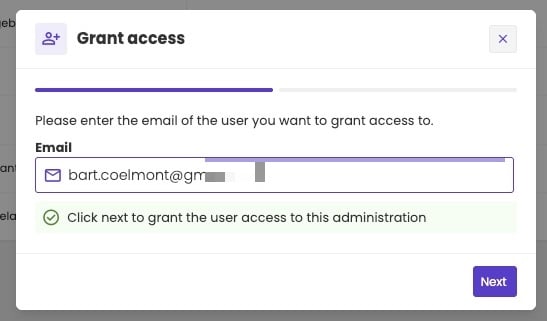
An email address you can add.
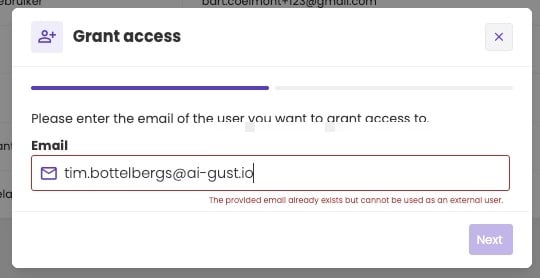
An email address that can't be used for a client user.
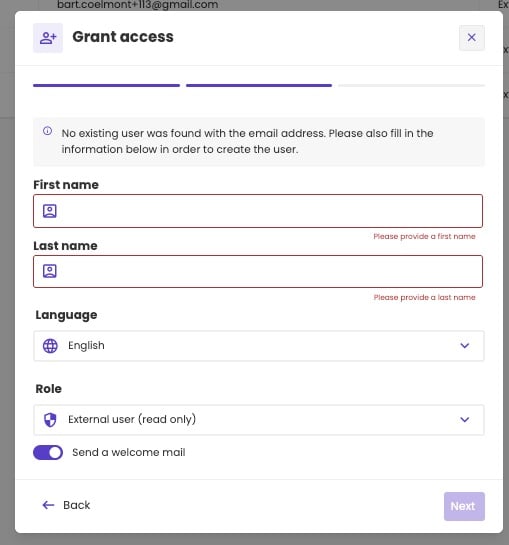
The details of a new client user.
Revoke access
To take away someone’s access to this administration, click the three dots next to them and choose Revoke access. To revoke several at once, select them and click Revoke Access at the top. The client user keeps access to their other administrations.Edit a client user
Choose Edit client user in the same menu to change their name, language or role.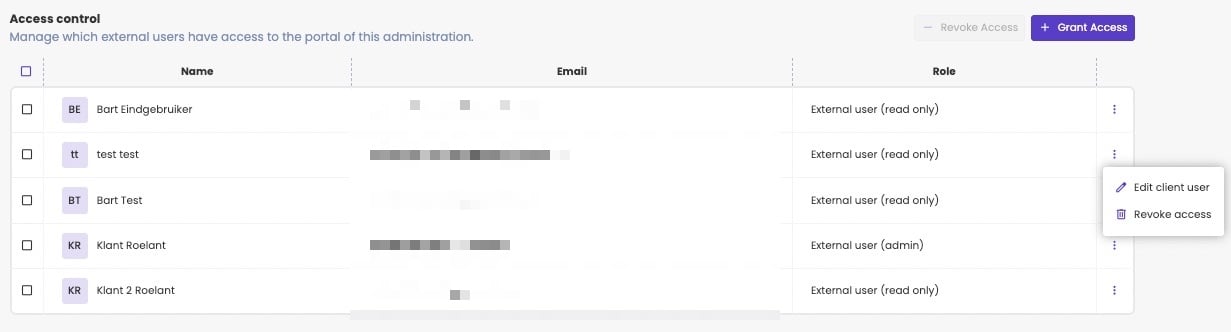
Edit a client user, or revoke their access.