

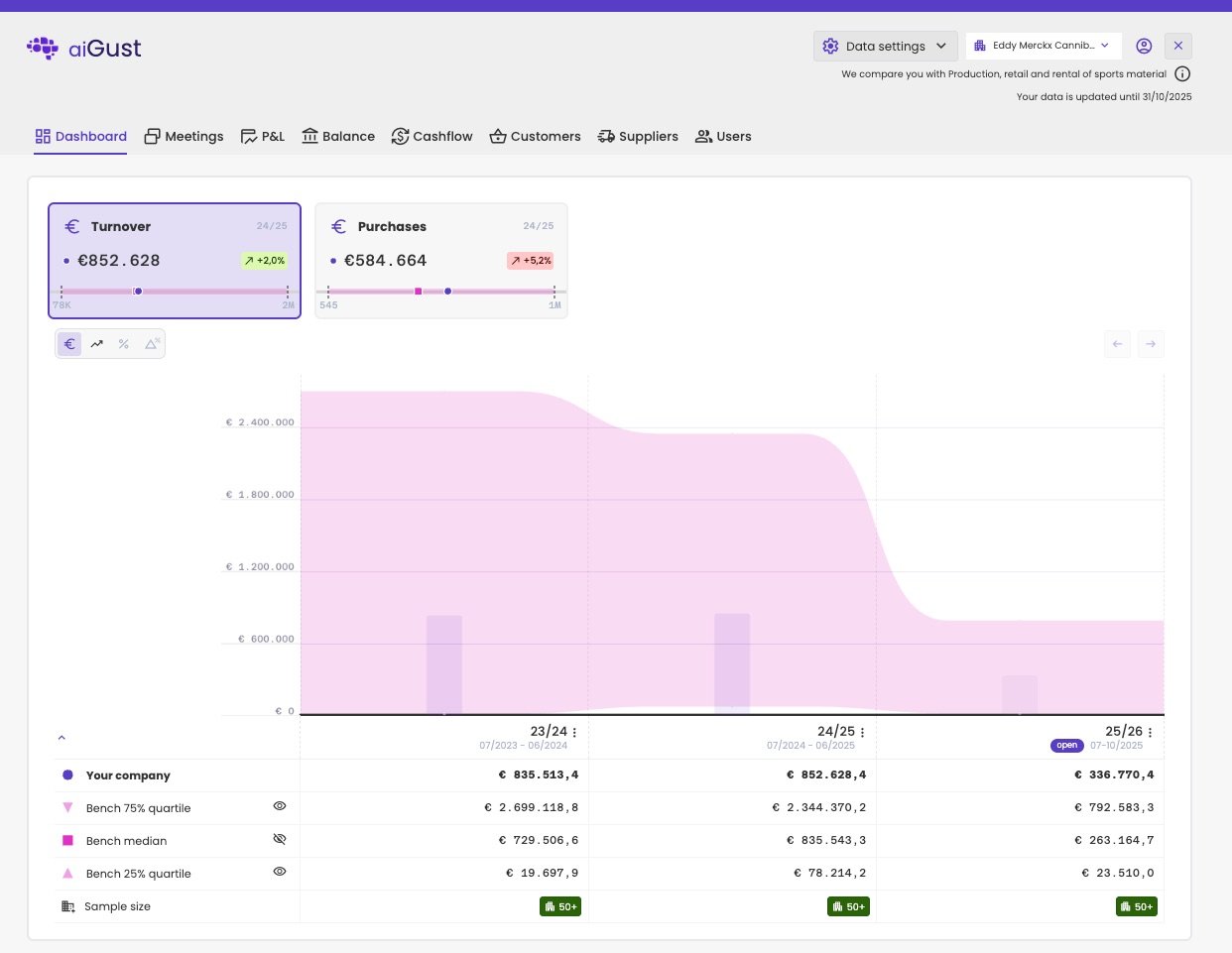
The client portal of an administration, on the Dashboard tab.
Tabs instead of a menu
The client portal has no side menu. Your client opens its parts with the tabs at the top. The charts and tables look the same as in aiGust.
Your firm decides which tabs your clients see, and you can change that for one administration. See Choose what your client sees.
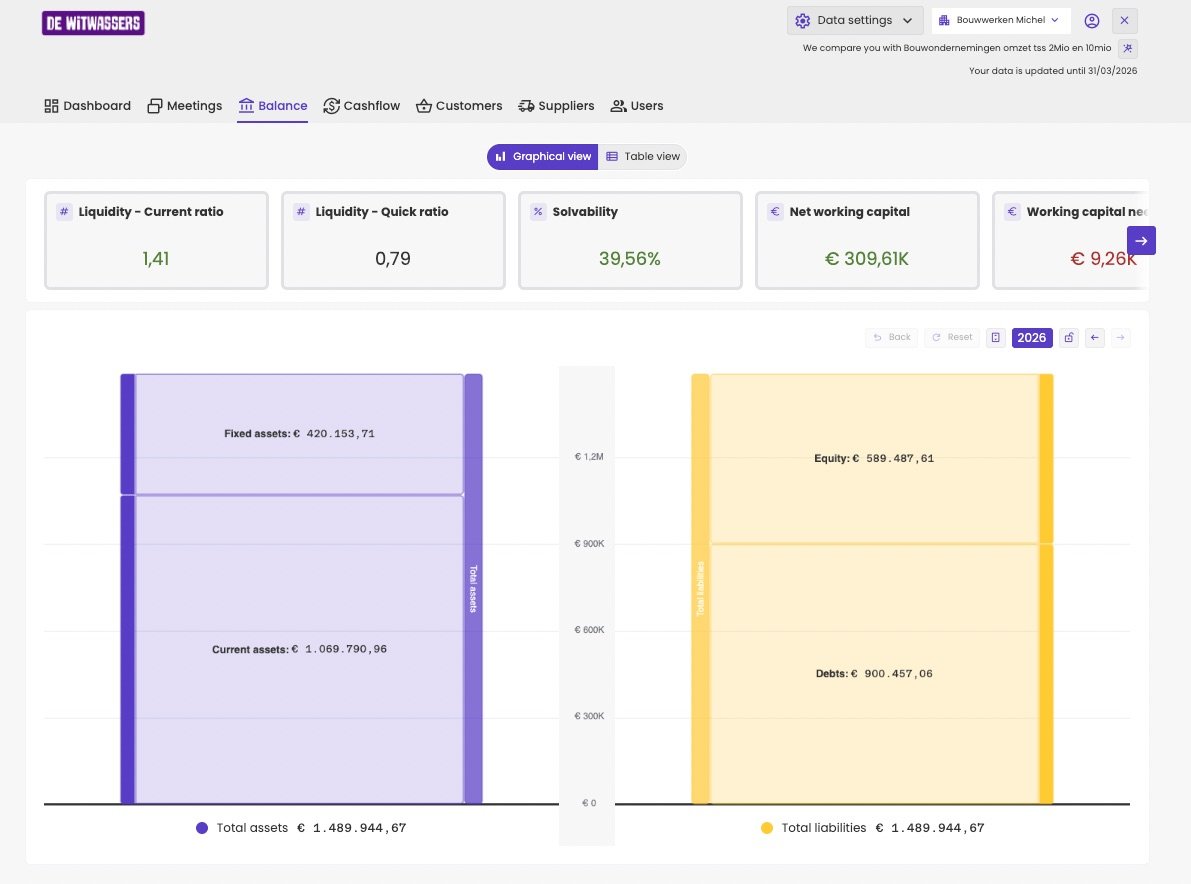
The balance sheet in the client portal.
Only public notes and comments
Wherever your client looks, in slides or in financial tables, they only see the notes and comments you made public. Internal notes and comments stay within your firm. See Internal and public notes and comments.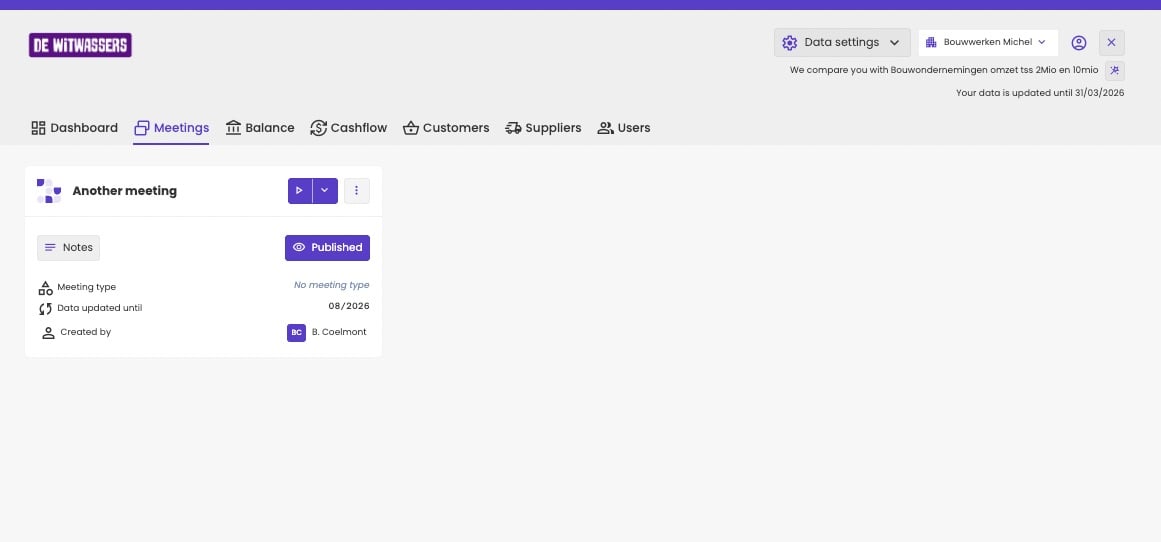
The published meetings in the client portal.
Data settings
Your client can change less than you. Under Data settings, they can only switch:- Year-to-date view
- Show open periods
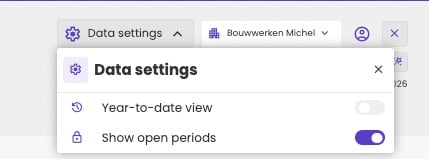
The data settings of a client.
- The peer group they’re compared with. The portal says so at the top: “We compare you with …”.
- How far the figures go, shown as “Your data is updated until …”.
- The forecast. Your client sees an activated forecast, but can’t change it or switch it off. See Forecasts in meetings and the client portal.
Several administrations
A client with access to more than one administration, for example a holding and its operating company, switches between them with the administration button at the top right.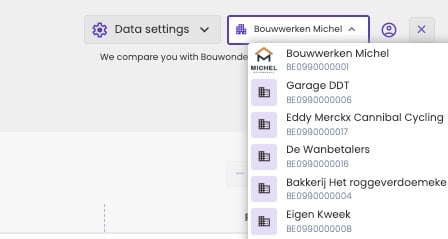
Switch to another administration.
Let your client manage users
With the Users tab, your client can give access to the client portal to others, for example a co-owner or their CFO, without asking you. They grant and revoke access in the same way as you do under Client access in the administration. See Give your client access. Your client only sees this tab if:- the Users tab is turned on for the administration, and
- their role is External user (admin). With External user (read only), they don’t see it.
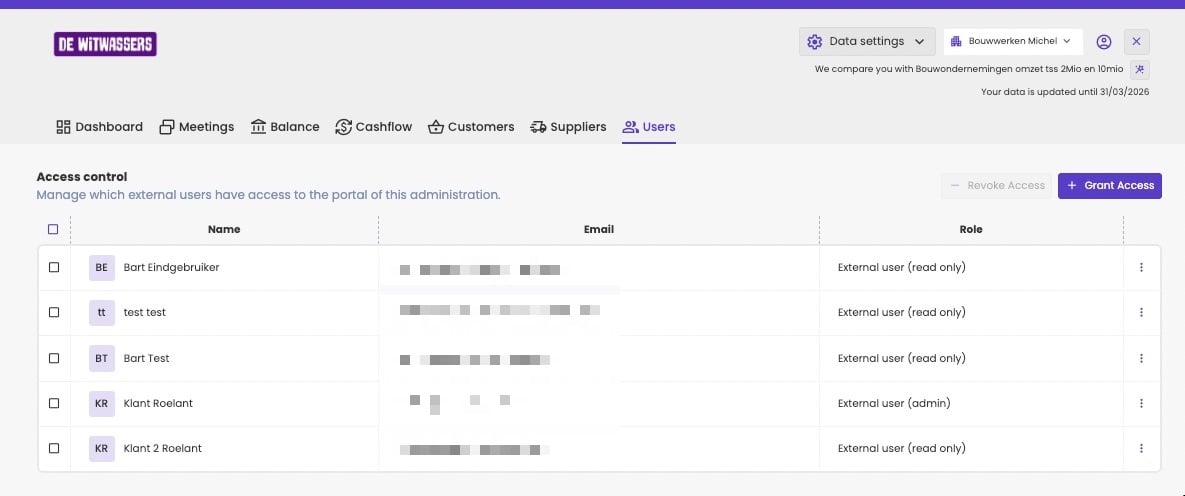
Your client manages who has access.
See the portal as your client does
Open the administration in aiGust, and click Client portal at the top of the dashboard. You then see the administration exactly as your client does, with the same tabs and settings. Click the cross at the top right to close the preview and go back to aiGust. You can also click Preview Client portal under Settings › Client access, on the Client portal tab.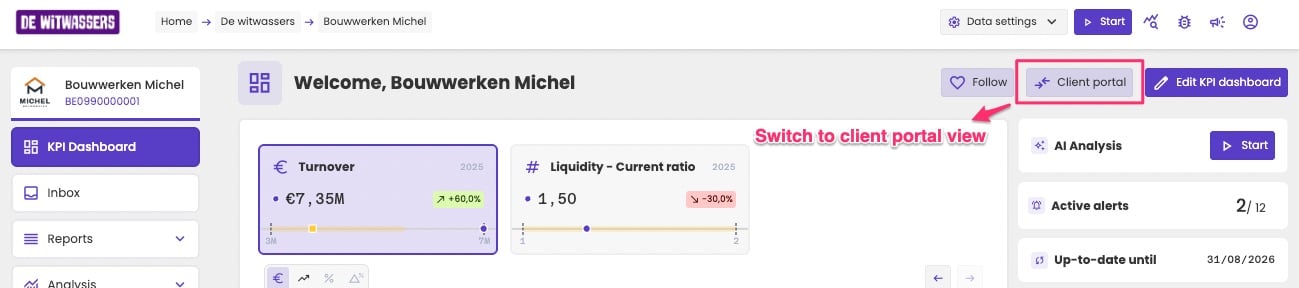
Switch to the client portal view.