

Before and after the meeting
To see and add the notes of all slides, click Notes on the meeting’s tile on the Meetings page, or choose Open meeting notes in its menu. Meeting notes opens, with a tab per section, such as Intro and Past, plus General and Summary. Under each slide, click Add note.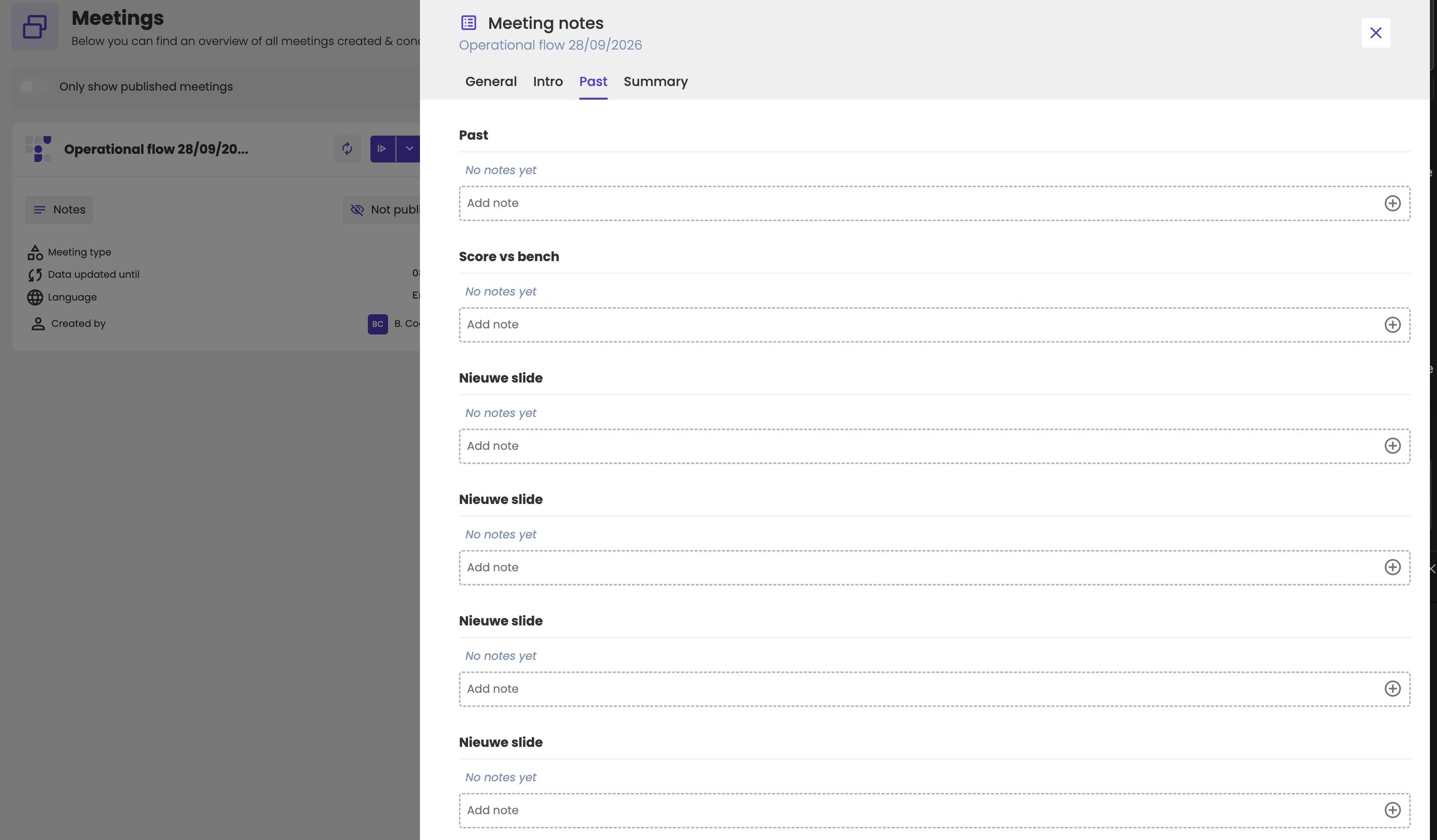
The notes of a meeting, per section and per slide.
- General holds notes about the meeting as a whole, not about one slide.
- Summary shows the AI summary, if the meeting has one. See Summarise the notes.
During the meeting
While you present, the notes are at hand, and you can add new ones live. In presenter mode you see all notes; in fullscreen mode only the public ones. See Take notes during the meeting.Internal and public notes
Each note is internal or public:Work with a note
Each note has a few buttons at the top right. You find them in the notes panel of the editor, and in presenter mode:
Click Add a reaction to reply to a note, for example when a colleague follows up.
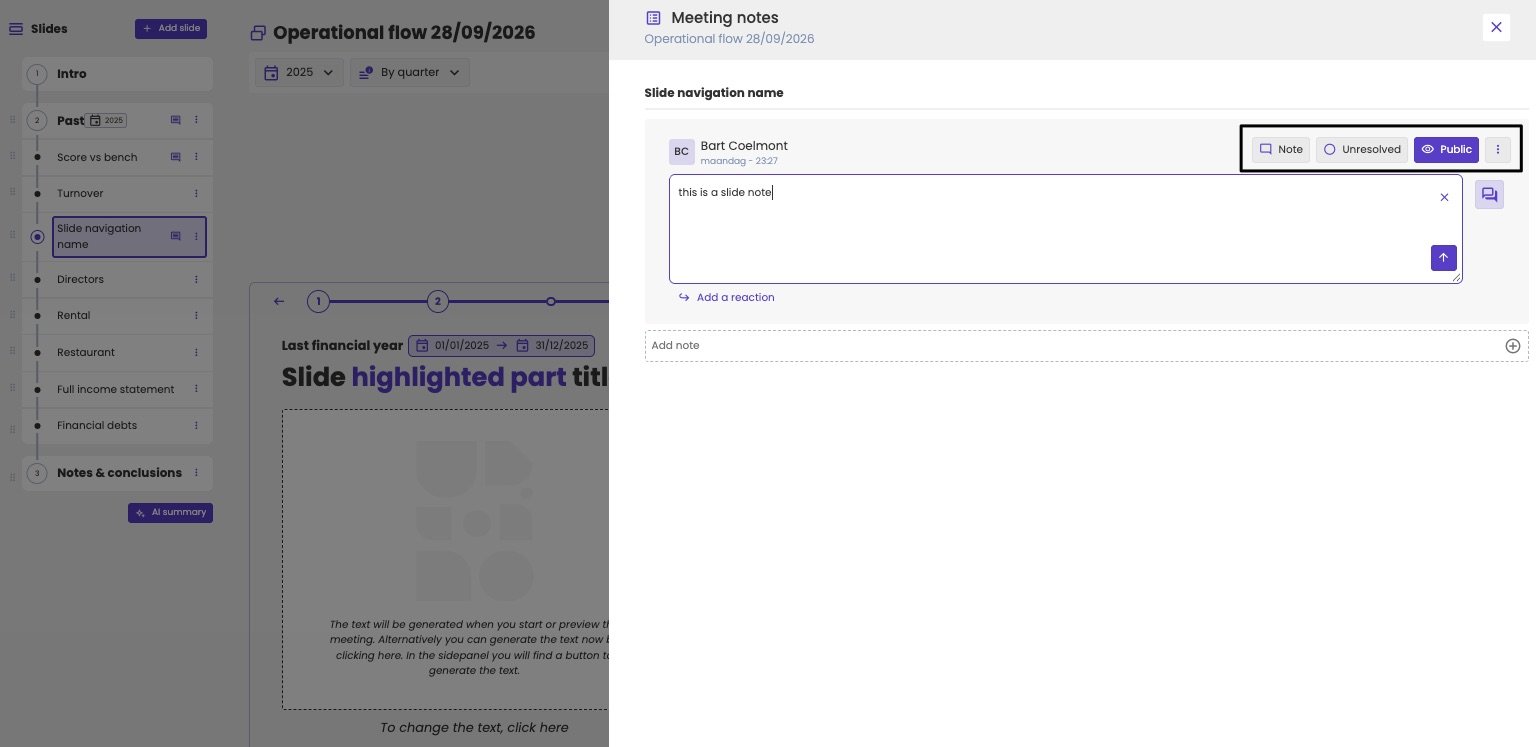
A note with its type, status and visibility.
Action points
To flag a note as an action point, click Note on it. The button turns purple and shows Action point. Click it again to make it a regular note. Use action points for what you or your client will do after the meeting. It’s a visual flag: aiGust doesn’t follow up on it or send reminders.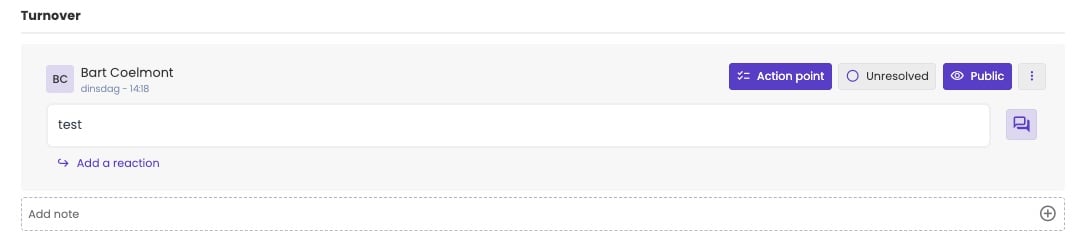
A note flagged as an action point.