

- On the left, the Slides: all slides of the meeting, grouped into sections.
- On the right, the canvas: the selected slide, with the administration’s real figures.
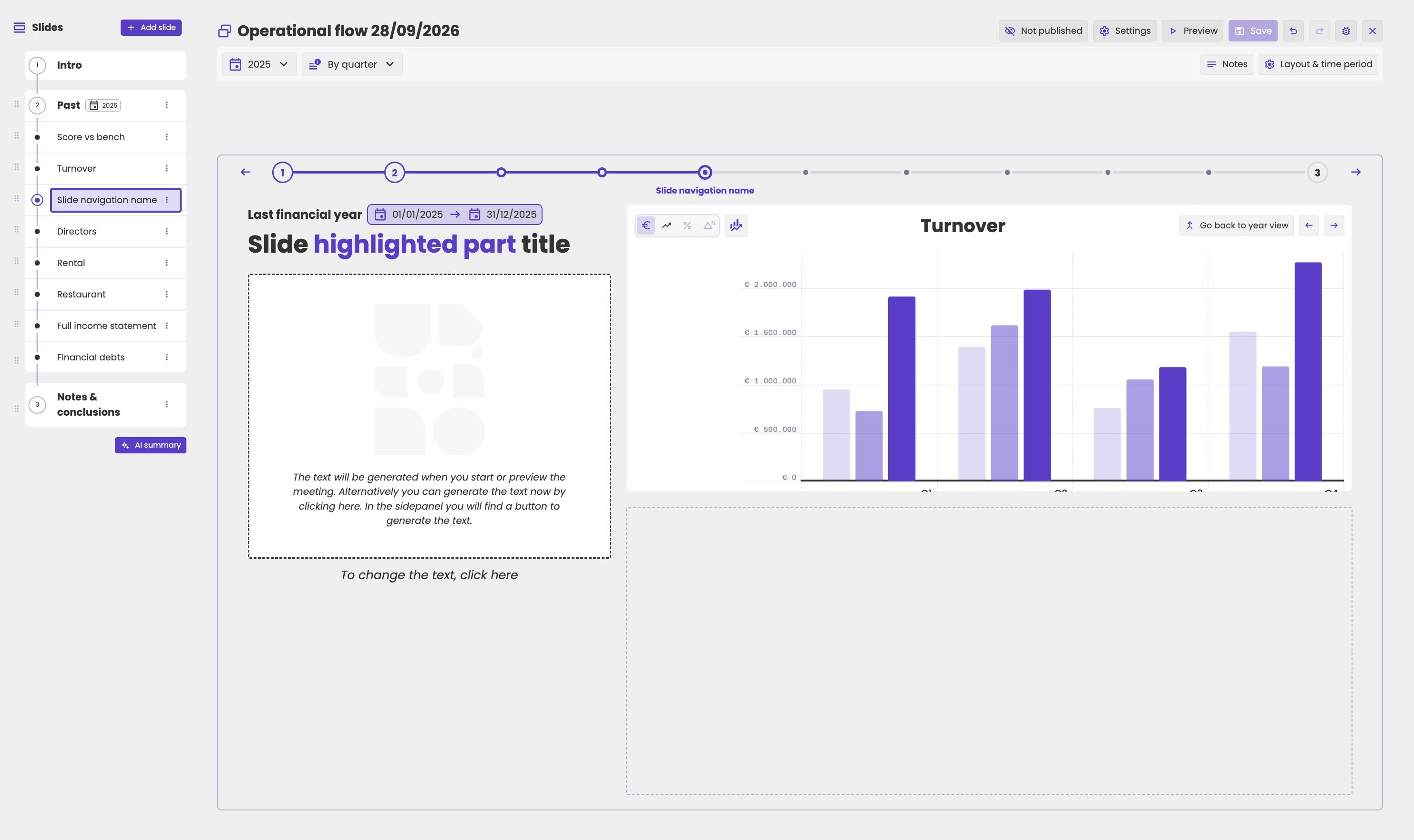
The meeting editor.
Buttons at the top right
How your changes are saved
You don’t have to save your changes:- When you make a change, the slides update right away. The change is kept in your browser.
- The Save button starts running, and aiGust saves the change about 3 seconds later.
Work with slides
In the Slides list:- Add a slide with Add slide.
- Change the order by dragging a slide.
- Click the three dots on a slide for more options:
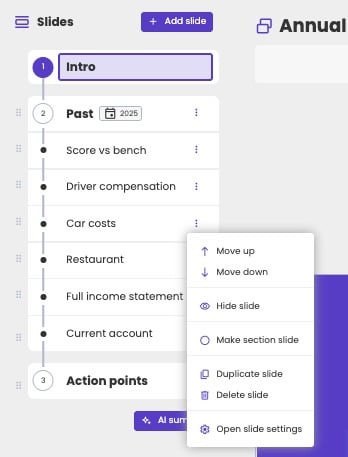
The options of a slide.
Sections
The slides are grouped into sections, such as Intro, Past and Action points. A section starts with a section slide, and the slides below it belong to it until the next section slide. To start a new section, choose Make section slide on its first slide. Each section has a number. A section can have a time period, shown as a badge next to its name, such as 2025. A slide with a different time period than its section gets a warning sign. See Sections and time periods. When you present, each section is a numbered circle in the navigation bar, and the slides in it are small dots.AI summary
Click AI summary below the slides to add a summary slide. aiGust sends all notes of the meeting to an AI model, and turns them into a summary. See Summarise the notes.Slide settings
Above the canvas, a bar holds the settings of the selected slide.
The settings of a slide.
In Slide properties, you set:
- Navigation name: the label of the slide in the navigation bar.
- Layout: the zones of the slide. See Manage the slide layout.
- Time period: Future, Year-to-date or Last closed financial year, with the dates each one covers.
- Reporting level: by period, by quarter or by year.
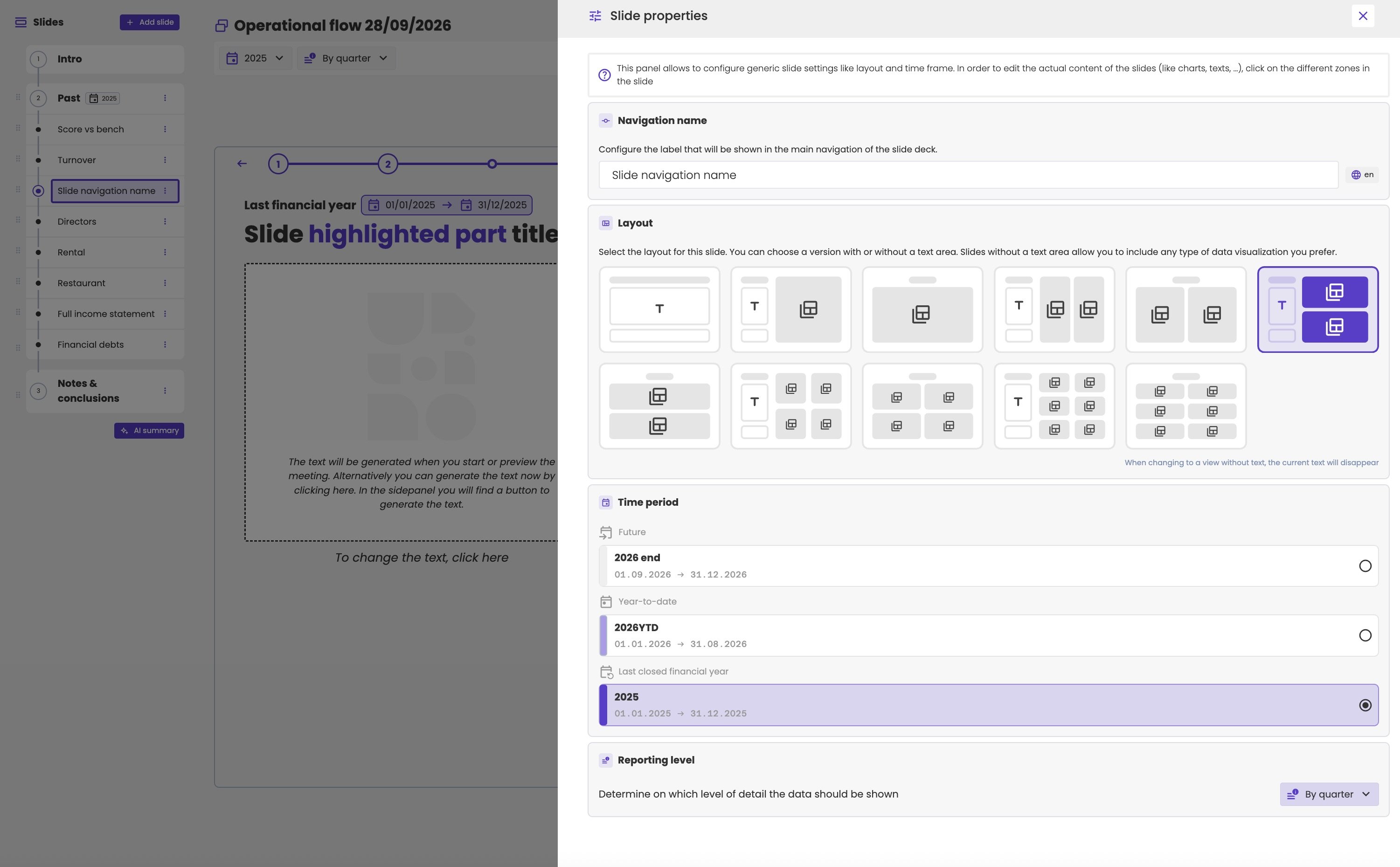
Slide properties: navigation name, layout, time period and reporting level.
Fill in the zones
To change what a slide shows, click a zone on the canvas. Zone configuration opens:- Click the text zone to change the title, the navigation name and the text. See Titles and text on a slide.
- Click a data zone to choose a widget. See Widgets.