Key users report bugs and ask for features from within aiGust. Only key users see the bug icon. Other users report problems to a key user at their firm.
  1. Click the bug in the main rail, just above your initials, and choose Bug or feature request.
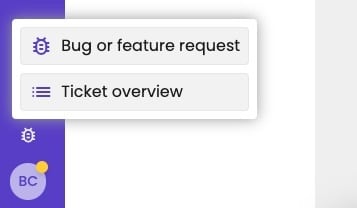
    The bug icon at the bottom of the main rail, above the initials BC, with its menu open: Bug or feature request and Ticket overview.

    The bug menu in the main rail.

  2. Enter a title and describe the problem.
  3. Add what helps us understand it:
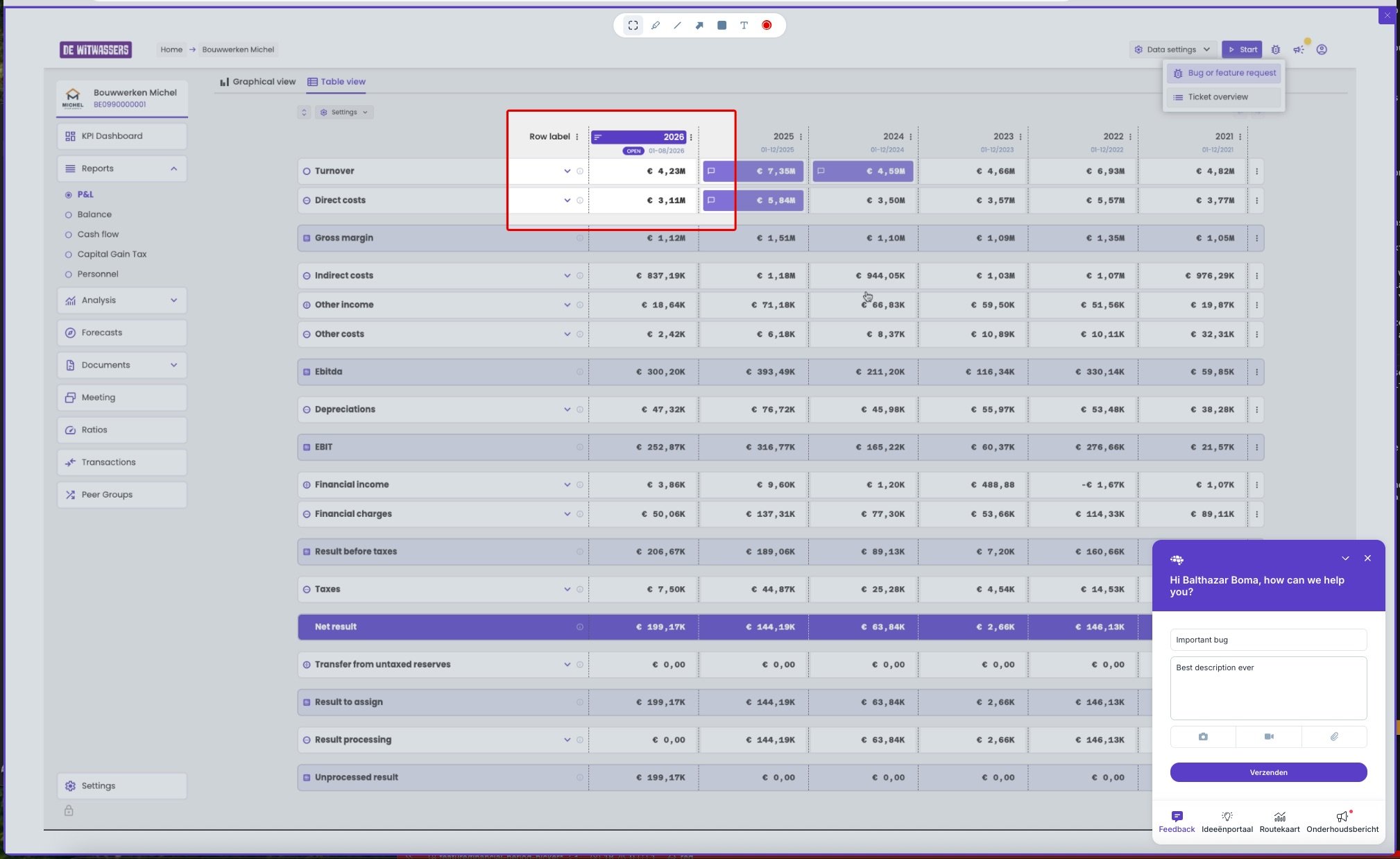
    • the camera, to take a screenshot of the page. Draw on it to point out the problem, for example with a rectangle or an arrow;
    • the video camera, to record your screen;
    • the paperclip, to attach a file.
  4. Click Send.
Profit and loss of Bouwwerken Michel with a drawing toolbar at the top (select, pen, line, arrow, rectangle, text and record) and a red rectangle drawn around the 2026 column. The bug icon menu at the top right shows Bug or feature request and Ticket overview. At the bottom right, the feedback window says Hi Balthazar Boma, how can we help you?, with the title Important bug, the description Best description ever, buttons for a screenshot, a video and an attachment, and a Verzenden (Send) button. At the bottom, the tabs Feedback, Ideeënportaal, Routekaart and Onderhoudsbericht.

Report a bug, with a screenshot of the page.

The window follows your language. In the screenshot it’s in Dutch, so Send shows as Verzenden. A good report tells us:
  • where it happens: the administration and the page;
  • what you did, what you expected and what you got;
  • a screenshot, with the problem marked.

After you send it

You get a confirmation email, and we get a ticket. We then pick it up. If we have questions, you get an email with a link to answer them. When we close the ticket, you get an update. To follow up on what you reported, choose Ticket overview under the bug icon. See Follow up your tickets.