

- Per office: make a group per office, and allow the users of each office to see only their group.
- For sensitive files: put the administrations few people may see in one group, and block that group for everyone else. When a new sensitive file comes in, you add it to the group, and it’s blocked right away for all those users.
The list of groups
Click Portfolio in the main rail, and choose Groups. Each group shows its name, its description, and how many administrations it holds.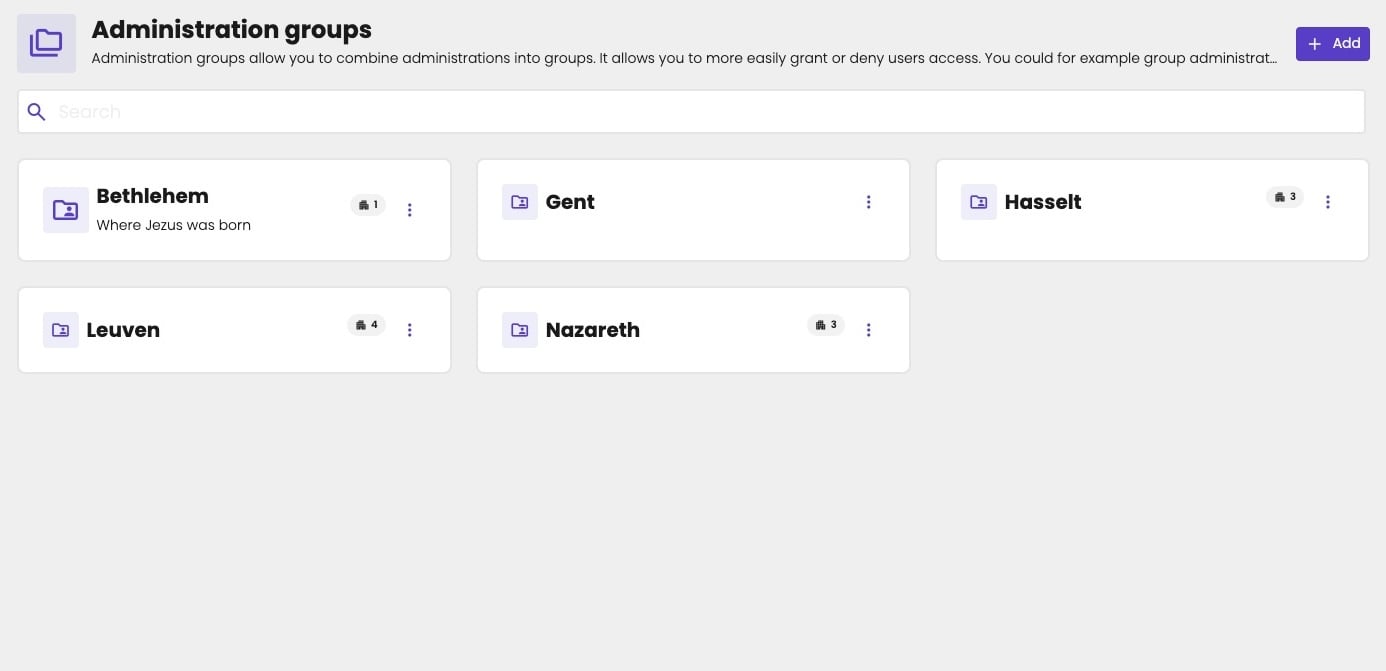
The administration groups of your firm.
Create a group
- Click Portfolio in the main rail, and choose Groups.
- Click Add.
- Fill in the Name, and optionally a Description. Click Confirm.
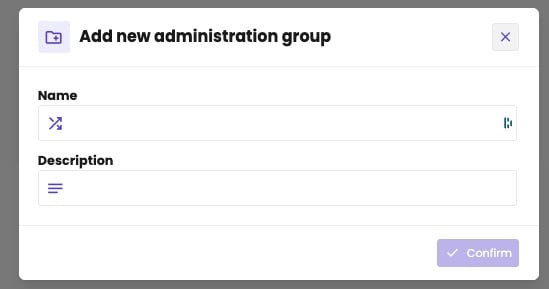
A new administration group.
Add administrations to a group
Click a group to open it. It shows its administrations in the same list as Administrations > Overview, with the same search and filters. See Find an administration.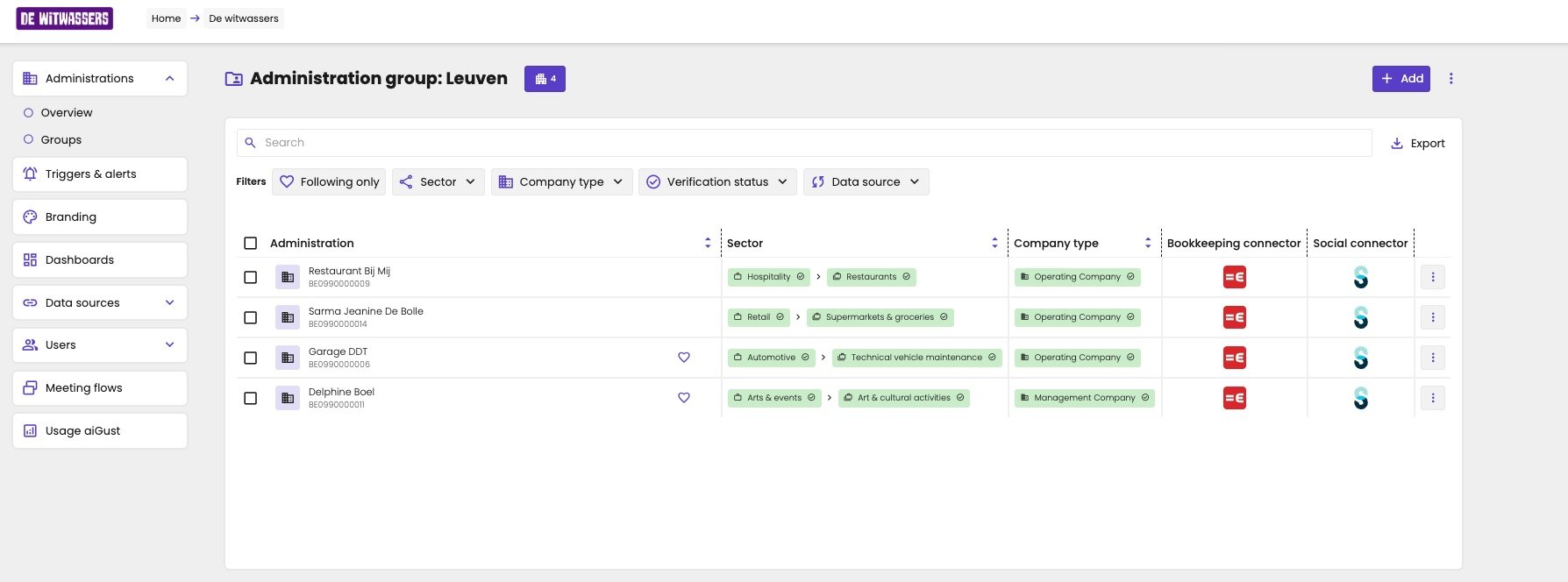
The administrations in the group Leuven.
- Add administrations, to select them one by one;
- In bulk, to paste a list of VAT numbers.
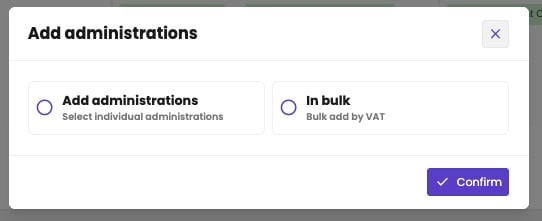
Add administrations one by one, or in bulk.
One by one
In Select administrations, type the name of an administration, and select it. It’s added to the list above. Repeat for the next one, and click Confirm when you have them all.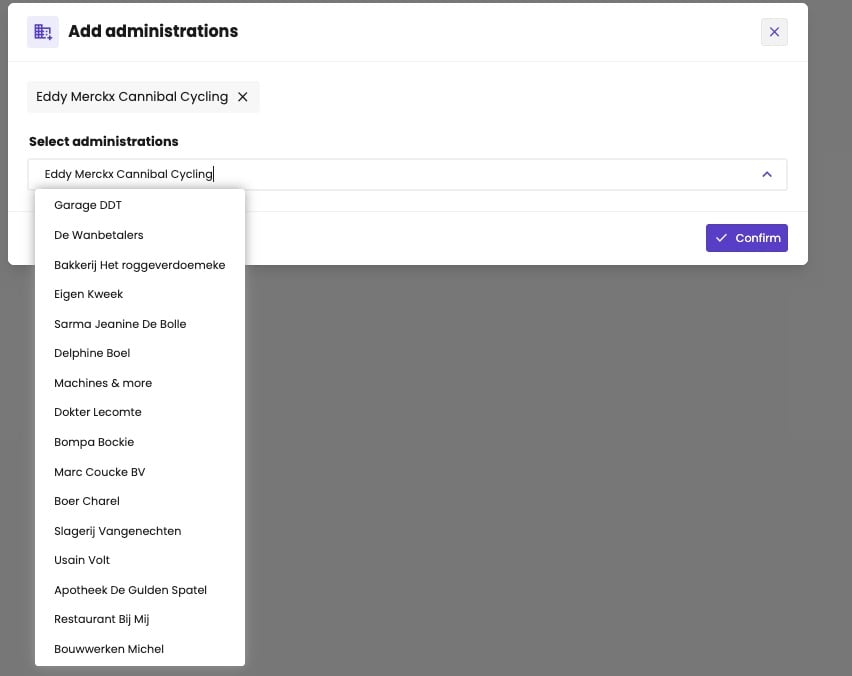
Select the administrations to add.
In bulk, by VAT number
Use this when you have a list of your clients, for example from your practice management software.- In VAT-numbers, paste the VAT numbers, one per line. aiGust shows the numbers it doesn’t recognise as a VAT number under Invalid VAT codes. Correct or remove them.
- Click Next. aiGust shows the administrations it found. If some VAT numbers don’t match an administration in aiGust, it says so.
- Click Next to add the administrations to the group.
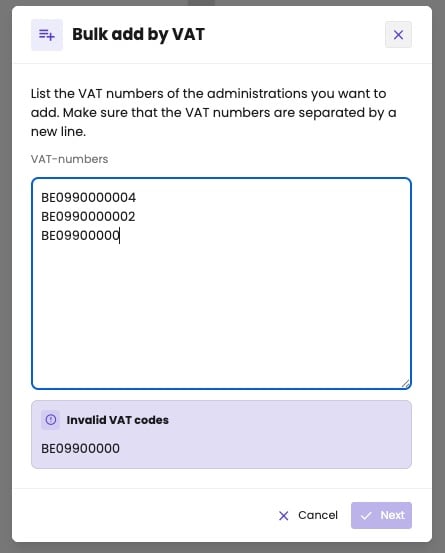
Paste the VAT numbers, one per line.
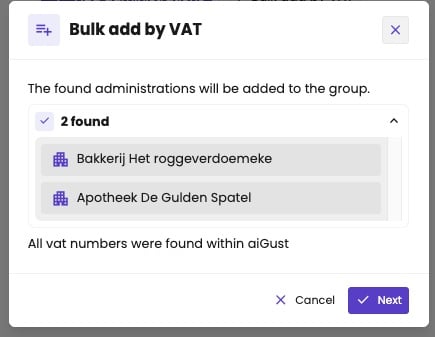
The administrations aiGust found.
Remove an administration from a group
Click the three dots next to the administration, and choose Delete from group. This only removes it from the group, not from aiGust. The same menu has the options of the list of administrations, and Copy administration ID.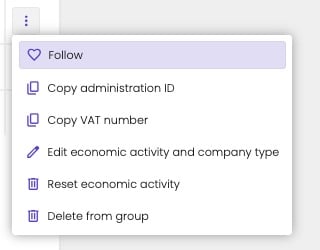
The options of an administration in a group.
Rename or delete a group
Click the three dots of a group, on the list of groups or at the top right of the group:- Edit, to open the group and add or remove administrations, the same as clicking the group;
- Rename, to change its name;
- Used by, to see which users have the group on their Allowed or Blocked list;
- Delete, to delete the group. The administrations in it stay in aiGust.
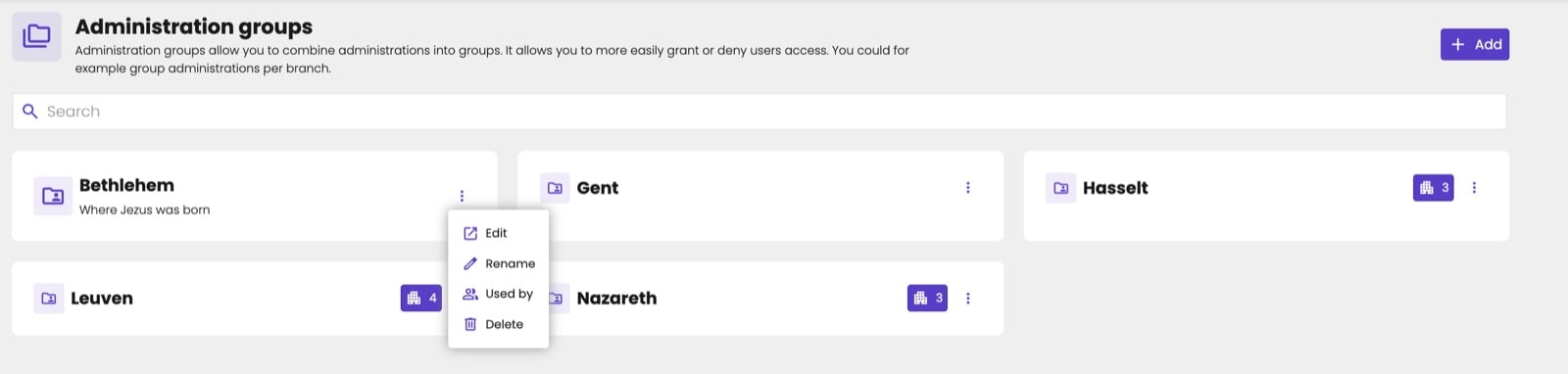
The options of a group.

Used by lists the users who have the group on their access lists.
Delete a group that’s still in use
When users still have the group on their Allowed or Blocked list, aiGust warns you before you delete it. Deleting the group removes it from the access lists of all those users. Their lists themselves stay, so their access stays restricted:- On an Allowed list, the user loses access to the administrations of the group, unless they’re allowed in another way. If the group was the only thing on the list, the user no longer sees any administration.
- On a Blocked list, the administrations of the group are no longer blocked, so the user sees them again.
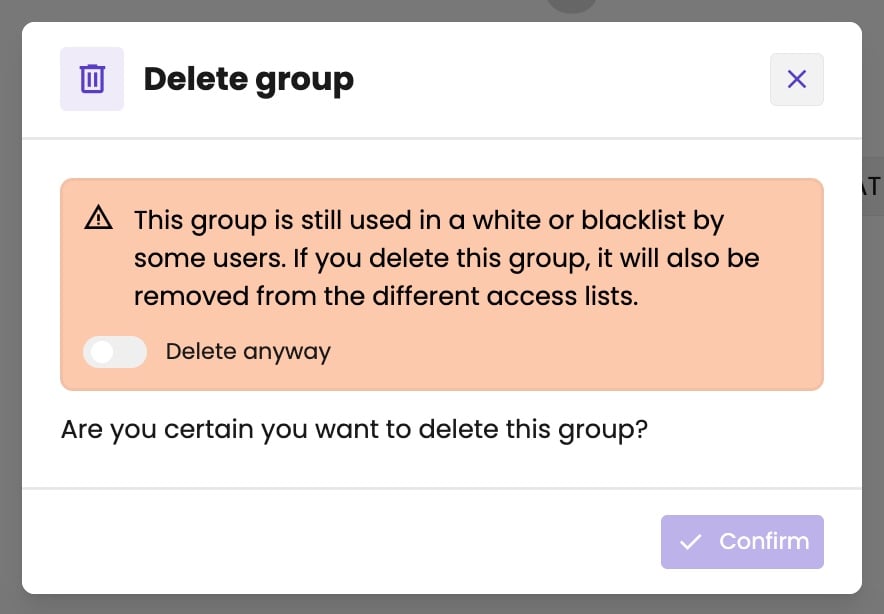
The warning when the group is still in use.