By default, a user at your firm sees all administrations of your firm. You can limit that per user, for example for a student who only works on a few clients, or to keep the administrations of one office apart. A user with restricted access only sees the administrations they’re allowed to see, everywhere in aiGust: in the list of administrations, in the alerts, and in search.

Allowed and blocked

Each user has two lists: You can use both together. aiGust first takes the allowed administrations, then removes the blocked ones. For example: 10 administrations are allowed, and 2 of them are also blocked. The user then sees 8 administrations. In both lists, you can add single Administrations or whole Administration groups. A group is easier to keep up to date: when you add an administration to the group, every user with that group gets it too. See Administration groups.

Restrict a user’s access

You restrict access on a user that already exists. Add the user first, then:
  1. Click Access in the main rail, and choose Internal users.
  2. Click the three dots next to the user, and choose Edit.
  3. Open the Administration access tab.
  4. Choose Allowed or Blocked.
  5. Click + next to Administrations or Administration groups.
  6. In Customize access, choose the Access type: Administration groups or Administrations. Click Next.
  7. Select the groups or administrations: type a name, and select it. It’s added to the list above. Repeat for the next one, then click Next.
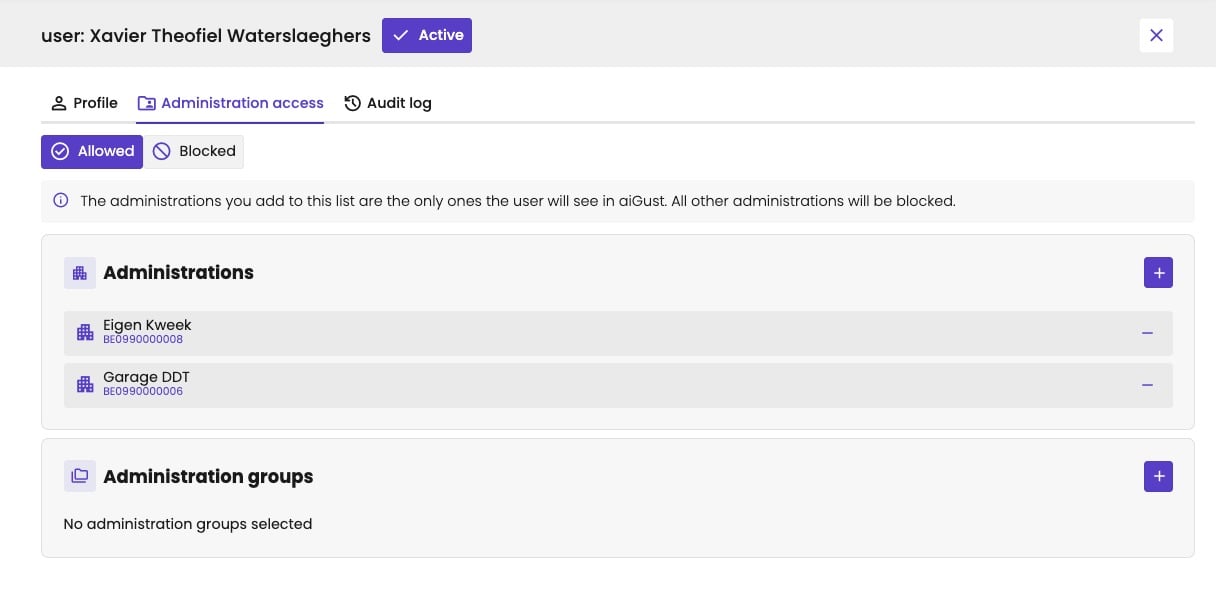
The access applies right away. To remove one from the list, click − next to it.
User panel for Xavier Theofiel Waterslaeghers, marked Active, on the Administration access tab, with Allowed selected next to Blocked. A line says the administrations you add to this list are the only ones the user will see in aiGust, and all other administrations will be blocked. Under Administrations, Eigen Kweek and Garage DDT, each with a minus button. Under Administration groups, No administration groups selected. Both sections have a plus button.

The administrations a user is allowed to see.
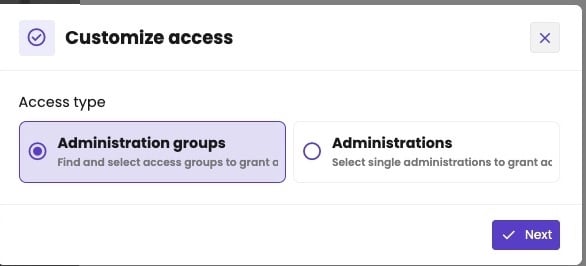
Customize access dialog with Access type: Administration groups, find and select access groups to grant access, selected, and Administrations, select single administrations to grant access. A Next button.

Choose whether to add administration groups or single administrations.
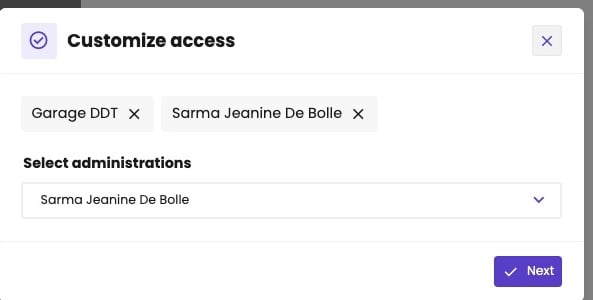
Customize access dialog with Garage DDT and Sarma Jeanine De Bolle selected, each with a cross to remove it, and the Select administrations list below. A Next button.

Select the administrations.

On Access › Internal users, the Restricted Access column shows Restricted for users with a limit.
You can’t restrict access when you add users in bulk. Set it for each user, one by one, after the upload.

Not the same as the Black & whitelist

Under Settings, the main rail also has a Black & whitelist. That one decides which administrations aiGust imports from your connectors, for the whole firm. The access of a user decides which of the imported administrations that user sees. See Include or exclude administrations.

Client users

Client users work the other way around: by default, they see no administrations at all. You give them access to the ones they need. See Invite and manage client users.