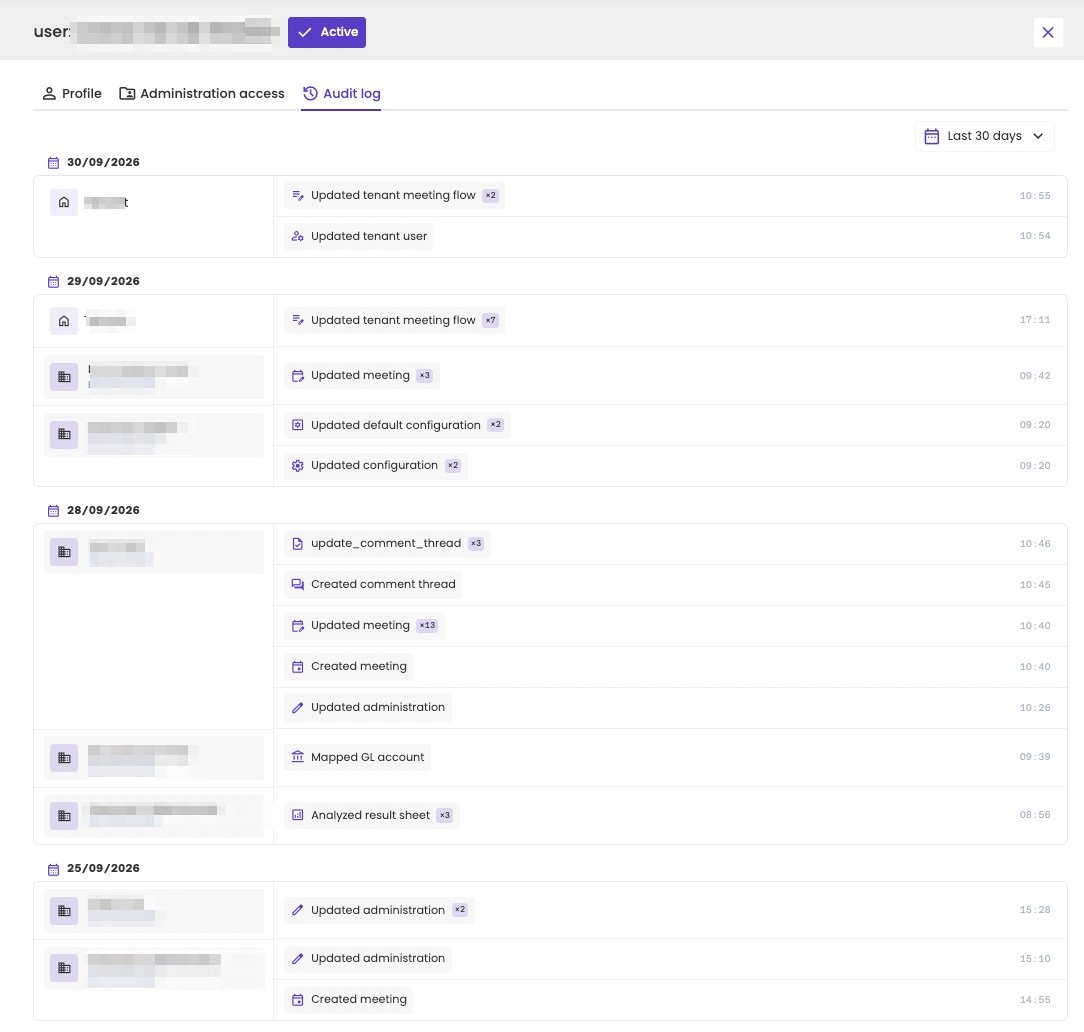
aiGust keeps an audit log of what each user does: which administrations they opened, and what they created or changed there. Key users can read it for every user at your firm and every client user. aiGust keeps the audit log for at least 12 months.

Open the audit log of a user

  • A user at your firm: click Access in the main rail, choose Internal users, and open the user. Open the Audit log tab.
  • A client user: click Access in the main rail, choose External users, and open the user. Open the Audit log tab. See Audit log.
  • From the usage statistics: click the history icon next to a user in any list. See Usage statistics.
Choose the period at the top right, for example Last 30 days.

What the audit log shows

The log is grouped per day, newest first. Within a day, you see:
  • Where it happened: an administration, or your firm itself for firm-wide settings;
  • What the user did, such as Created meeting or Mapped GL account. Similar actions close together are grouped, with a counter that shows how often, such as ×13. Saving a meeting, for example, happens automatically while you edit it, so it quickly adds up;
  • When, as the time of day.
aiGust records every action and translates it into a readable description. See All actions for the full list.
User panel with a blurred name, marked Active, on the Audit log tab for the last 30 days. Per day, from 30/09/2026 back to 25/09/2026, entries per administration or for the firm, such as Updated tenant meeting flow ×2, Updated tenant user, Updated meeting ×3, Updated default configuration ×2, Updated configuration ×2, update_comment_thread ×3, Created comment thread, Updated meeting ×13, Created meeting, Updated administration, Mapped GL account and Analyzed result sheet ×3, each with a time. Administration names are blurred.

The audit log of a user at your firm.

All actions

The actions you’ll see most are Viewed administration, Viewed meeting, Updated meeting and Mapped GL account. Below is the full list, grouped by where in aiGust they happen.

Administrations

Mapping and reports

Comments

Meetings

Forecasts and capital gains tax

Peer groups

Documents

Triggers and alerts

Client portal and client users

Users at your firm

Your firm’s settings

AI