Give aiGust the look of your firm. Click Settings in the main rail, choose Look & feel, and open the Light mode tab. The Dark mode tab has the same settings, for users who work in dark mode. Change what you need, and click Save at the top right. The client portal uses the same colours and logo.
Only key users can manage your firm’s branding.
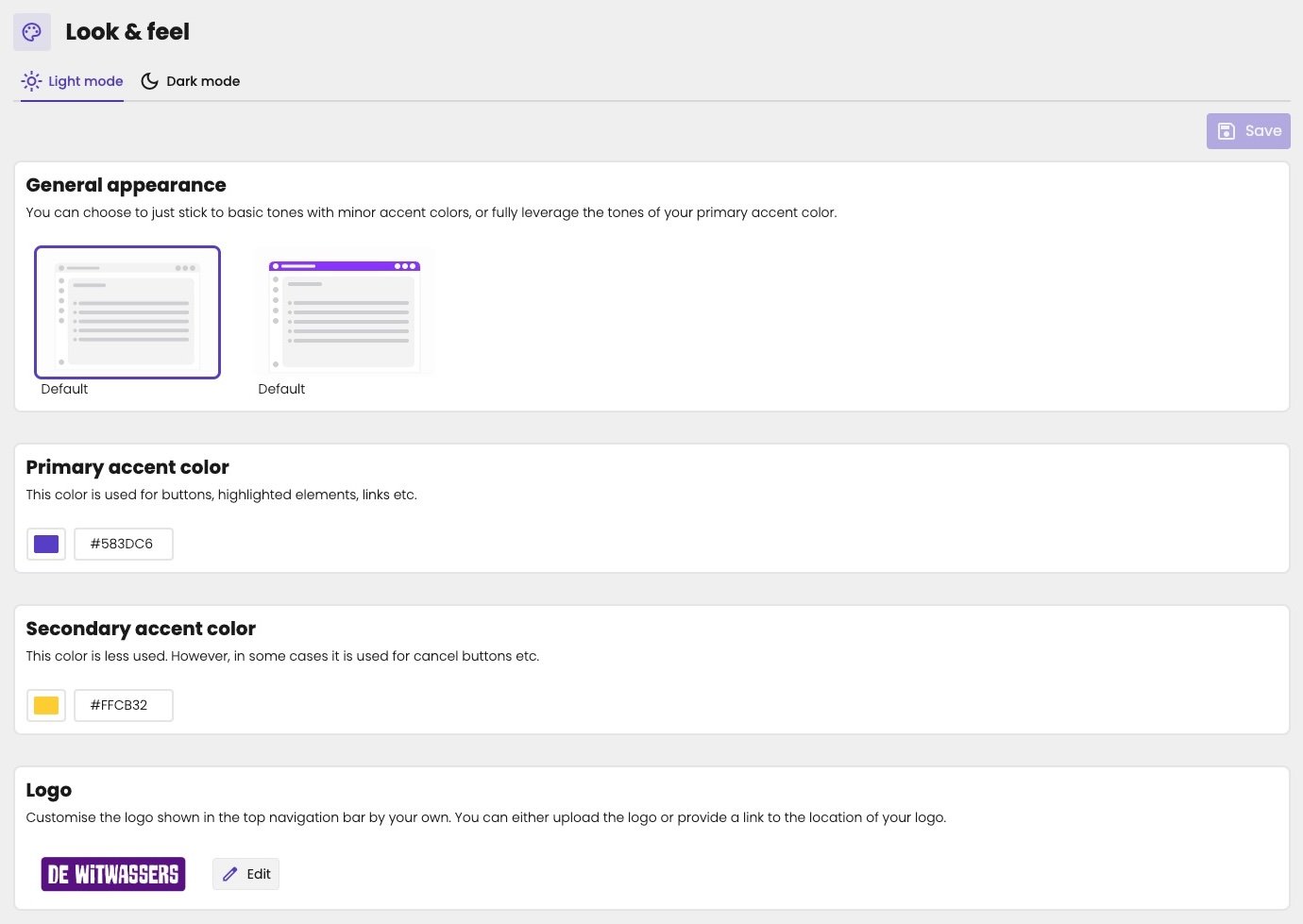
Look & feel page on the Light mode tab, next to Dark mode, with a Save button. General appearance with two options, both called Default: a neutral one, selected, and one with a coloured top bar. Primary accent color #583DC6, Secondary accent color #FFCB32, and Logo with the De Witwassers logo and an Edit button.

The colours and logo of your firm, in light mode.

General appearance

Choose how much colour aiGust uses:
  • The first option: basic tones, with a touch of your accent colour. The top bar is neutral.
  • The second option: the top bar in your primary accent colour.

Primary accent color

Used for buttons, highlighted elements, links and more. It’s also the default background of the intro slide of a meeting. See The background. Choose one of the Standard colors, or click Choose under Custom color to pick any colour.

Secondary accent color

Used less often, for example for cancel buttons. The logo in the top navigation bar. Click Edit to upload your logo, or to give a link to where your logo is stored. Set a logo for each mode. A logo with dark text disappears on a dark background, so use a light version on the Dark mode tab.