Choose which tabs of the client portal your clients see by default, for your whole firm. Accountants can change this for one administration. See Choose what your client sees. For what the tabs show, see What your clients see.

For your whole firm

  1. Click Access in the main rail, and choose Portal settings.
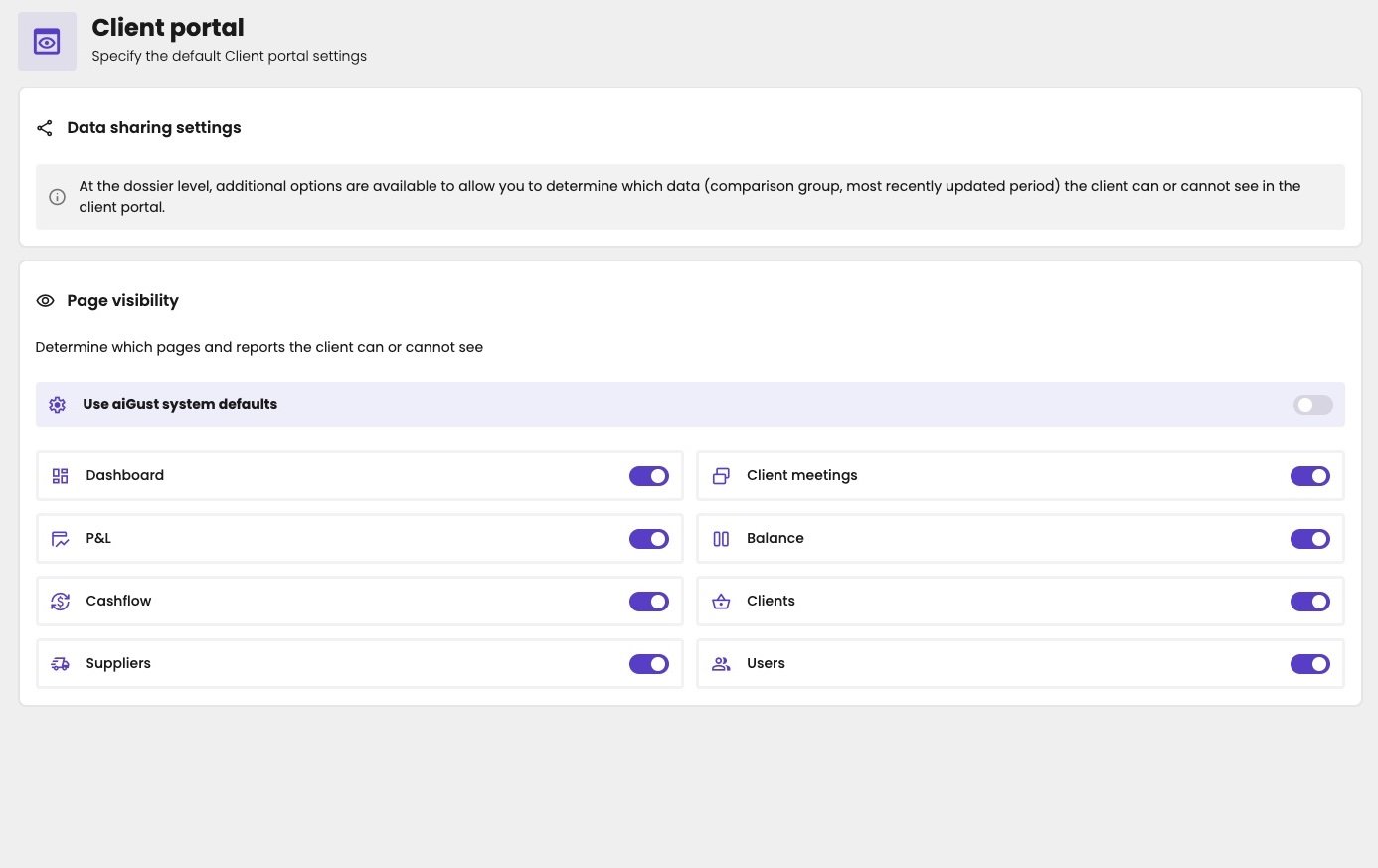
  2. Under Page visibility, turn off Use aiGust system defaults.
  3. Turn each tab on or off.
Client portal page, to specify the default client portal settings. Data sharing settings says that at the dossier level, additional options are available to determine which data (comparison group, most recently updated period) the client can or cannot see. Page visibility, to determine which pages and reports the client can or cannot see, with Use aiGust system defaults turned off and a switch per page, all turned on: Dashboard, Client meetings, P&L, Balance, Cashflow, Clients, Suppliers and Users.

The tabs your clients see by default.

Some switches have a slightly different name than the tab in the portal: With Use aiGust system defaults on, your clients see all tabs.

Should clients manage users?

With the Users tab, a client with the role External user (admin) can give others access to the client portal of their administration. Firms handle this in two ways:
  • Let one person at the client manage access. Turn on Users, and give one person, such as the owner or the CFO, the role External user (admin). They then give access to the others at their company.
  • Keep it with your firm. Turn off Users. Only your firm then grants access. See Invite and manage client users.

For one administration

Accountants can change the tabs for one administration, and choose how far the figures go and which peer group the client is compared with. See Choose what your client sees.