

Types of notifications
The banner at the top
A notification shows up as a banner in its colour at the very top of the screen, with its date, time and title. Click × to close the banner. It goes away for you, and stays away. You can still read the notification from the main rail.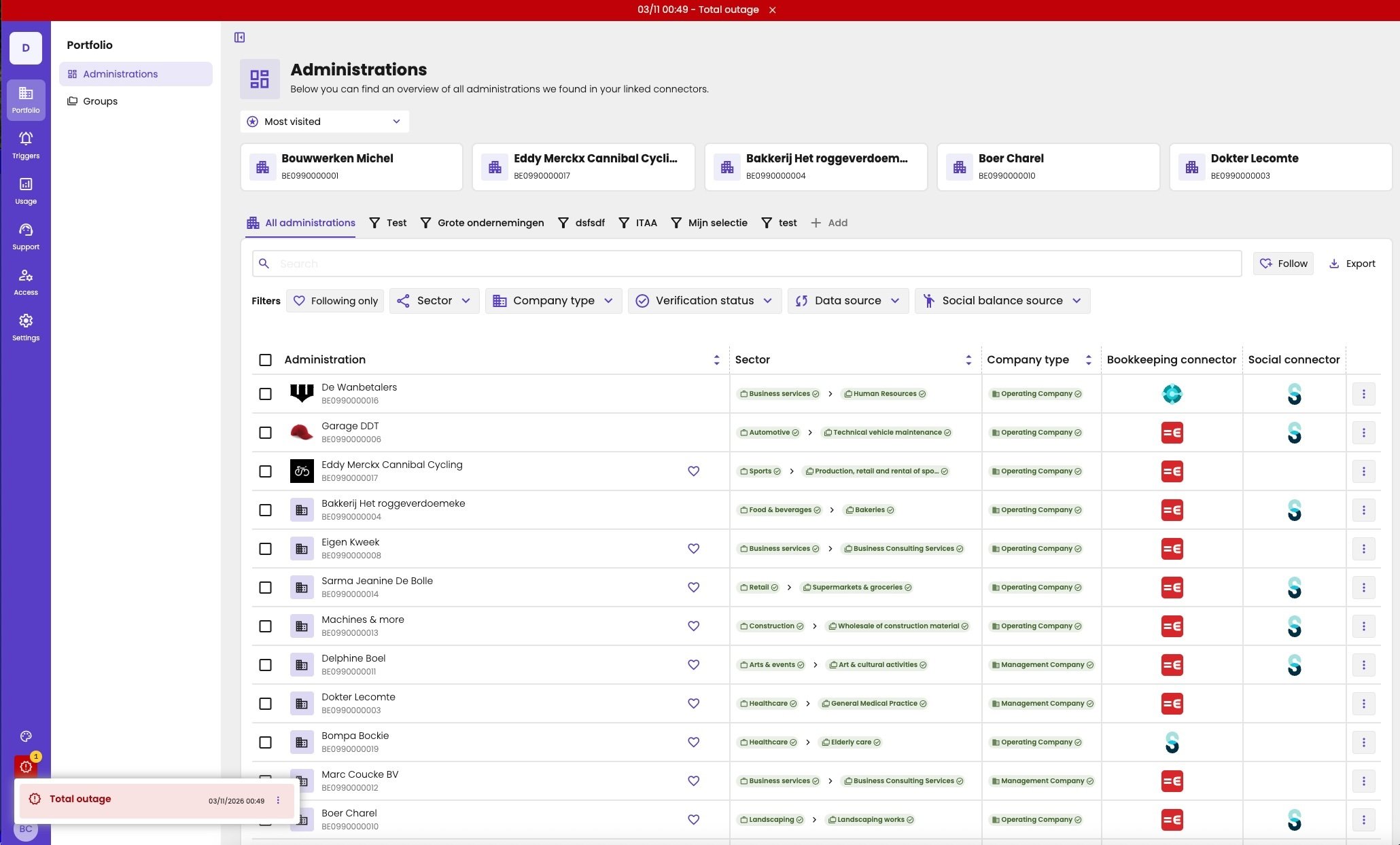
A critical platform notification: the red banner at the top, and the notification opened from the red icon.
Read the notifications
As long as there are notifications, the main rail shows a red icon with an exclamation mark, just above your initials. You don’t see it when there are none. The badge on it shows how many there are. Click the icon to read them, with their title, date and time. A notification stays there until the aiGust team deactivates it, also when you closed the banner.When something doesn’t work
If aiGust doesn’t work as it should, check the notifications first. If there’s one about your problem, there’s no need to report it: we’re already working on it. If there’s no notification about it, let us know:- Key users: report it with the bug icon in the main rail. See Report a bug.
- Everyone: email support@ai-gust.io.