The list of connectors doesn’t show whether a connector works. To check that, open the connector: click Settings in the main rail, choose Connectors, and click the connector. A panel opens with these tabs: For the status of one administration, such as its last sync, see the Data source widget on its dashboard. See Data source and sync.

Health

Health checks the connector right when you open the tab. What it checks depends on the software. For Exact Online, for example:
  • Has a correct configuration? Are the settings complete and valid?
  • Has a valid token? Does aiGust still have access to Exact Online? It also shows until when.
  • Is reachable? Can aiGust reach Exact Online?
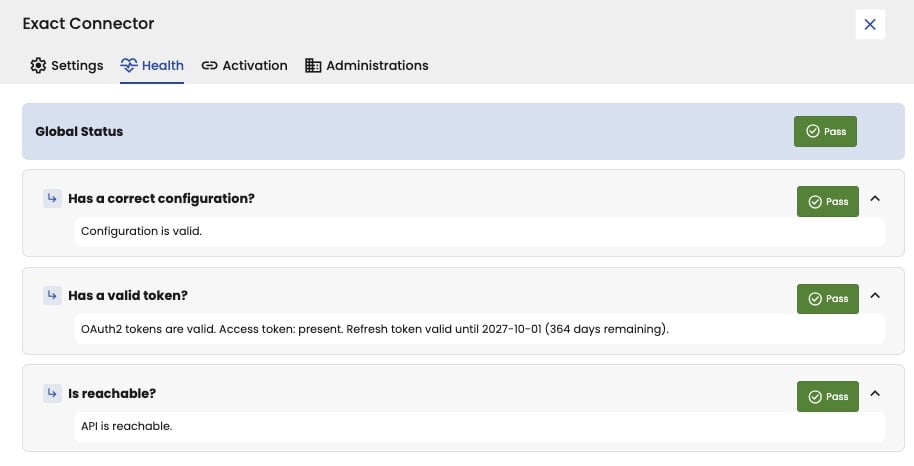
Global Status at the top sums it up. When all checks pass, the connector works. A check that fails is marked in red, and tells you what’s wrong. The list of connectors doesn’t show failing checks. So when data seems to be missing or out of date, open the connector and look at Health.
Exact Connector panel on the Health tab, with Global Status Pass at the top. Below, three checks, each marked Pass: Has a correct configuration? Configuration is valid. Has a valid token? OAuth2 tokens are valid, access token present, refresh token valid until 2027-10-01, 364 days remaining. Is reachable? API is reachable.

The health of an Exact Online connector: all checks pass.

Settings

Settings shows the same fields as when you added the connector, such as the Name, or the Client ID and Client Secret for Exact Online. To change a secret, click the pencil next to it.
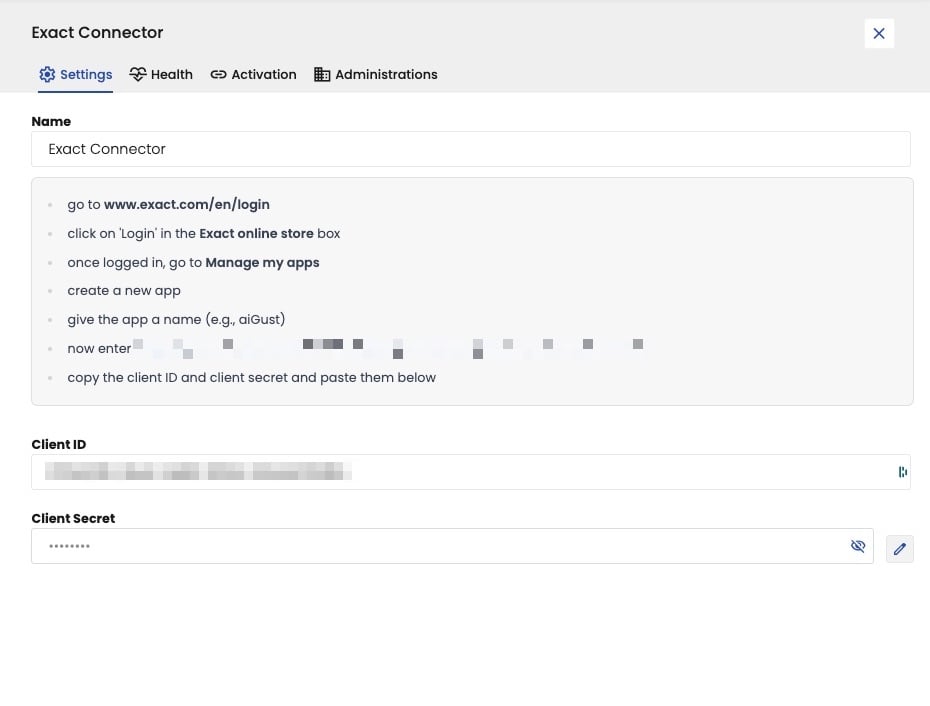
Exact Connector panel on the Settings tab, with the Name Exact Connector, the instructions to register an app in the Exact Online store, the callback URL blurred, the Client ID, blurred, and the Client Secret, hidden, with a pencil button to change it.

The settings of an Exact Online connector.

Activation

For Exact Online, Silverfin, Horus, Octopus and Partena, aiGust has access because someone signed in to that software and gave access. If Health says the access is no longer valid, click Activate now on Activation, and give access again. See Activate the connector.
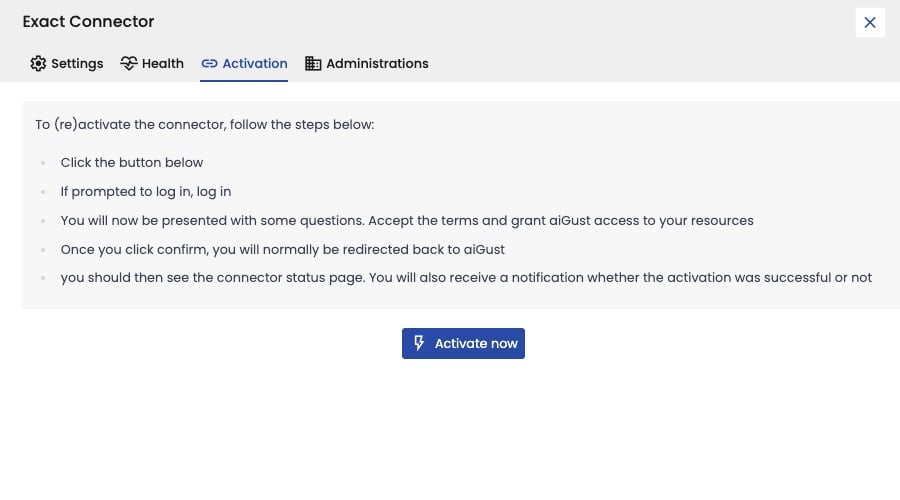
Exact Connector panel on the Activation tab, with the steps to (re)activate the connector: click the button below, log in if prompted, accept the terms and grant aiGust access, after which you're redirected back to aiGust and get a notification whether the activation succeeded. An Activate now button.

Activate the connector again.

aiGust renews its access by itself, so you rarely need this. Except for Partena: there, someone has to give access again every 6 months. aiGust doesn’t warn you yet, so put it in your calendar.

Administrations

Administrations lists the administrations aiGust found in this connector, with their name and VAT number. Search to check whether a client is in it. It’s only a list: you can’t sync an administration here, or see when it was last synced. Use the Data source widget of the administration for that.
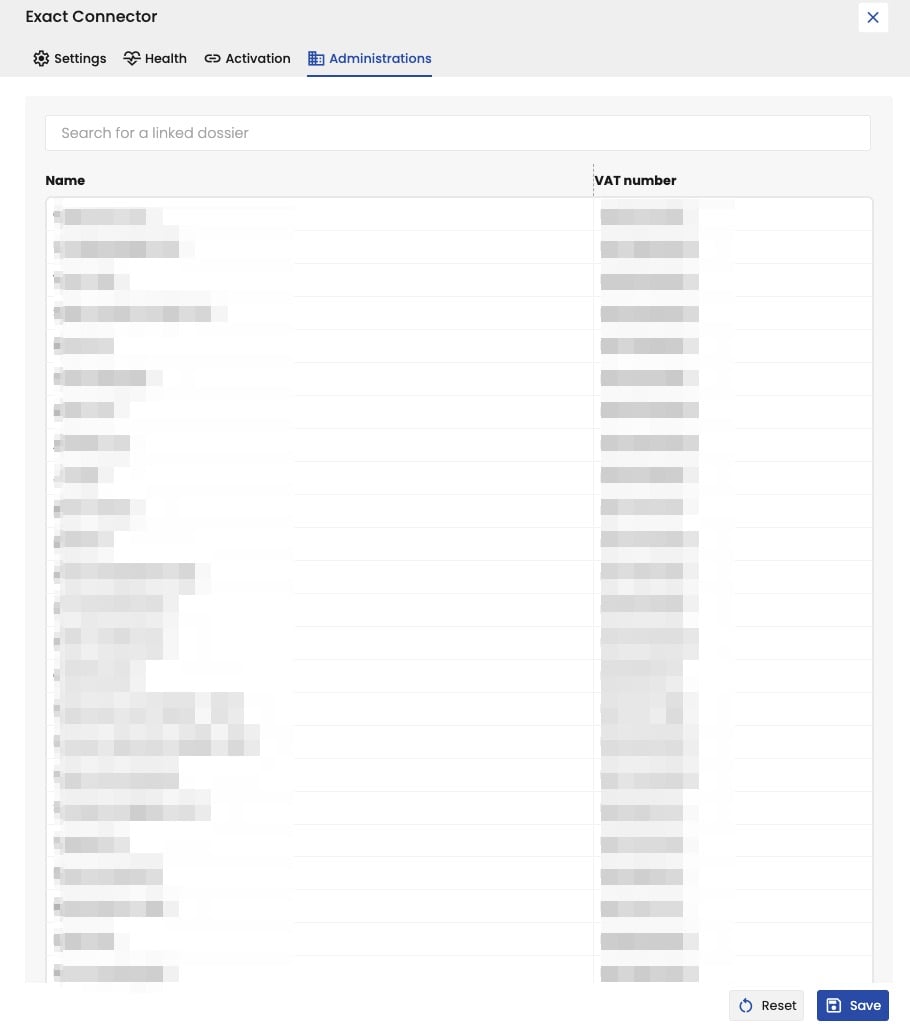
Exact Connector panel on the Administrations tab, with a search field Search for a linked dossier and a list of administrations with their Name and VAT number, all blurred. Buttons Reset and Save at the bottom.

The administrations aiGust found in a connector.

Not seeing an administration you expected? Check that the account that activated the connector has access to it in your software, and that it’s not on the Black & whitelist. A new administration also only shows up after the next nightly sync.

When a sync fails

  1. Open the connector, and check Health.
  2. If the access is no longer valid, activate the connector again on Activation.
  3. If the configuration isn’t correct, fix it on Settings. For example, when the client secret of your Business Central app registration expired in Microsoft Entra.
  4. Still not working? Report it with the bug icon in the main rail. See Report a bug.