

One format for all sources
Each bookkeeping package stores its data in its own way. Some work with opening balances while others don’t, some use unique ids for GL accounts while others don’t, … aiGust converts everything it imports into one common format. That’s why the reports, KPIs, peer groups and meetings work the same way, whatever software an administration comes from. The main parts of that format:- Financial years and financial periods. See Financial years and financial periods.
- GL accounts, with their number and description.
- Transactions, each on a GL account, and often linked to a business partner: a customer or a supplier. A transaction has one amount: positive or negative, not a separate debit and credit.
- Documents, such as the invoice behind a transaction. aiGust doesn’t copy them. It only knows which transactions have a document, and fetches the document from your software when you open it.
Supported connectors
Firms use compliance connectors (like Silverfin) to close the financial year and prepare the tax return. They’re less detailed than bookkeeping connectors. When an administration is in both, aiGust uses the bookkeeping connector. See How administrations are imported.
No connector for your software? You can still import an administration from Excel. Or contact your sales rep to see what we can do for you!
Most of our connectors pull data from your software through API. Some platforms (like Adsolut and ExpertM) don’t have an API. For such packages we developped an agent that runs locally, exports data and forwards it to the aiGust cloud.
Connector overview
Click Settings in the main rail, and choose Connectors. You see all connectors of your firm, with their type, name and creation date.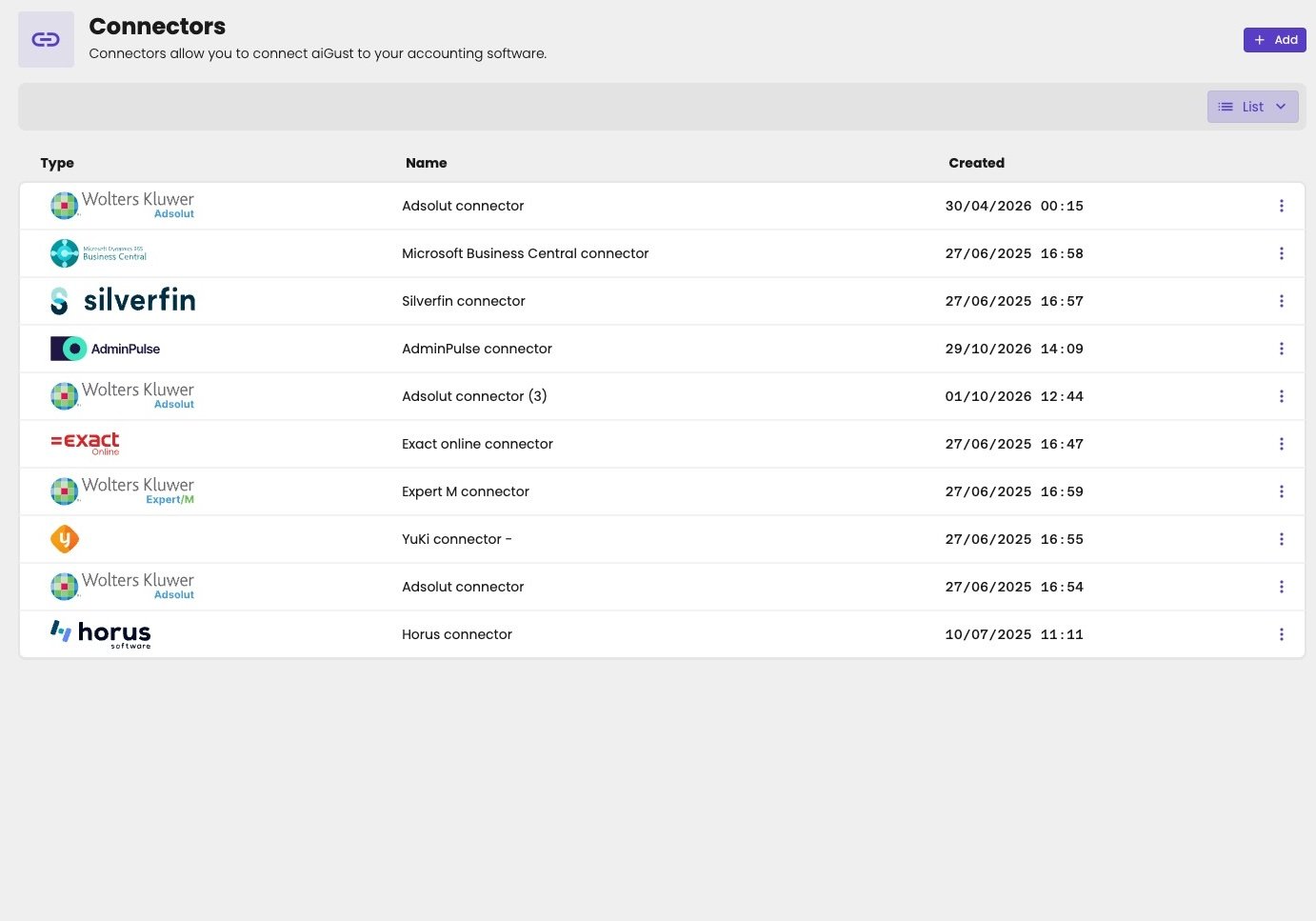
The connectors of your firm.
Add a connector
- Click Settings in the main rail, and choose Connectors.
- Click Add.
- Choose connector type: click your software, and click Next.
-
Enter configuration details:
- each connector requires a Name. aiGust proposes one, such as Octopus connector. Change it if you like: the name is only to recognise the connector in aiGust.
- most connectors require also additional configuration like a client-id and -secret, or an api key, or some other details
- Fill in what your software needs, and click Create connector.
-
Depending on the type of connector, a last step might follow:
- Connectors using oAuth (like Exact, Yuki, Horus, …) require an activation step in which you have to grant aiGust access to your data. See below.
- Agent based connectors like ExpertM & Adsolut require you to install our agent. See Install the on-premise agent.
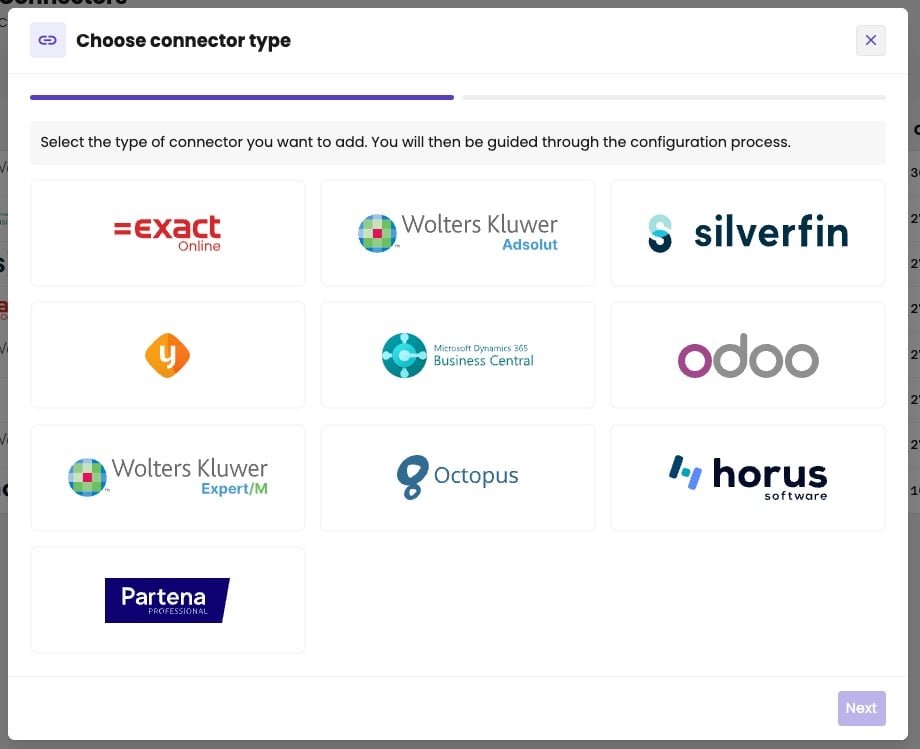
Choose the software you want to connect.
Activate the connector
For Exact Online, Silverfin, Horus, Octopus and Partena, you give aiGust access from within that software:- Click Activate now.
- Sign in to your software, if it asks you to.
- Accept the terms, and give aiGust access.
- You’re sent back to aiGust. You get a notification that tells you whether the activation succeeded.
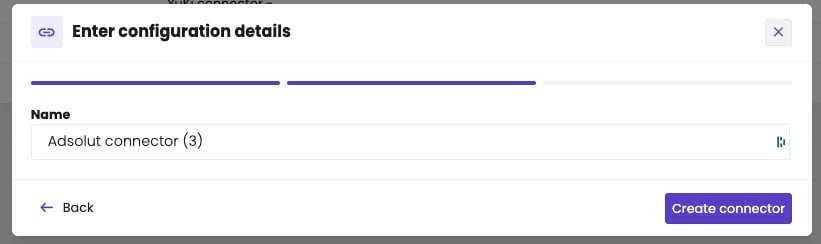
The last step: activate the connector in your software.