

Step 1: Register aiGust in Exact Online
- Go to www.exact.com/en/login.
- In the Exact Online App Store box, click Login. This is the App Store, not the Exact Online you use for the bookkeeping.
- Once signed in, go to Manage my apps (in Dutch: Mijn apps beheren). You land on a red page with your apps.
- Click Register a production app (Een app voor productie registreren).
- Fill in the name of the app (Naam van de app), for example aiGust, and the Redirect URI:
https://app.ai-gust.io/callback/connectors/oauth. aiGust also shows this address when you add the connector. - Accept the terms, and click Register (Registreren).
- On the page of your new app, copy the Client ID and the Client Secret.
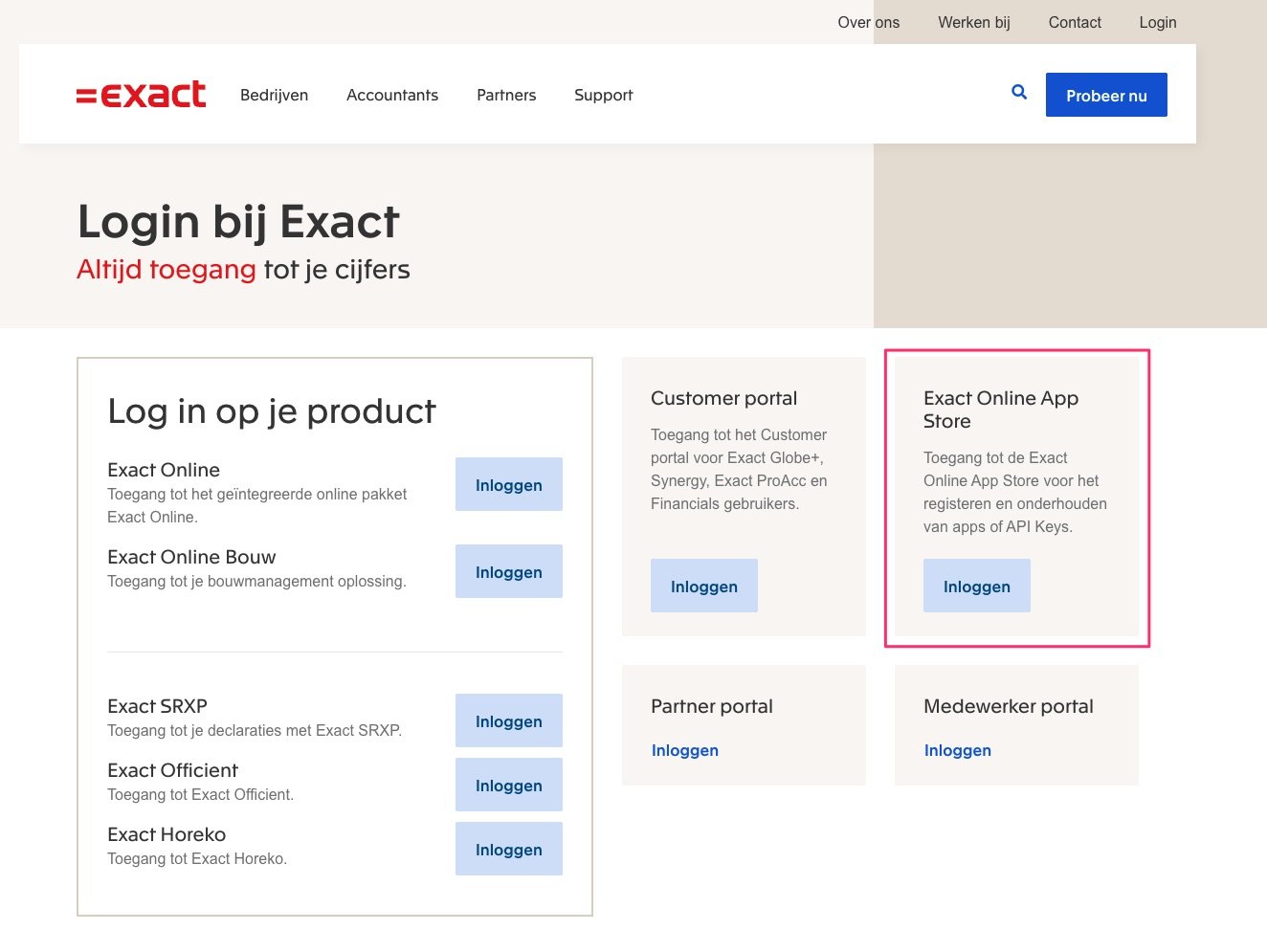
Sign in to the Exact Online App Store.
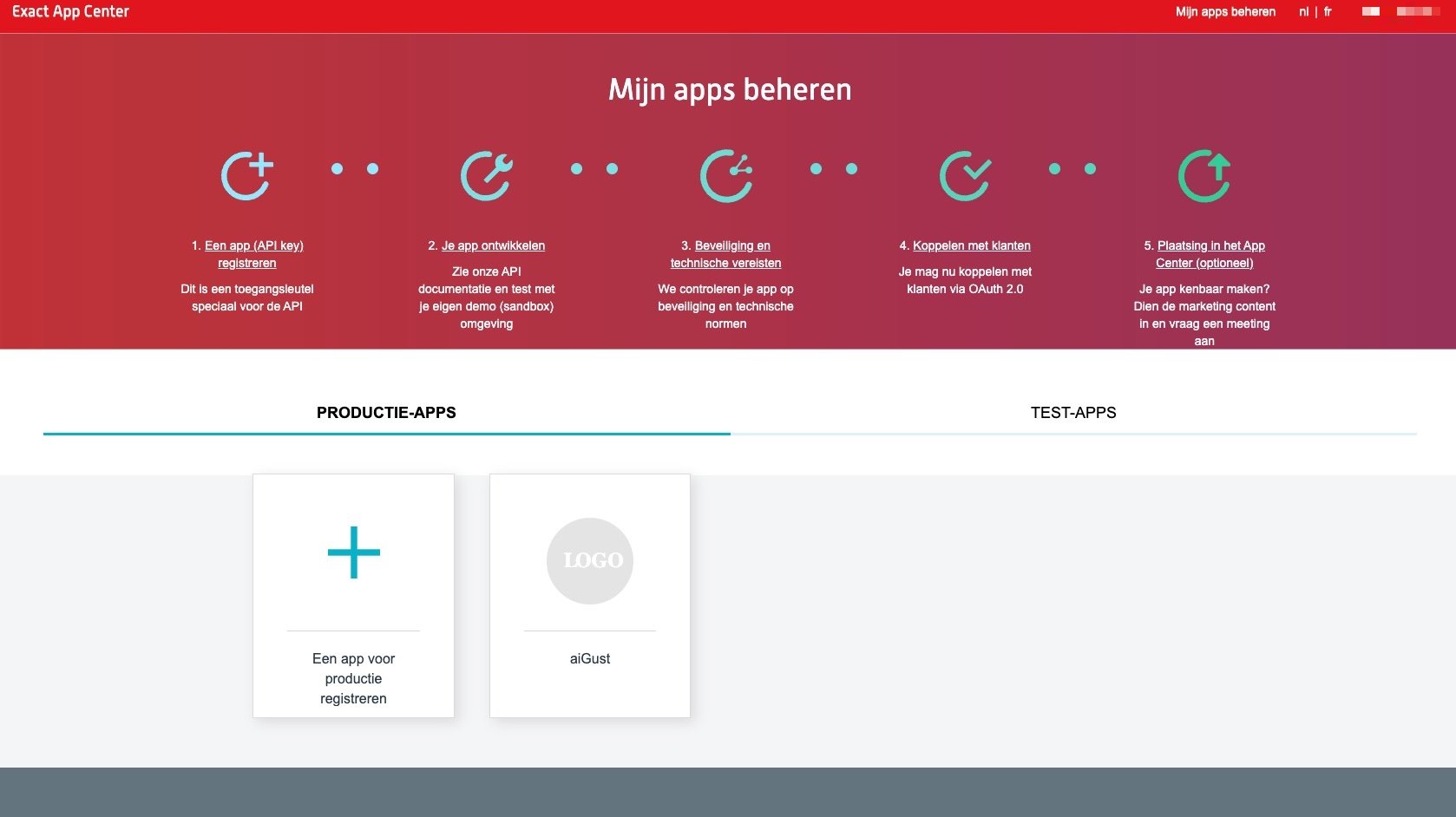
Manage my apps, with the tile to register a production app.
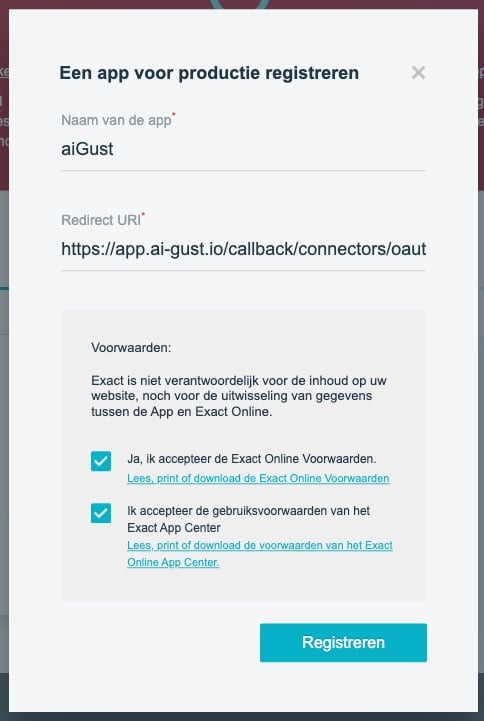
Register aiGust as an app.
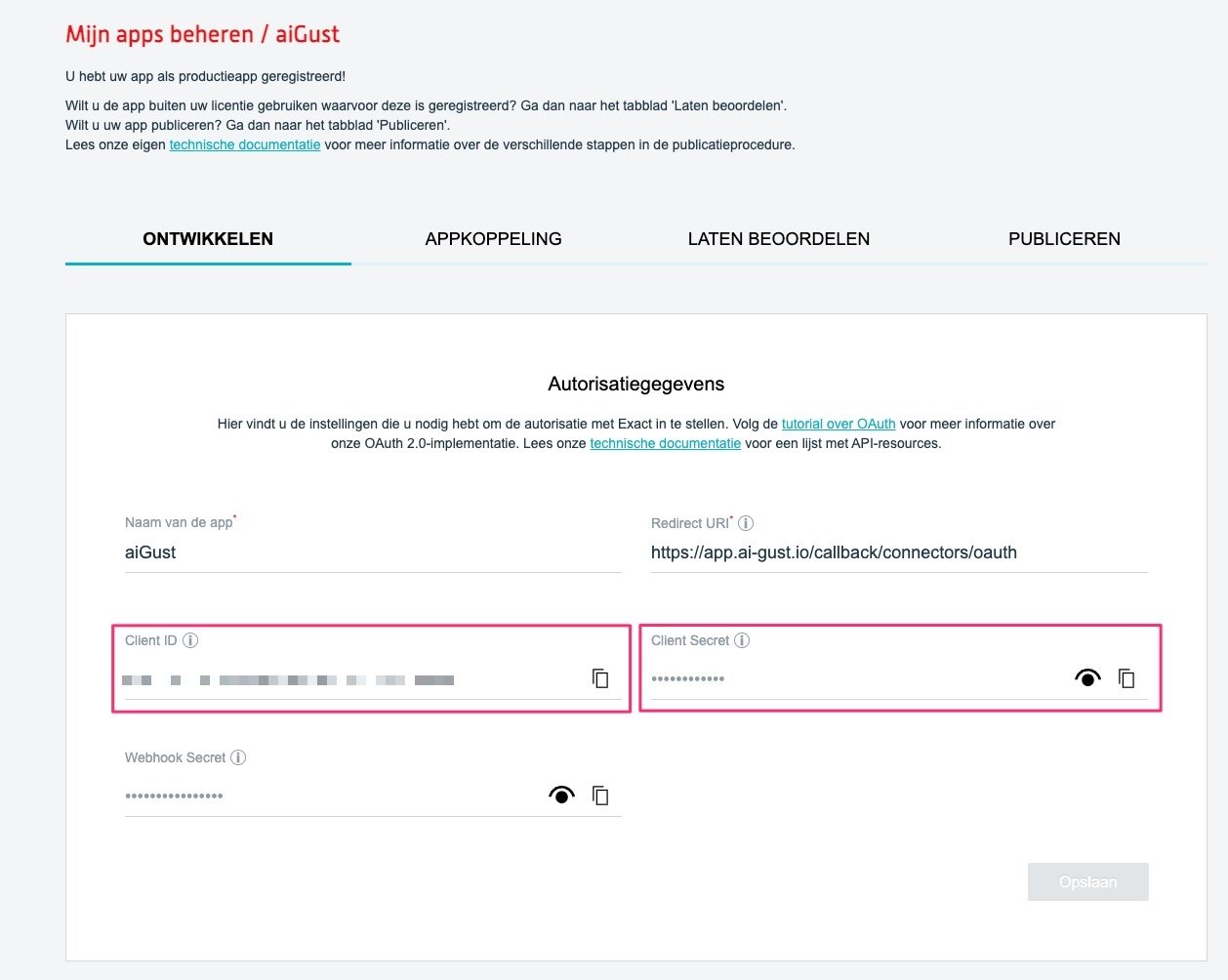
Copy the client ID and client secret.
Step 2: Add the connector in aiGust
- Click Settings in the main rail, choose Connectors, and click Add.
- Choose Exact Online, and click Next.
- Give the connector a Name, and paste the Client ID and Client Secret. Click Create connector.
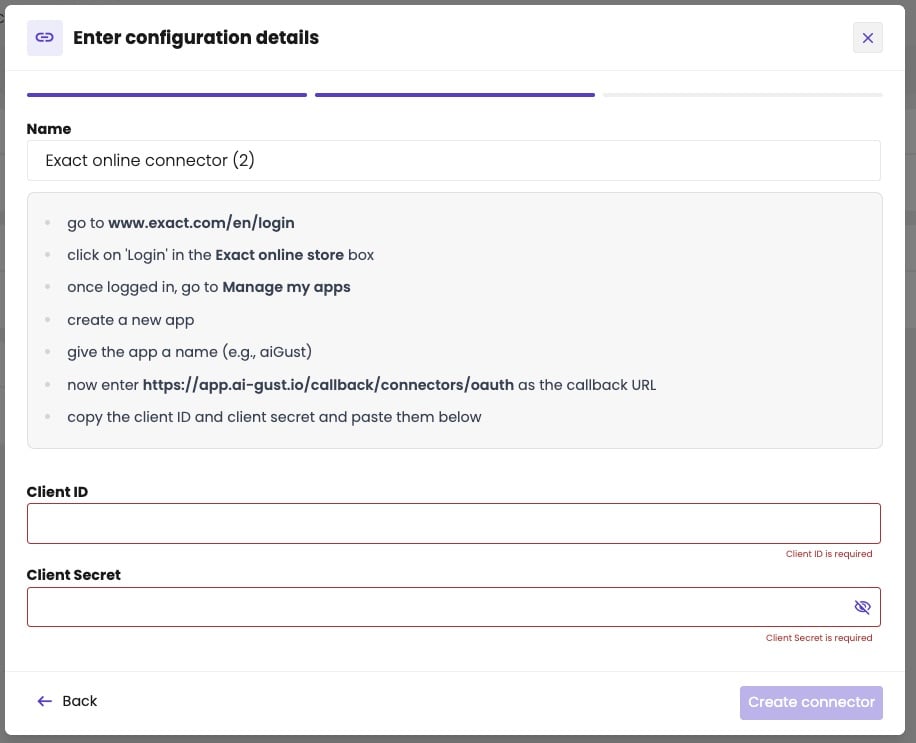
Paste the client ID and client secret in aiGust.
Step 3: Activate the connector
- Click Activate now.
- You go to Exact Online. Sign in, if it asks you to.
- Approve the connection, so that aiGust can read your data.
Which administrations aiGust gets
aiGust gets exactly the administrations that the Exact Online user who activates the connector has access to. Use a shared account of your firm, not the personal account of a colleague. That matters for the two ways firms usually work with Exact Online:- Your firm does the bookkeeping, with its own Exact Online licence. The administrations are in your firm’s Exact Online. aiGust gets them if the user who activated has access.
- Your client does the bookkeeping, with their own Exact Online licence, and gave your firm access. aiGust only gets the administration if the user who activated the connector also has access to it.