

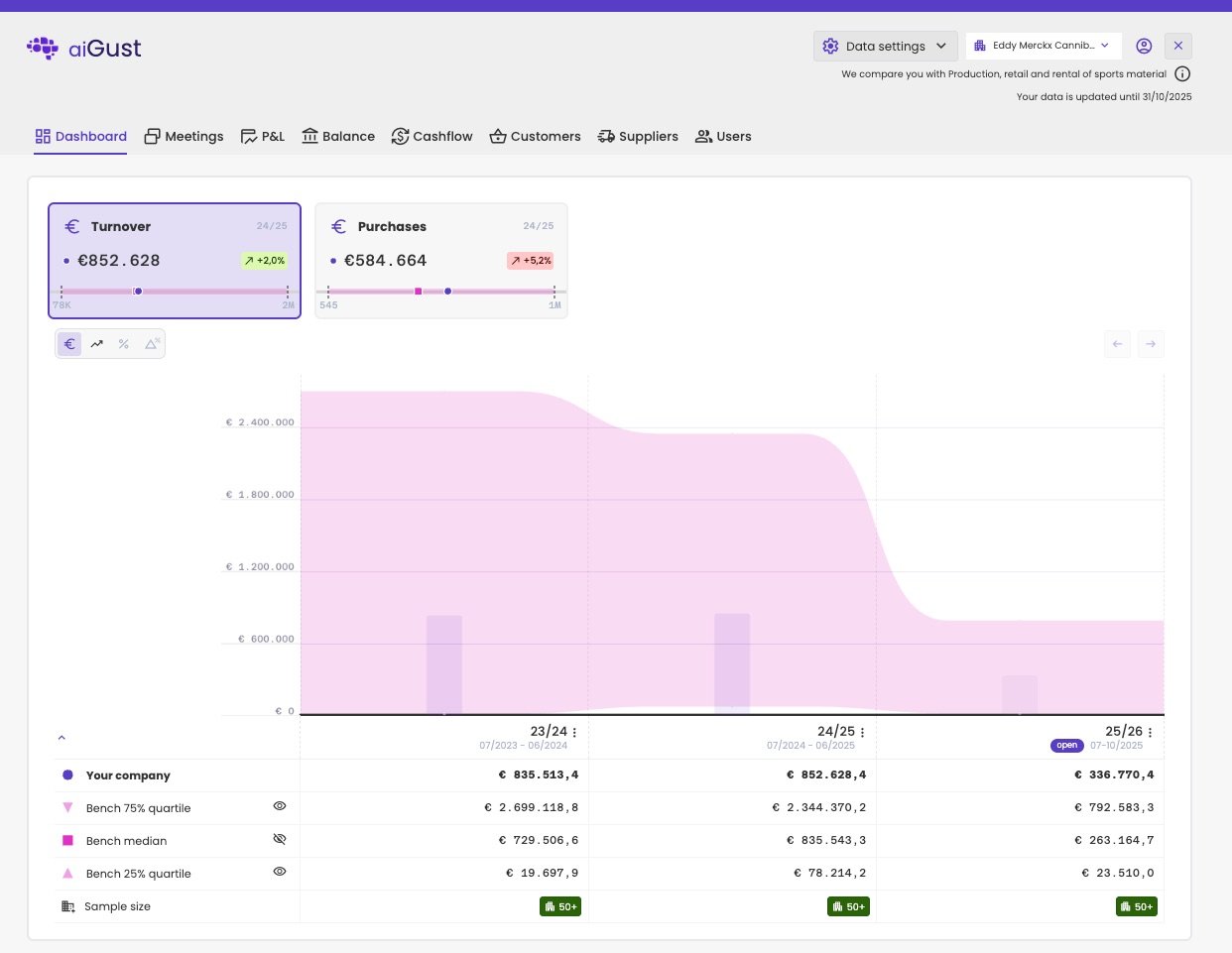
The client portal of an administration.
Why open it to your clients
- Your advice keeps working after the meeting. Your client looks back at the slides and your public notes whenever they want.
- Your clients follow their own figures. They don’t have to ask you for the latest numbers, and they come to the next meeting prepared.
- You stay in control. You decide which tabs they see, how far the figures go, and which peer group they’re compared with.
Client users
The people who use the client portal are client users, also called external users. They’re not part of your firm: usually the owner, a manager or the CFO of your client. A client user:- only sees the administrations you gave them access to;
- only sees what you share: published meetings, public notes and comments, and the tabs you turned on;
- can’t change anything in the figures, except a few view settings.
Set up the client portal
1
Choose what clients see
Turn the tabs of the portal on or off for your whole firm, and decide whether clients can manage users themselves. See Control what clients see.
2
Brand the portal
The portal uses your firm’s colours and logo, and the welcome email your header and footer. See Light mode and dark mode and Email templates.
3
Invite your clients
Give client users access to their administrations, and send them the welcome email. See Invite and manage client users.
4
Fine-tune per administration
Where needed, set other tabs, a different up-to-date-until date or another peer group for one client. See Control what clients see.
5
Share your meetings
Publish a meeting after you’ve held it, so your client can look back at it. Check that only the notes meant for your client are public. See Publish a meeting to your client.