Your client doesn’t see a meeting until you publish it. After the meeting, publish it so your client can look back at the slides and the public notes in the client portal.

Publish a meeting

Do one of these:
  • In the meeting editor, click Not published at the top right.
  • On the Meetings page, click Not published on the meeting’s tile, or click the three dots and choose Publish meeting.
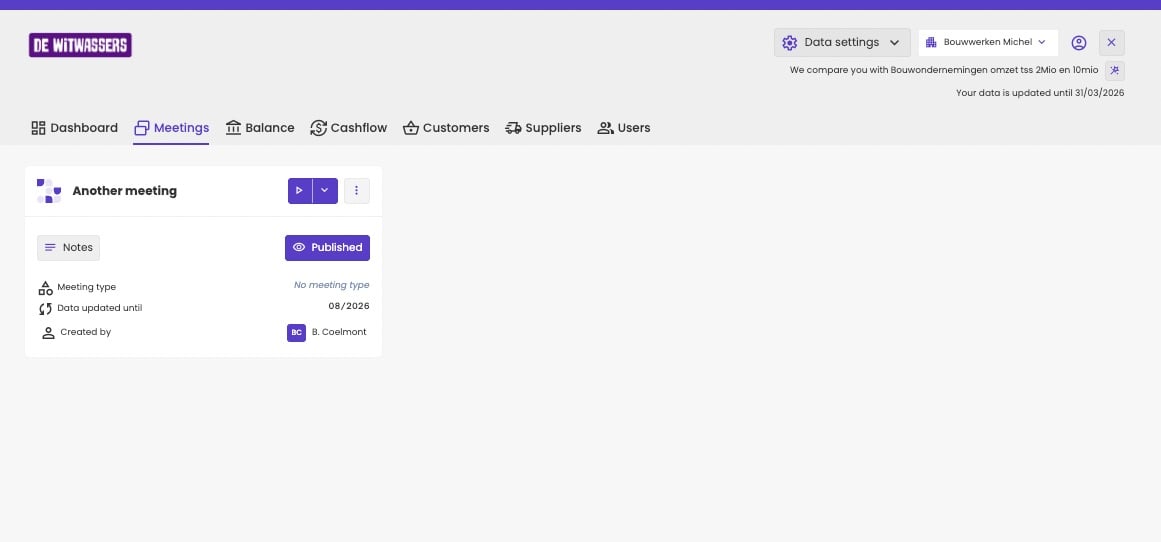
The meeting then appears in the meetings overview of the client portal. On the Meetings page, turn on Only show published meetings to see which meetings your client can see. To unpublish a meeting, click the same button again.
Client portal on the Meetings tab with one meeting card, Another meeting, with a play button, Notes, the status Published, No meeting type, Data updated until 08/2026 and Created by B. Coelmont.

A published meeting in the client portal.

What your client sees

  • Only published meetings. Meetings you haven’t published don’t appear in the client portal.
  • Only public notes. Internal notes stay hidden. See Internal and public notes.
Check the notes before you publish. A note marked public by mistake is visible to your client.