

Base filter and trigger filter
Every trigger has two parts:
You build both in the same way as the filters of an advanced search or a peer group. You can even turn a saved advanced search into a trigger. Each criterion is either a KPI in one of its four types with a condition, or a property of the administration, such as its legal type or company type.
An administration that meets the base filter is eligible for the trigger. If it also meets the trigger filter, it has an active alert.
Built-in and custom triggers
- Built-in triggers: aiGust provides a set of triggers, ready to use. Your key users can switch off the ones your firm doesn’t need. See Manage built-in triggers.
- Custom triggers: your key users can add triggers of their own. See Create custom triggers.
When triggers are checked
aiGust checks every trigger automatically every 24 hours. Alerts appear and disappear as the figures change. Key users can also run a check right away with Sync, for example right after creating a trigger. Most triggers look at the last closed financial year. Some look at the year-to-date figures instead, for example to spot a drop in turnover compared with the same months last year.The triggers overview
To see all triggers of your firm, click Triggers in the main rail. Each trigger is shown as a tile:- A badge shows whether it’s a built-in trigger (aiGust) or one of your firm’s own (Tenant).
- A number and a bar show how many administrations have an active alert, for example 5 / 17.
- The full bar is the number of eligible administrations.
- The filled part is the number with an active alert.
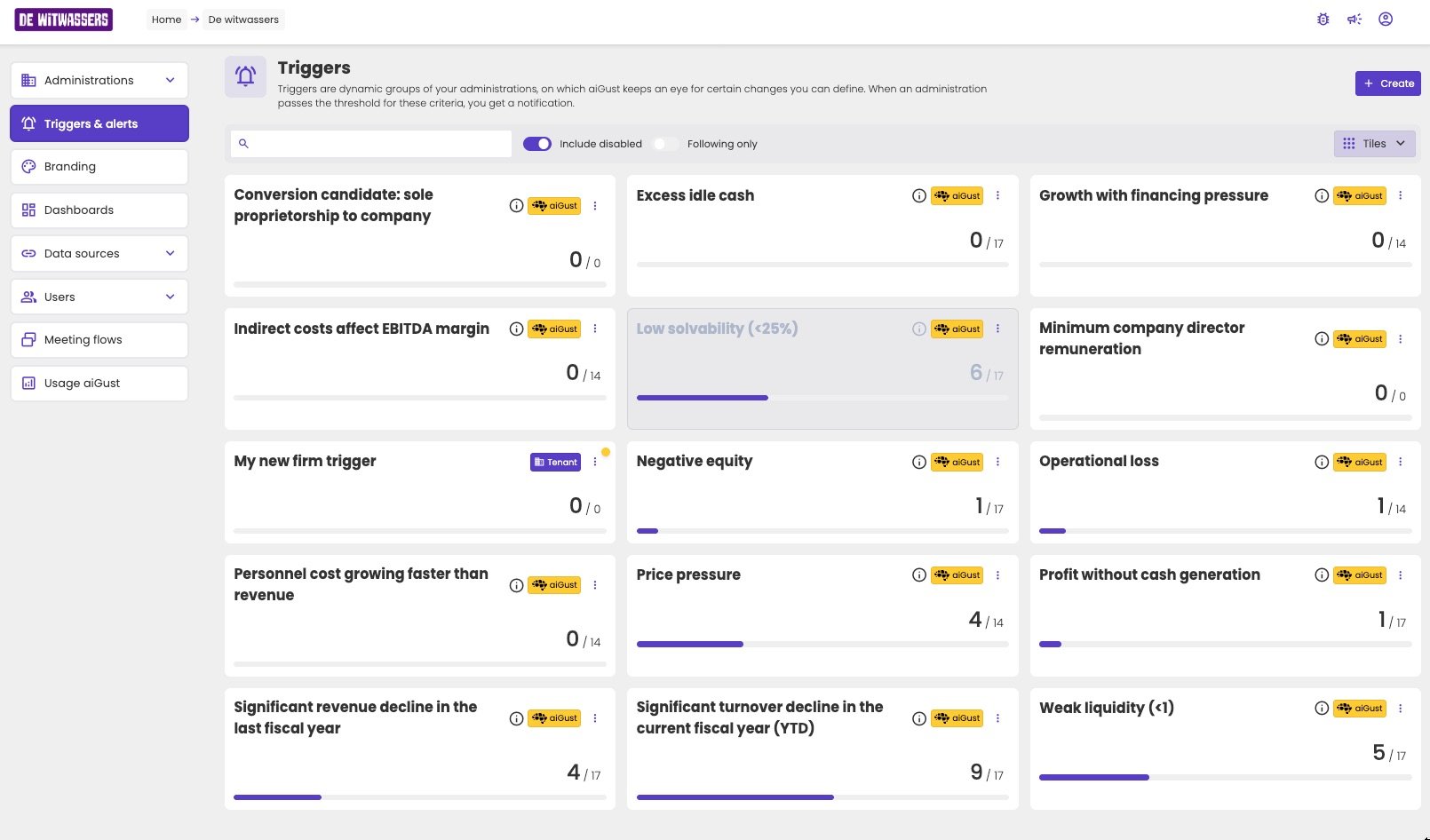
The triggers overview. Low solvability (<25%) is greyed out because the firm has switched it off.
- Search for a trigger.
- Turn on Include disabled to also show the triggers your firm has switched off. They appear greyed out.
- Turn on Following only to count only the administrations you follow.
- Switch between Tiles and a list.
Open a trigger
Click a trigger to open it. The Administrations tab lists the administrations the trigger applies to. For each KPI of the trigger, the table shows three columns: Previous book year, Last book year and Absolute delta. When there are more KPIs than fit on the screen, use the arrows next to the KPI names to scroll. Administrations with an active alert have an alert badge. Click an administration to open its dashboard.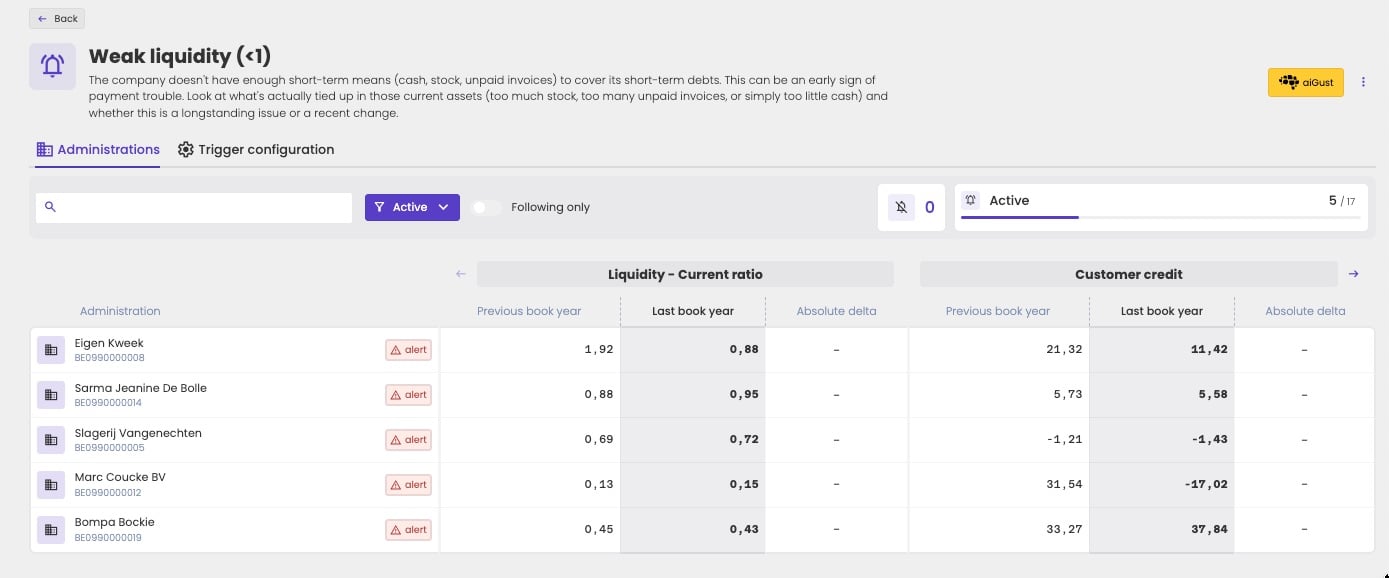
A trigger's Administrations tab, filtered on active alerts.
- Search for an administration.
- Filter on Alert status: All, Active or Inactive.
- Turn on Following only to show only the administrations you follow.
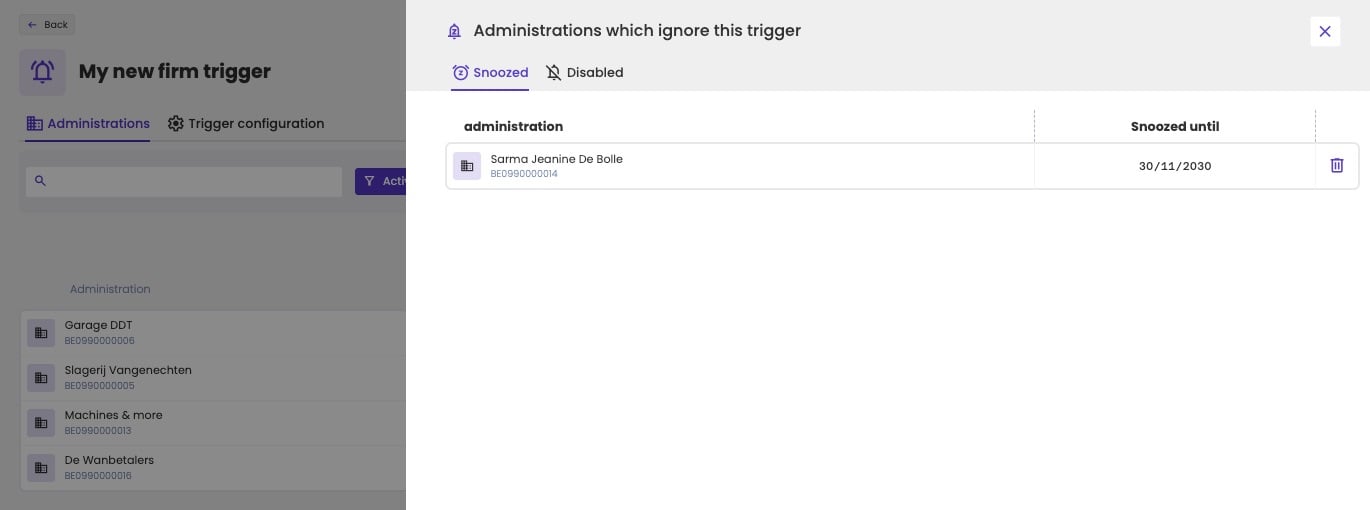
The administrations that ignore a trigger.
aiGust doesn’t send emails or notifications when an alert appears. Check the triggers overview, or the alerts on an administration’s dashboard.
Related pages
Work with alerts
See, snooze and deactivate alerts on an administration.
Create custom triggers
Define your own rules. For key users.