Your firm sets which tabs clients see by default. For one administration, everyone at your firm with access to it can change that, and choose how far the figures go and which peer group your client is compared with.
  1. Open the administration, and go to Settings › Client access in the administration menu.
  2. Open the Client portal tab.
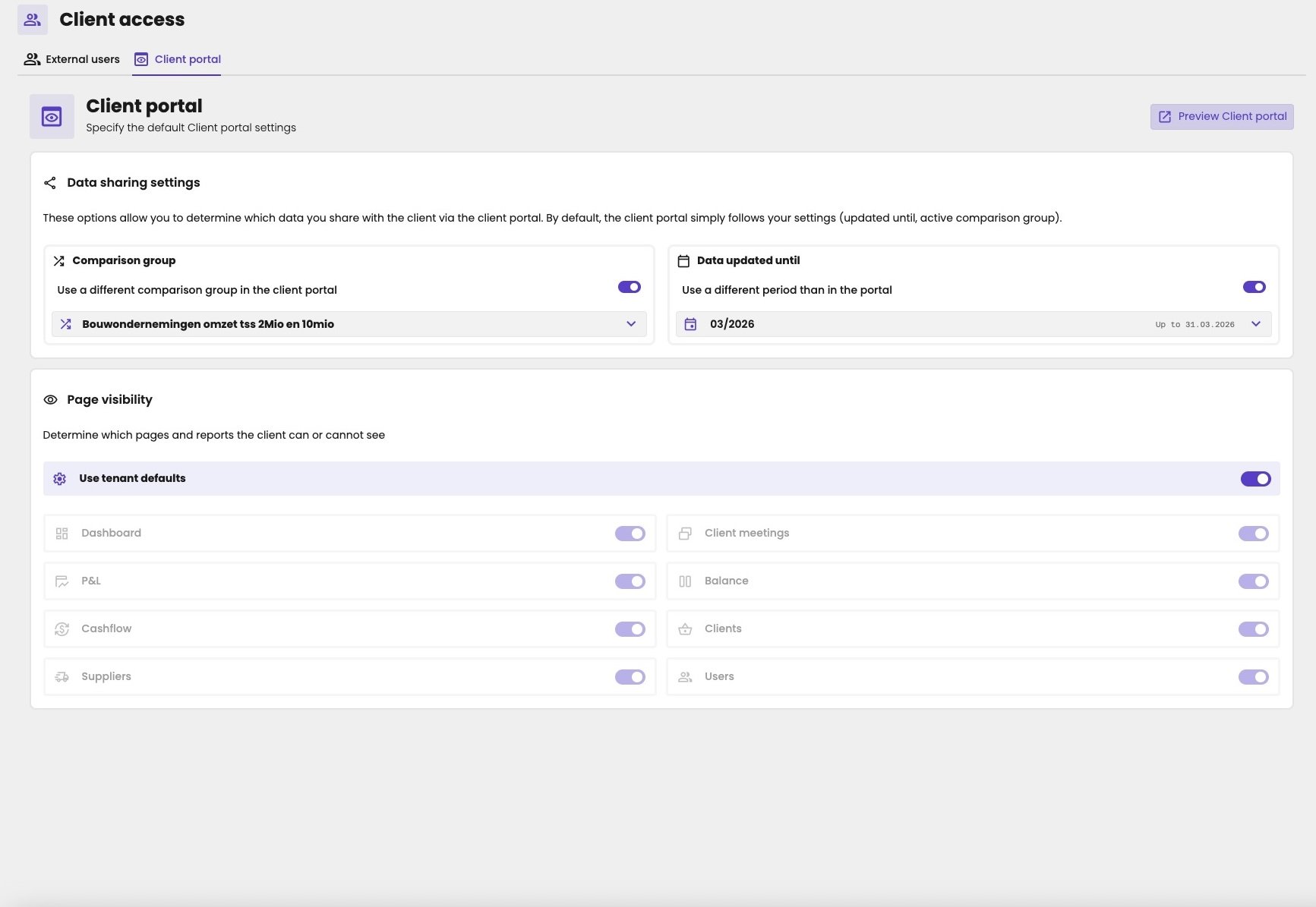
Client access page on the Client portal tab, with a Preview Client portal button. Data sharing settings: Comparison group with Use a different comparison group in the client portal turned on and the peer group Bouwondernemingen omzet tss 2Mio en 10mio selected, and Data updated until with Use a different period than in the portal turned on and 03/2026, up to 31.03.2026, selected. Page visibility with Use tenant defaults turned on, so the pages are greyed out: Dashboard, Client meetings, P&L, Balance, Cashflow, Clients, Suppliers and Users.

The client portal settings of one administration.

Other tabs for this client

Under Page visibility, turn off Use tenant defaults, and turn each tab on or off. With Use tenant defaults on, the administration follows your firm’s settings. See Control what clients see.

Which figures your client sees

Under Data sharing settings:
  • Data updated until: turn on Use a different period than in the portal, and choose the last period your client sees. This works like the up-to-date-until date, but only for your client. You can work with figures up to July, while your client only sees them up to 31 March.
  • Comparison group: turn on Use a different comparison group in the client portal, and choose the peer group your client is compared with.
With a switch off, the client portal follows the settings of the administration in aiGust: the up-to-date-until date and the active peer group your firm uses. The client portal shows both at the top: “We compare you with …” and “Your data is updated until …”. To check the result, click Preview Client portal at the top right.