

Label KPIs such as energy costs include every suggested label, also the ones you haven’t confirmed. A wrong suggestion therefore skews the administration’s label KPIs, and the benchmarks of the peer groups it’s part of. See Confirmed and unconfirmed labels.
Open the Mapping tab
Open the administration and go to Settings › Mapping.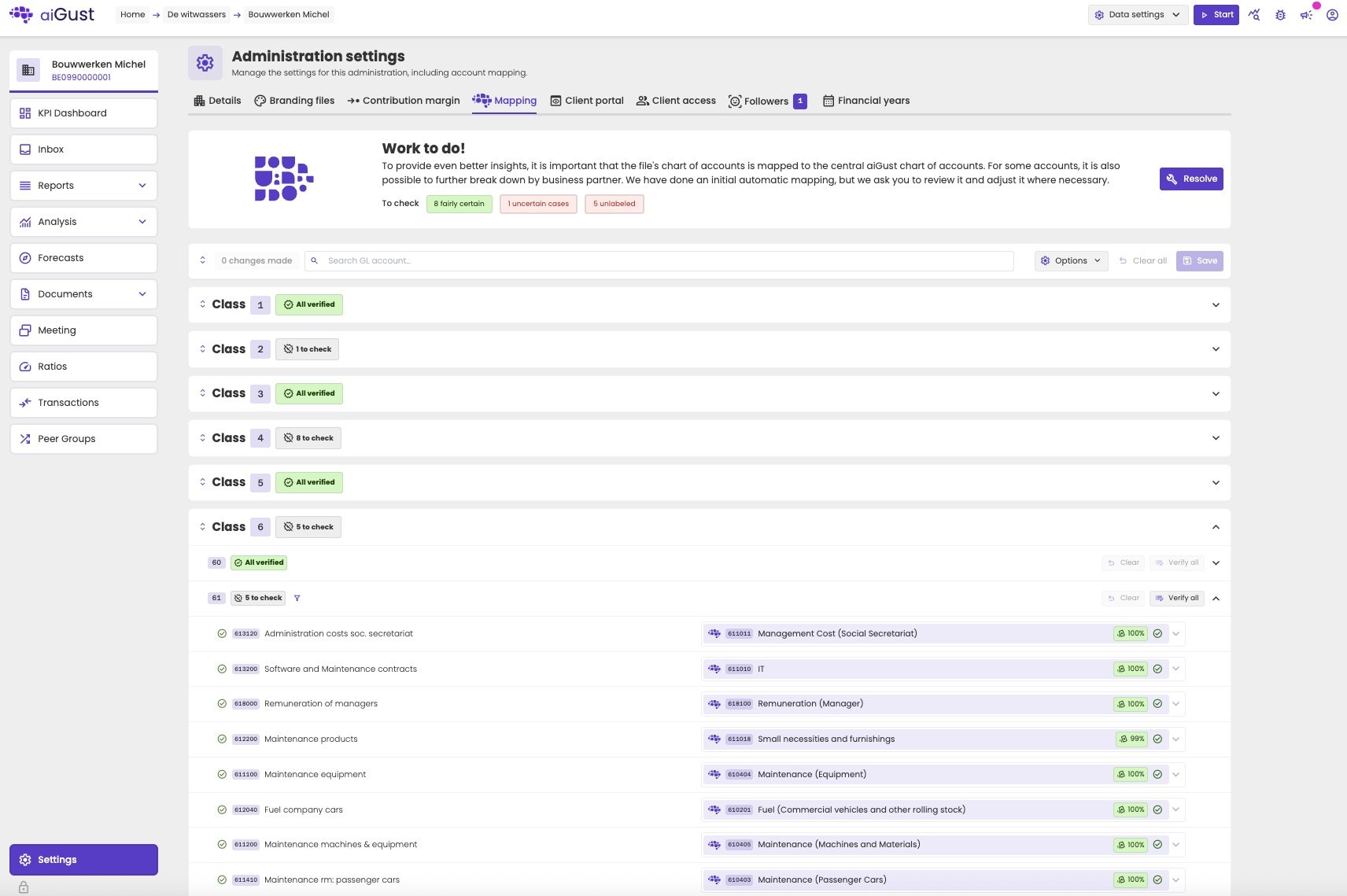
The Mapping tab: a summary of what still needs checking, and the accounts grouped by class.
- Fairly certain: the suggestion has a certainty of 80% or more. A quick check is usually enough.
- Uncertain cases: the suggestion has a certainty below 80%. Check these carefully.
- Unlabeled: aiGust couldn’t suggest a label. Choose one yourself.
- The account from the bookkeeping, with its number and description
- The label it’s mapped to, with its code and description
- The certainty of the suggestion, as a percentage
- The status: a green check mark for a verified label, an orange icon for a label still to check
Check the suggestions with Resolve
The quickest way through the open suggestions is the Resolve wizard. It takes you through the accounts to check, one group at a time.1
Start the wizard
Click Resolve in the Work to do! banner.
2
Review each group
The wizard shows one group per step, starting with the fairly certain mappings. For each account:
- If the label is right, click the check mark at the end of the row, or click Verify all to confirm the whole group.
- If the label is wrong, choose another one. See Change a label.
3
Go through all steps
Click Next to continue to the next group, such as the uncertain cases and the unlabeled accounts.
4
Finish the wizard
Complete the last step. Only then does aiGust save your changes.
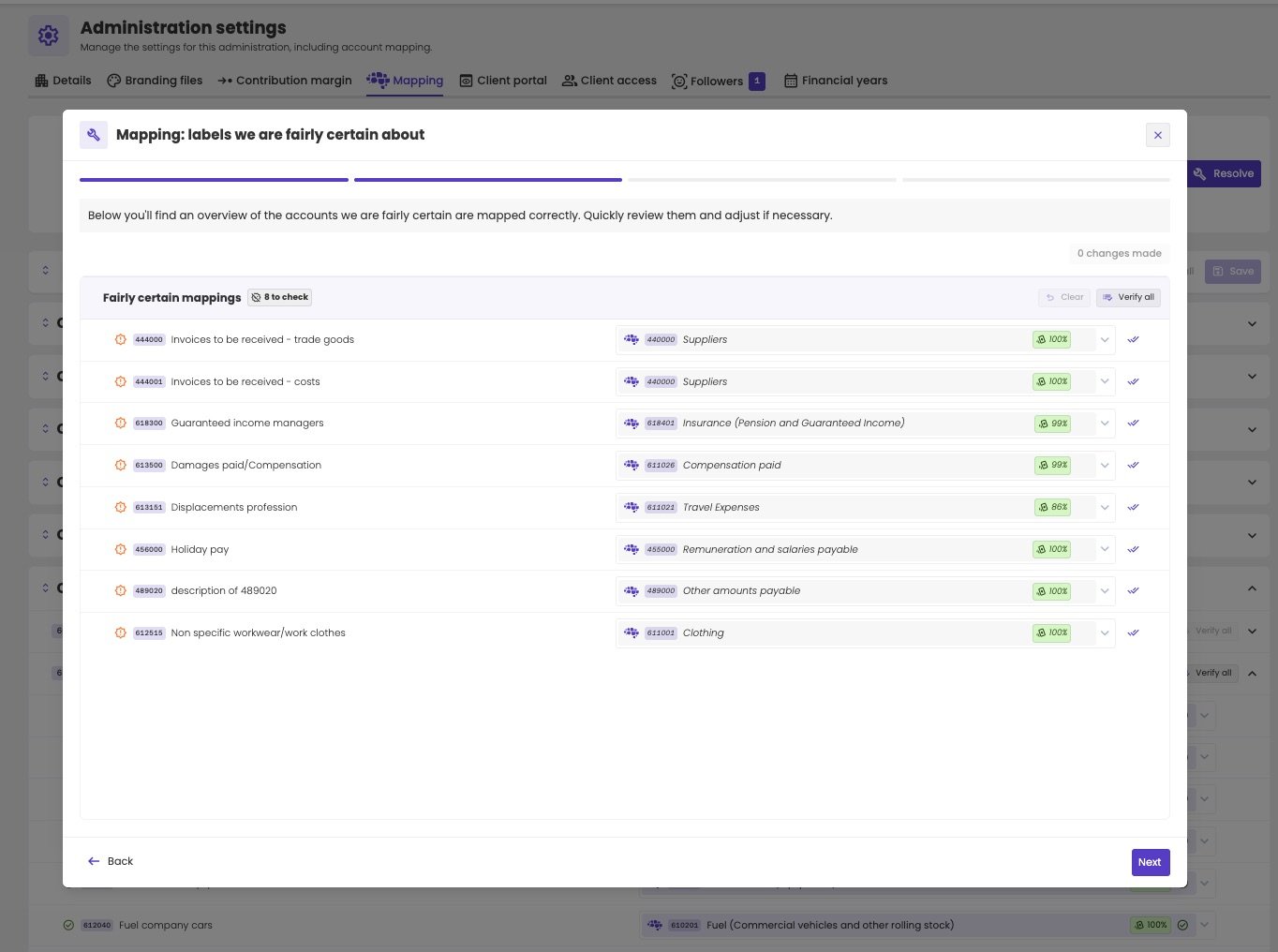
The Resolve wizard, here showing the fairly certain mappings.
Check accounts on the Mapping tab
You can also work directly in the list on the Mapping tab, for example to check one class, or to find a specific account.- Find the accounts. Open a class, or type part of an account number or description in the search field.
- Verify or change the labels. Click the check mark next to a label to verify it, or click Verify all to verify a whole group. Clear undoes the changes in that group.
- Save. The bar above the list shows how many changes you made. Click Save to keep them, or Clear all to undo them all.
Options
Click Options to change what the list shows:- Only show unverified labels: hide the accounts you’ve already verified.
- Only show used GL accounts: hide accounts without bookings.
- Use mapped GL account codes: show the compliance codes from the administration’s Silverfin mapping instead of the codes from the bookkeeping. See How labels affect your reports. This option only changes the codes shown on this page, not the mapping itself. It will be removed in a future version.
Change a label
Click the arrow next to a label to open the label picker.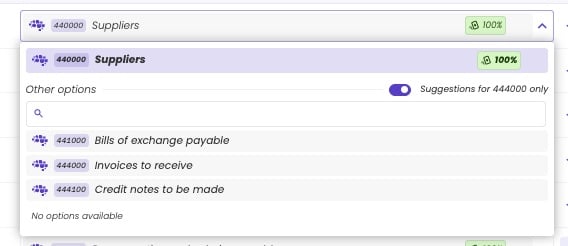
The label picker, with suggestions limited to labels that fit the account.
- The current label is at the top, with its certainty.
- Other options lists other suitable labels. By default the picker only suggests labels whose filter fits the account, for example only supplier labels for a supplier account.
- To see all labels, switch off Suggestions for [account] only, and search by code or description.
You can map any account to any label, but labels outside the suggestions are rarely right. Choosing one can move the account to a different section of the reports. See How labels affect your reports.
Map per business partner
For utilities accounts, you can choose a label per business partner instead of one label for the whole account. Many administrations book the bills of the energy supplier and those of the water company on a single utilities account. By mapping per business partner, you still get separate figures for energy and water. An account that supports it shows a building icon next to its label. The badge on the icon shows the number of business partners. Click the icon to show the business partners, and choose a label for each one.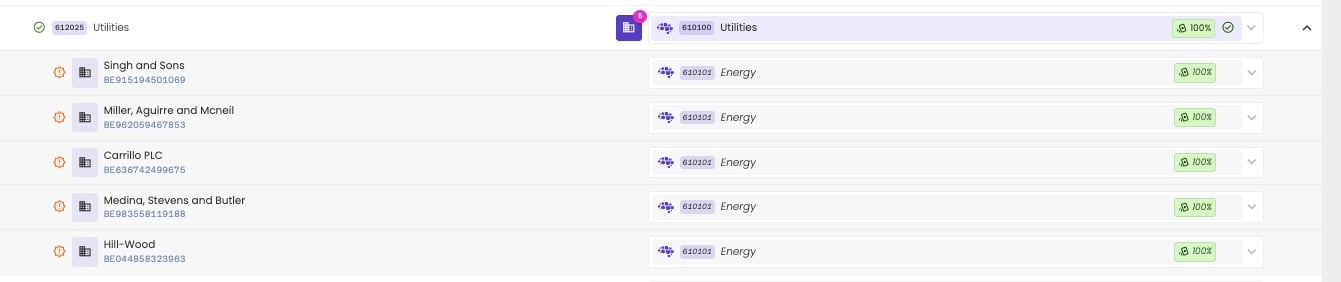
The utilities account mapped per business partner: each supplier's bookings go to the Energy label.
Map a foreign chart of accounts
For an administration with a foreign chart of accounts, such as an English subsidiary, aiGust’s suggestions are rarely useful. The account numbers don’t follow the Belgian structure. Map the accounts yourself:- Open the label picker for each account.
- Switch off Suggestions for [account] only.
- Search for the right label by description, and select it.
Related pages
Labels
What labels are, and how they affect reports and KPIs.
First steps in a new administration
What else to check when you start working on an administration.