

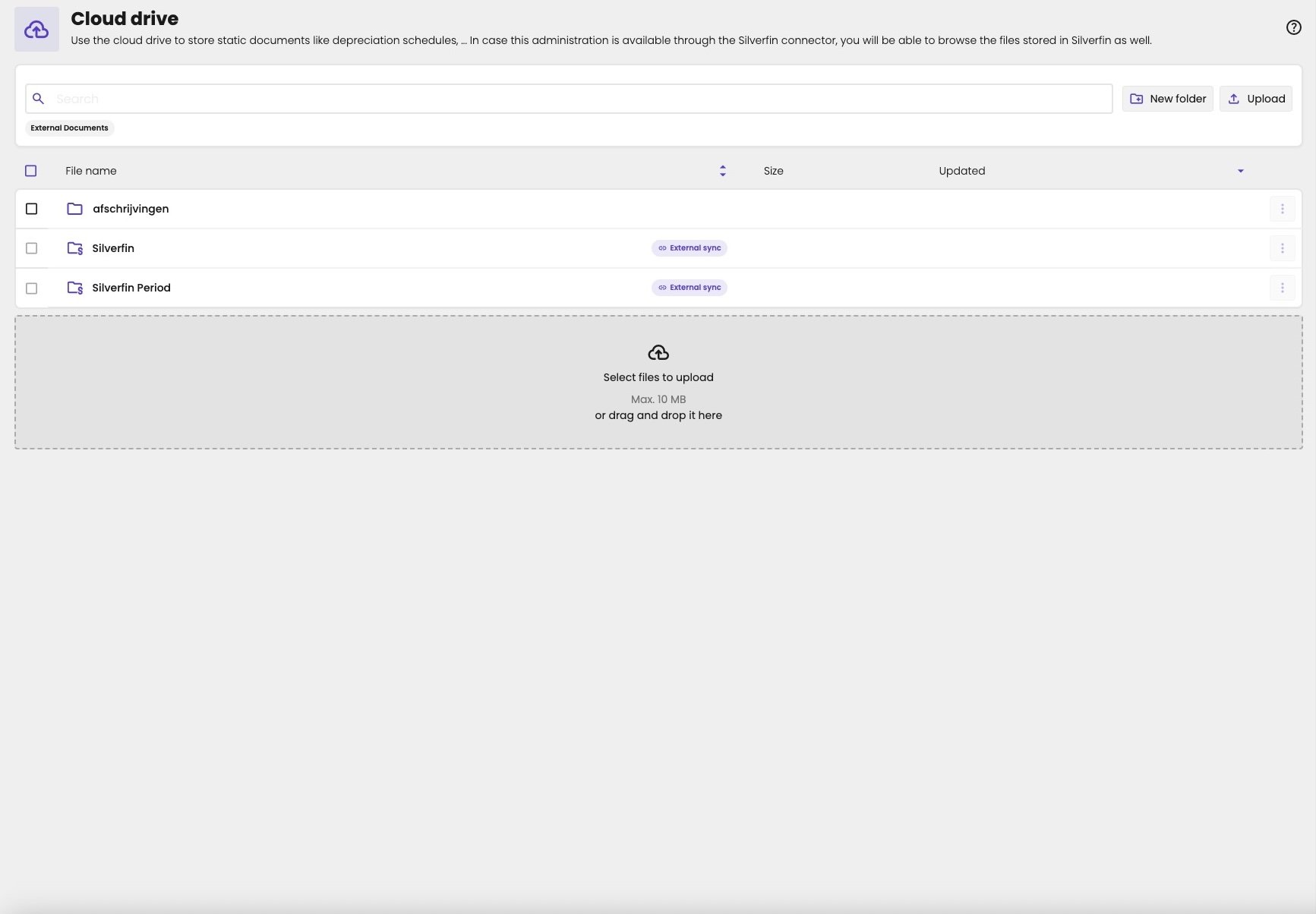
The cloud drive of an administration.
Who can see the files
The files are private. Only users at your firm with access to the administration can open and download them. Client users don’t see the cloud drive in the client portal. That’s different from your firm’s branding assets, which are publicly available. Don’t store confidential documents as branding assets.Upload files
- Open the folder you want to upload to.
- Click Upload, or drag and drop the files onto Select files to upload below the list.
Create a folder
- Open the folder to add the new folder to.
- Click New folder.
- Enter a Name. To create several levels at once, separate them with a slash, for example
2025/depreciation. - Click Create.
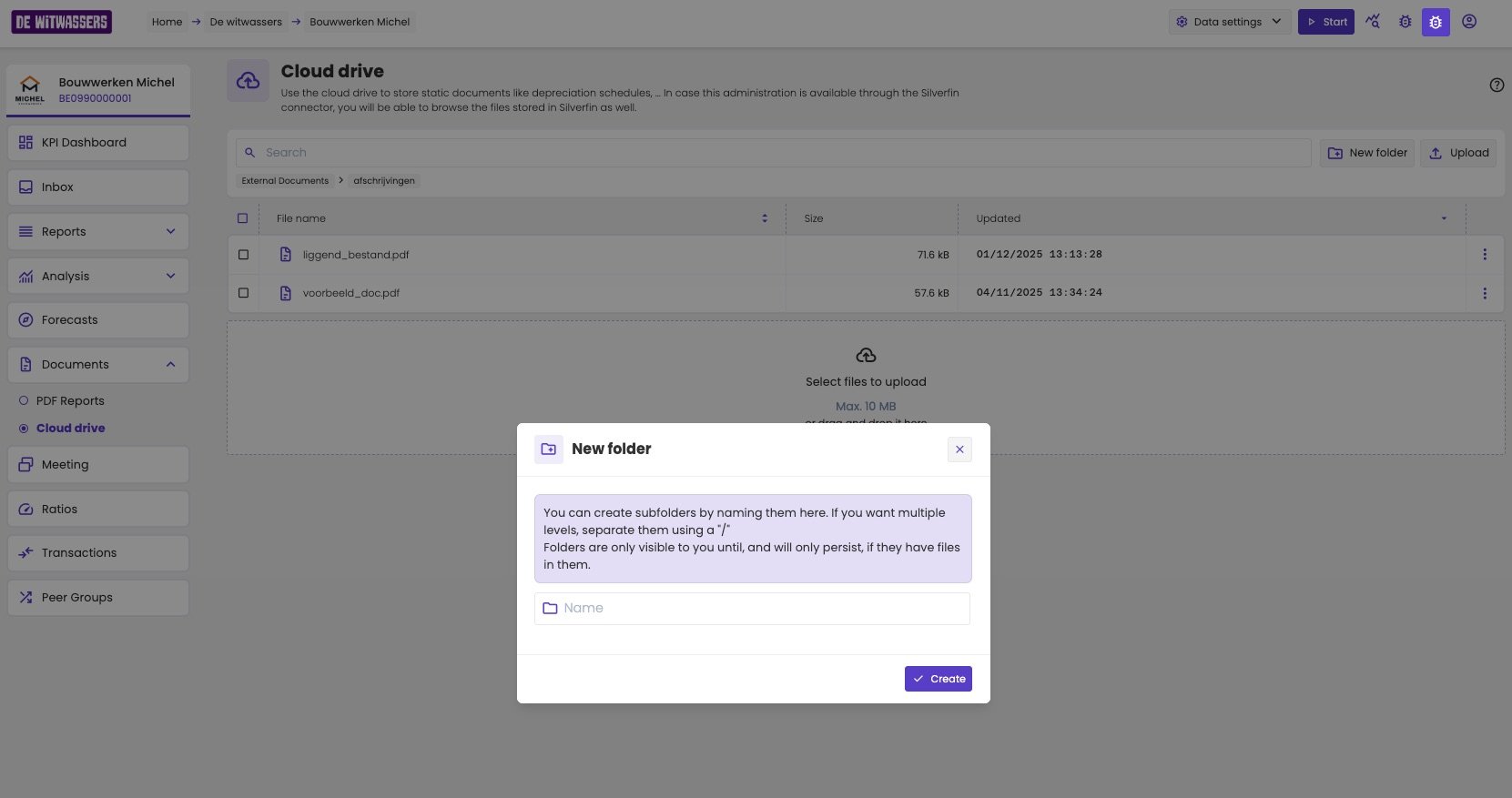
Create a folder.
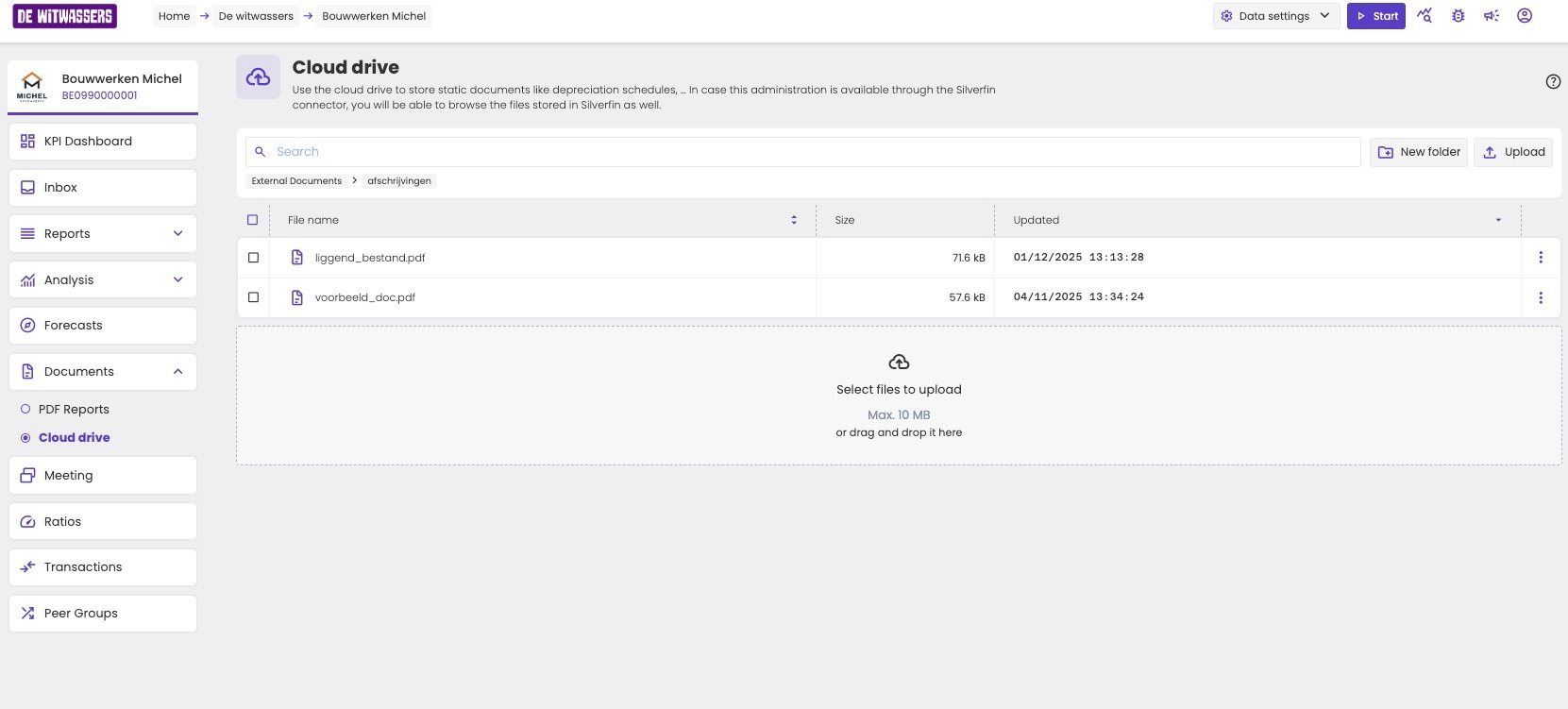
The files in a folder.
Files from Silverfin
If the administration is also in your firm’s Silverfin connector, the cloud drive has two extra folders, marked External sync:
Files you already uploaded to Silverfin, you don’t have to upload again.
aiGust doesn’t copy these files. When you use one on a slide, aiGust fetches it from Silverfin at that moment.
You can only view and use these files in aiGust. You can’t upload, download or delete them here: manage them in Silverfin.