

Use the Start button
Click Start at the top right of the administration.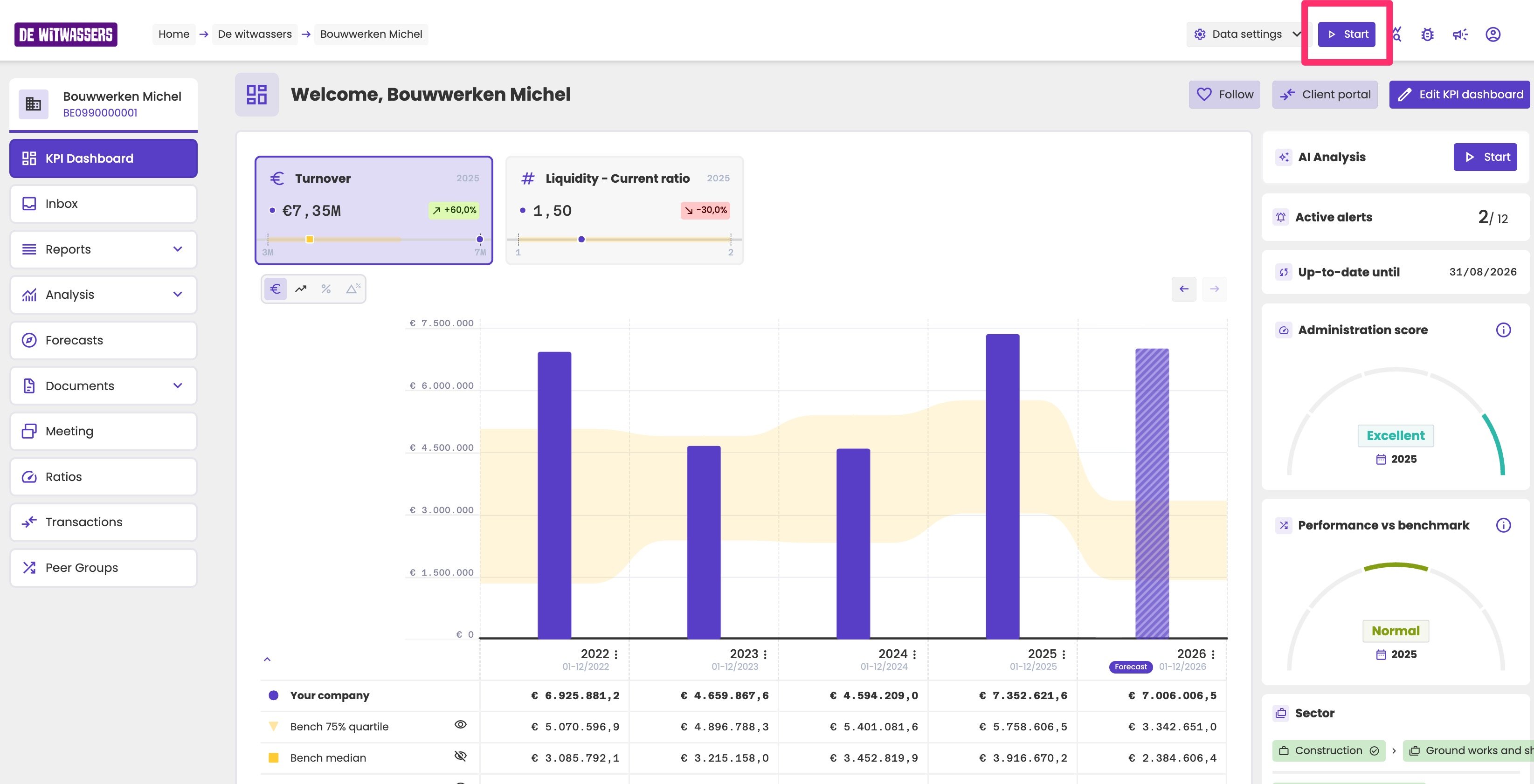
The Start button at the top right of the administration.
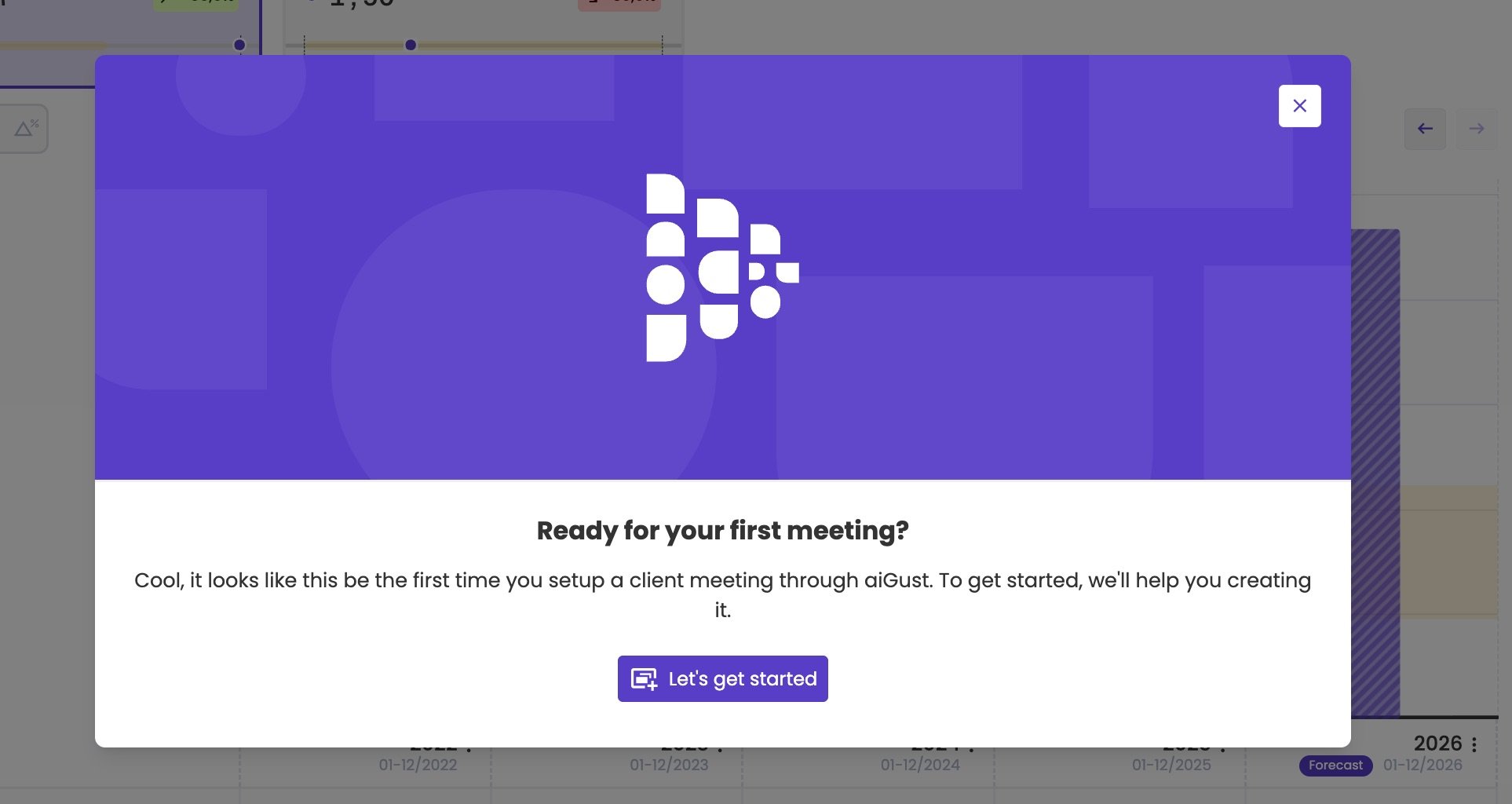
The administration has no meetings yet.
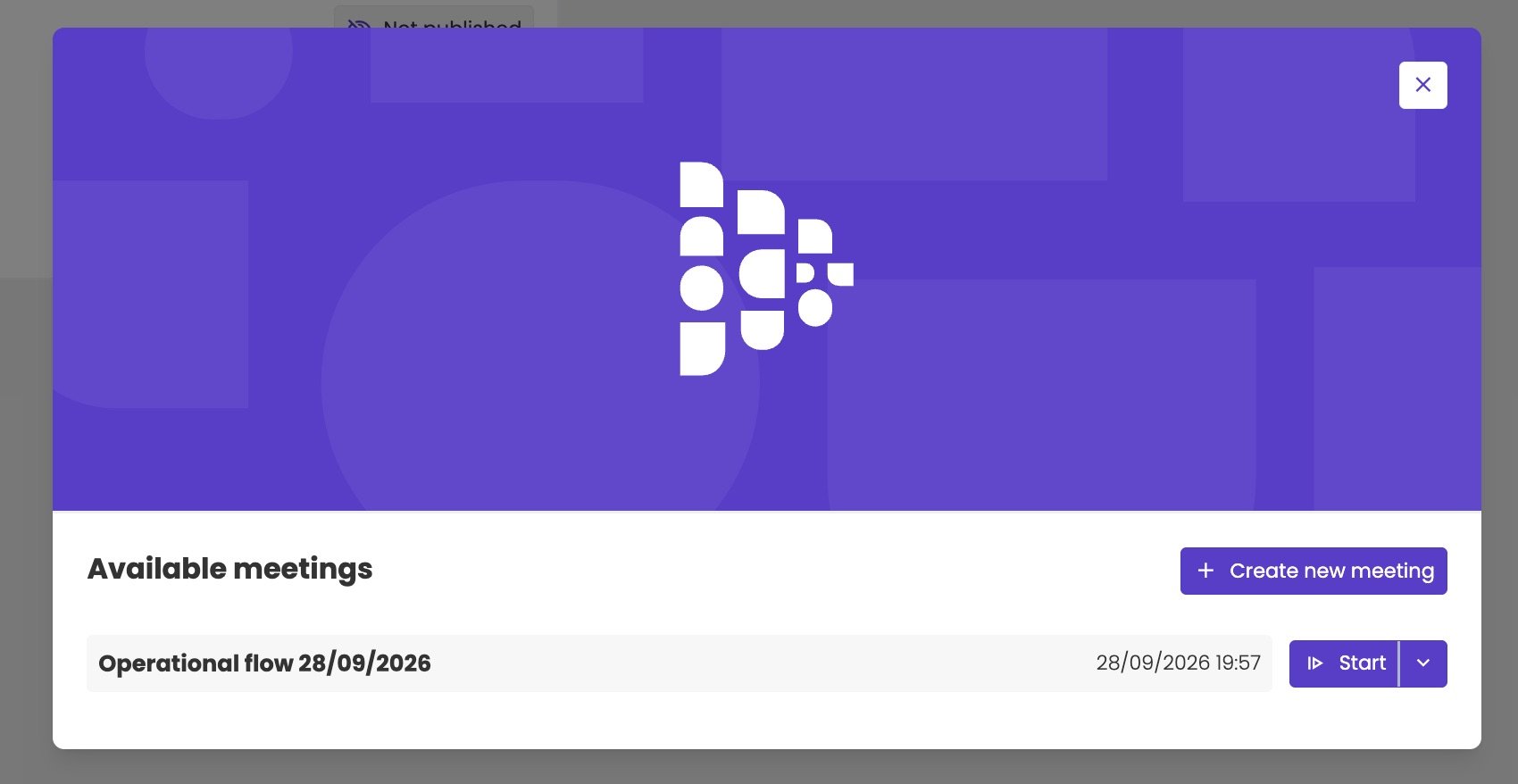
Start one of the administration's meetings, or create a new one.
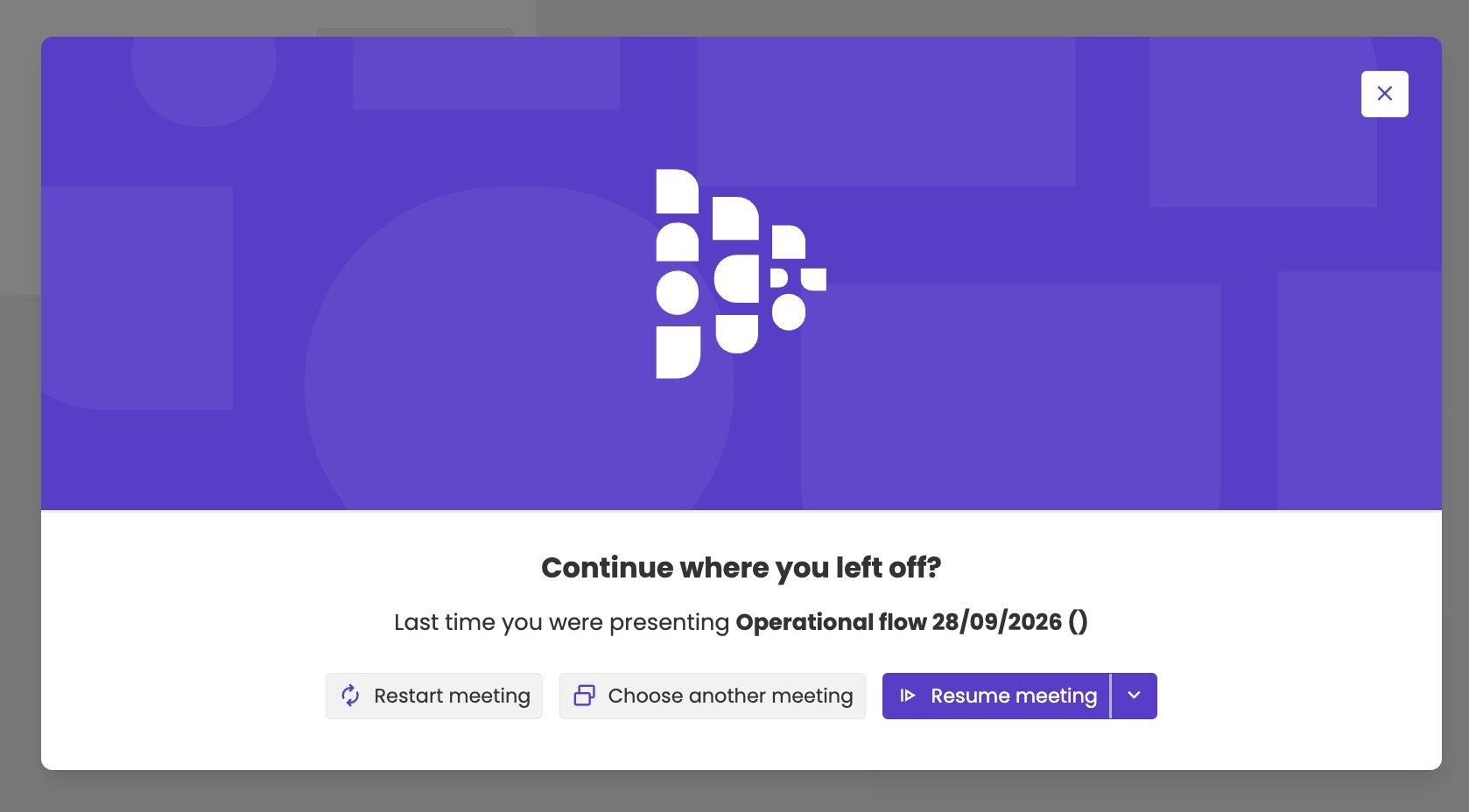
Go on with the meeting you presented last.
Create the meeting
When you create a meeting, the Create a new meeting dialog proposes a flow and the settings, based on the current settings of the administration’s dashboard. Check the Language: it should be the language of your client. Then click Submit. For each setting, see Meeting properties.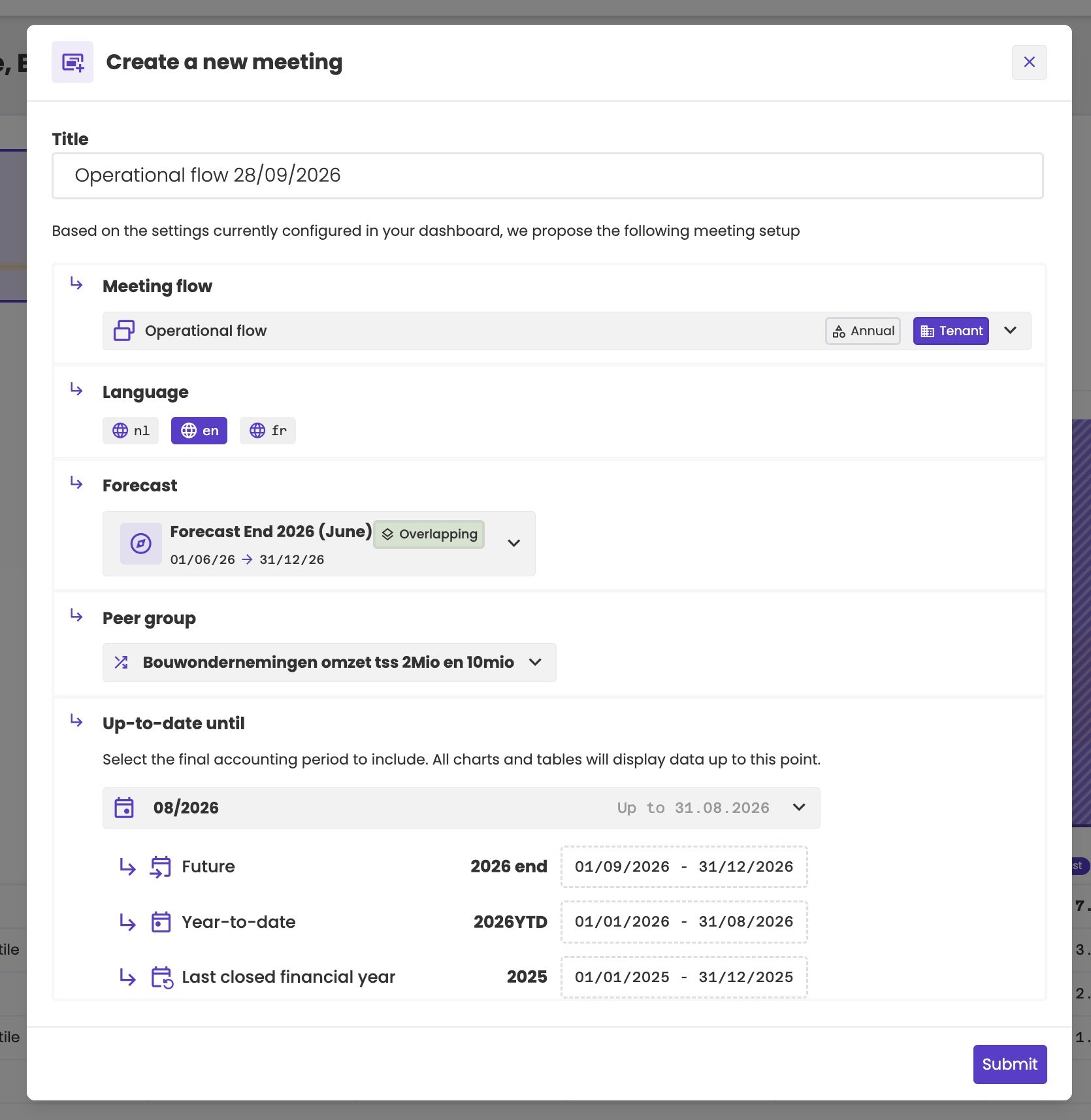
The settings of a new meeting.
Texts written by AI
You don’t have to write the texts on the slides. As soon as you present the meeting, aiGust fills in every empty text field. It reads what each slide shows, the widgets and their figures, and writes a text to go with it, in the language of the meeting.- Your texts stay. Once a field has text, written by aiGust or by you, aiGust never overwrites it.
- Titles aren’t generated. They come from the meeting flow.
Presenter mode or fullscreen mode
With the arrow next to Start, you choose how to present: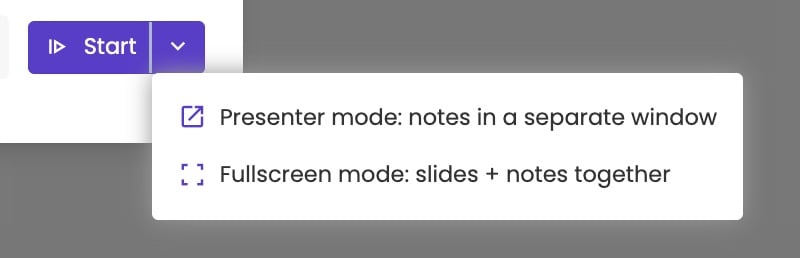
Choose how to present.
Presenter mode
- Choose Presenter mode. aiGust opens a second browser window.
- Move the window with the slides to the screen your client sees.
- Click the full-screen button at the top right of that window.
- Keep the other window, with the notes, on your own screen.
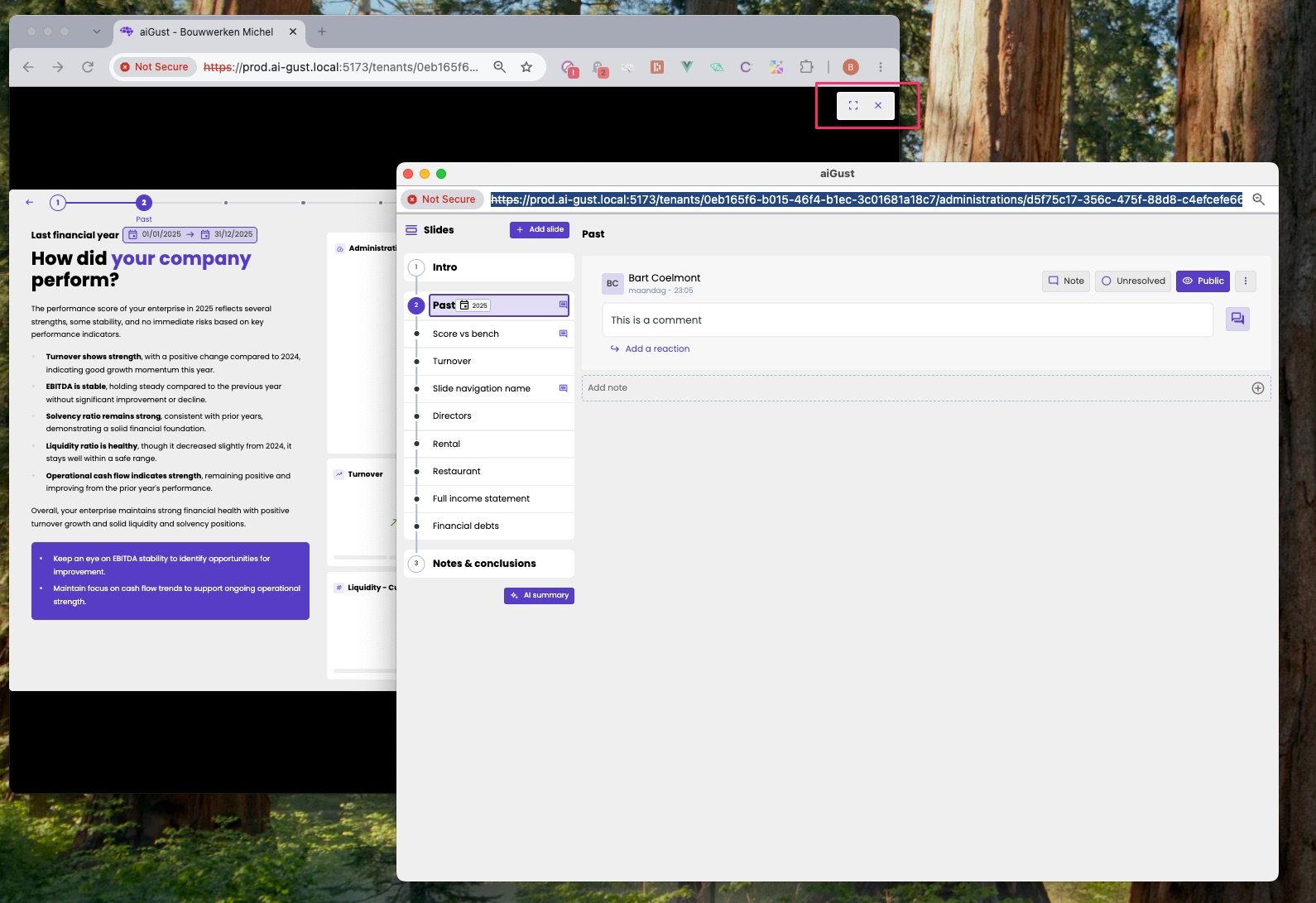
Presenter mode: the slides in one window, the notes in another.
Fullscreen mode
The slides fill the screen, and the notes are on the same screen. Your client sees everything you see.Move through the slides
The navigation bar at the top of each slide shows where you are:- A numbered circle for each section.
- A small dot for each slide within a section.
Take notes during the meeting
Each slide has its own notes. Write down what you discuss with your client as you go.- In presenter mode, the notes are in the notes window on your own screen. Click a slide to see its notes, and add a note under it. You see all notes, internal and public, and you choose for each note whether it’s public.
- In fullscreen mode, click the round button at the bottom right of the slide to open the Slide notes. Your client sees them too, so only public notes are shown, and every note you add is public.
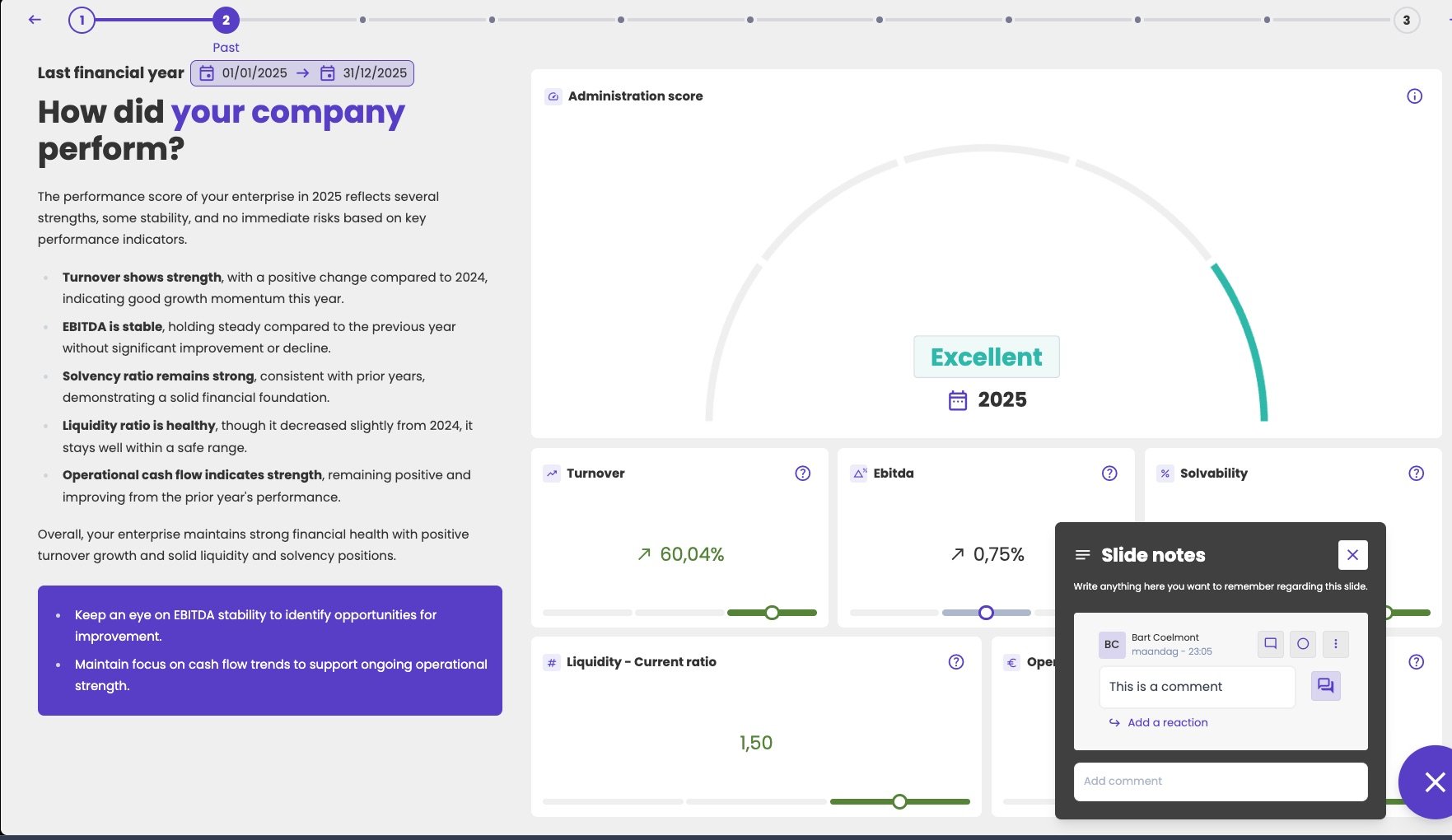
Slide notes in fullscreen mode.