Most slides have a text zone next to the widgets. It holds the title of the slide and, depending on the layout, a text that explains the figures. Some layouts only have a title, without text. Click the title or the text on the canvas. Zone configuration opens with up to three parts: Navigation name, Title and Text. In a meeting, you only change the language of that meeting. In a meeting flow, you fill in every language: nl, en and fr.

Title and navigation name

A slide has two names:
  • The title, in large letters on the slide itself. It can be a full question, such as How did your company perform compared to the competition?
  • The navigation name, in the navigation bar at the top of the slides and in the list of slides on the left. While you present, it shows your client where you are in the meeting. Keep it short, such as Score vs bench. Long names don’t fit in the navigation bar.
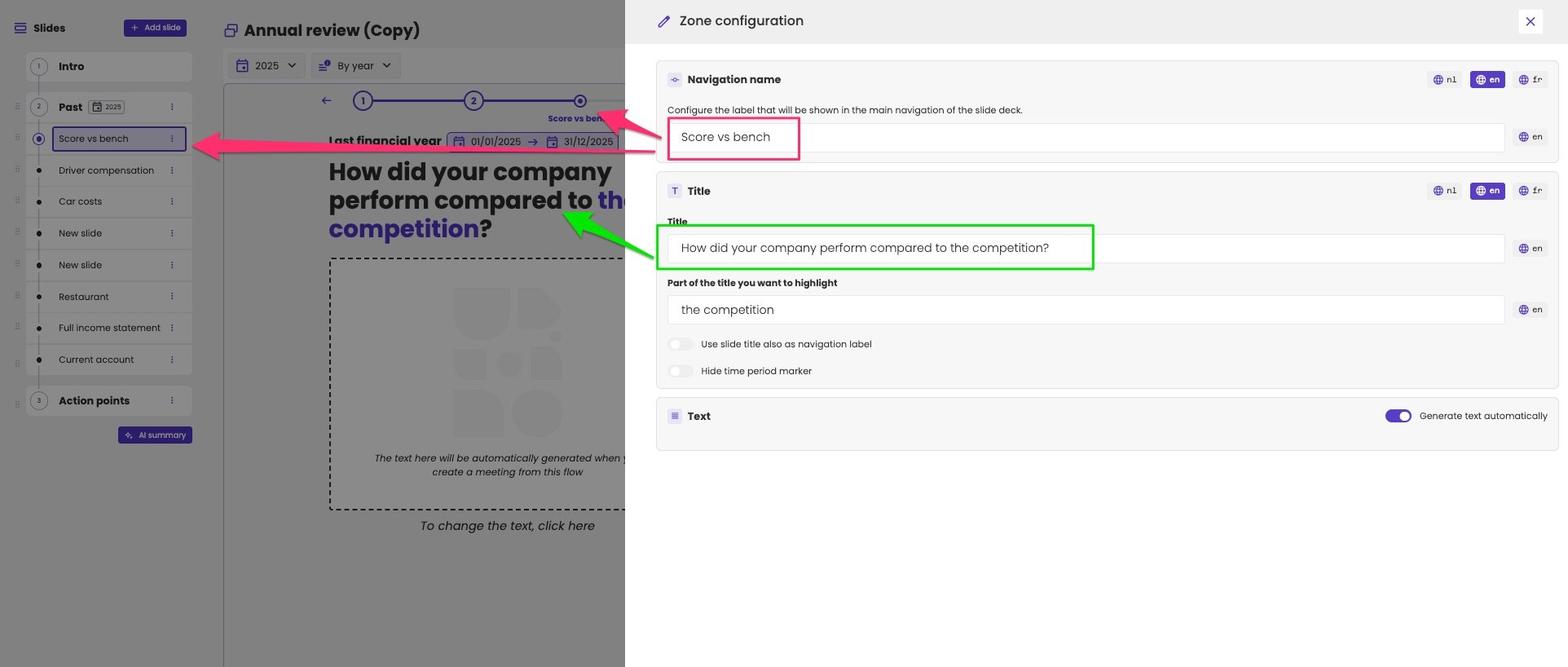
Meeting editor with Zone configuration open. A pink box around the Navigation name Score vs bench, with arrows to the slide in the list on the left and to the navigation bar above the slide. A green box around the Title How did your company perform compared to the competition?, with an arrow to the title on the slide, where the competition is shown in the accent colour. Part of the title you want to highlight is the competition.

The navigation name (pink) and the title (green) of a slide.

Use the title as navigation name

Filling in two names, in three languages in a meeting flow, is double work. To save it, turn on Use slide title also as navigation label. The Navigation name field disappears, and the navigation bar shows the title. This works best for short titles.
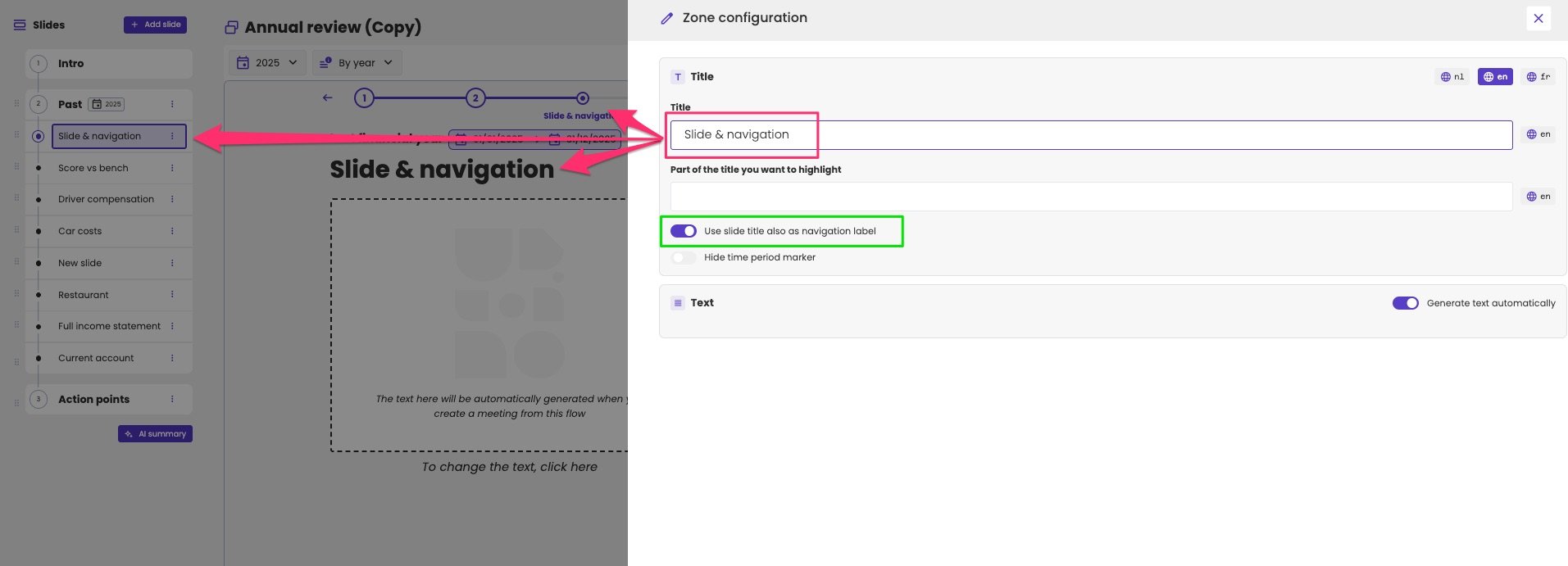
Zone configuration of a slide in a meeting flow, with the language buttons nl, en and fr, and only the Title Slide & navigation, marked in pink, without a Navigation name field. The switch Use slide title also as navigation label is turned on, in a green box. Arrows show the title Slide & navigation on the slide, in the navigation bar and in the list of slides.

With Use slide title also as navigation label turned on, the title is also the navigation name.

When you turn it off again, the navigation name starts as a copy of the title. The navigation name you had before is gone. Type it again if you still need it.

Highlight part of the title

In Part of the title you want to highlight, type the words of the title to show in your accent colour, such as the competition. Type them exactly as in the title. They must be consecutive words.

Show or hide the time period

Above the title, the slide shows the time period it’s about, such as Last financial year 01/01/2025 → 31/12/2025. Your client then always knows which figures you’re discussing. Turn on Hide time period marker to leave it out.
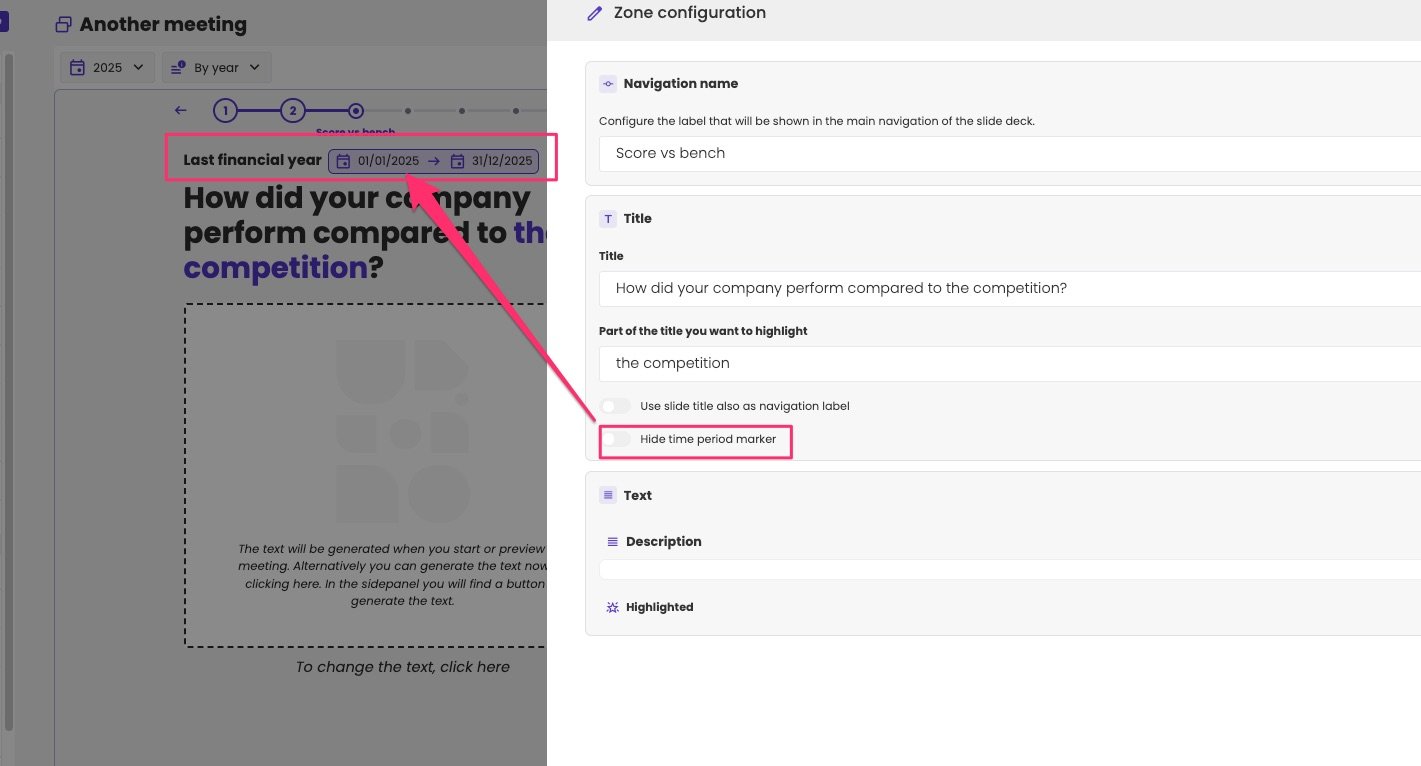
Slide with the time period marker Last financial year 01/01/2025 → 31/12/2025 above the title, in a pink box, with an arrow from the switch Hide time period marker in the Zone configuration, which is turned off.

The time period marker above the title.

The time period itself comes from the slide settings. See Slide settings. Titles are never generated. A meeting takes them from its meeting flow.

Text

The text explains the figures on the slide: what they mean, and what to discuss with your client.

Let aiGust write it

aiGust can write the text for you. It reads the widgets on the slide and their figures, and writes a text in the language of the meeting.
  • Right away: click AI Suggest in the Text part. This only works once the widgets show their data.
  • When you present: leave the text empty. aiGust writes it the first time you present or preview the meeting.
Once a text exists, written by aiGust or by you, aiGust never overwrites it. Click Clear all to empty it, and let aiGust write a new one. In a meeting flow, Generate text automatically decides whether aiGust writes the text of the slide. With several languages, some can have a text and others not. aiGust then writes the missing ones when you present.
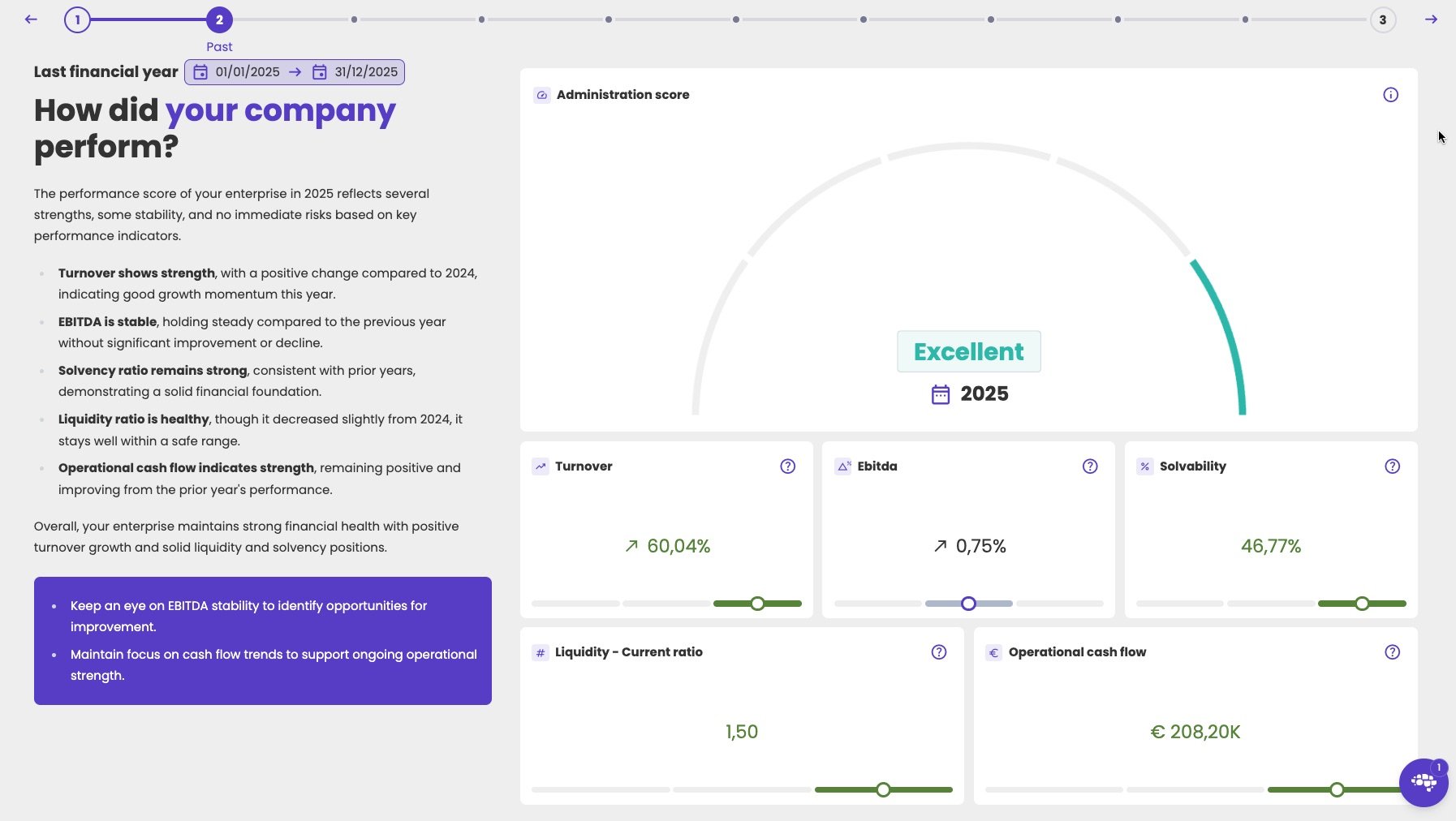
A presented slide titled How did your company perform?, with your company highlighted. The text discusses turnover, EBITDA, solvency, liquidity and cash flow, and a purple highlighted box below it lists two points to watch. On the right, the Administration score Excellent for 2025, with KPI cards for turnover, EBITDA, solvability, current ratio and operational cash flow.

A slide with a text written by aiGust and a highlighted box.

Write it yourself

Type in Description. Use − and + next to it to make the text smaller or larger. You can format the text with a few simple codes: Headings, such as ## Title, and links don’t work. They show up as plain text.
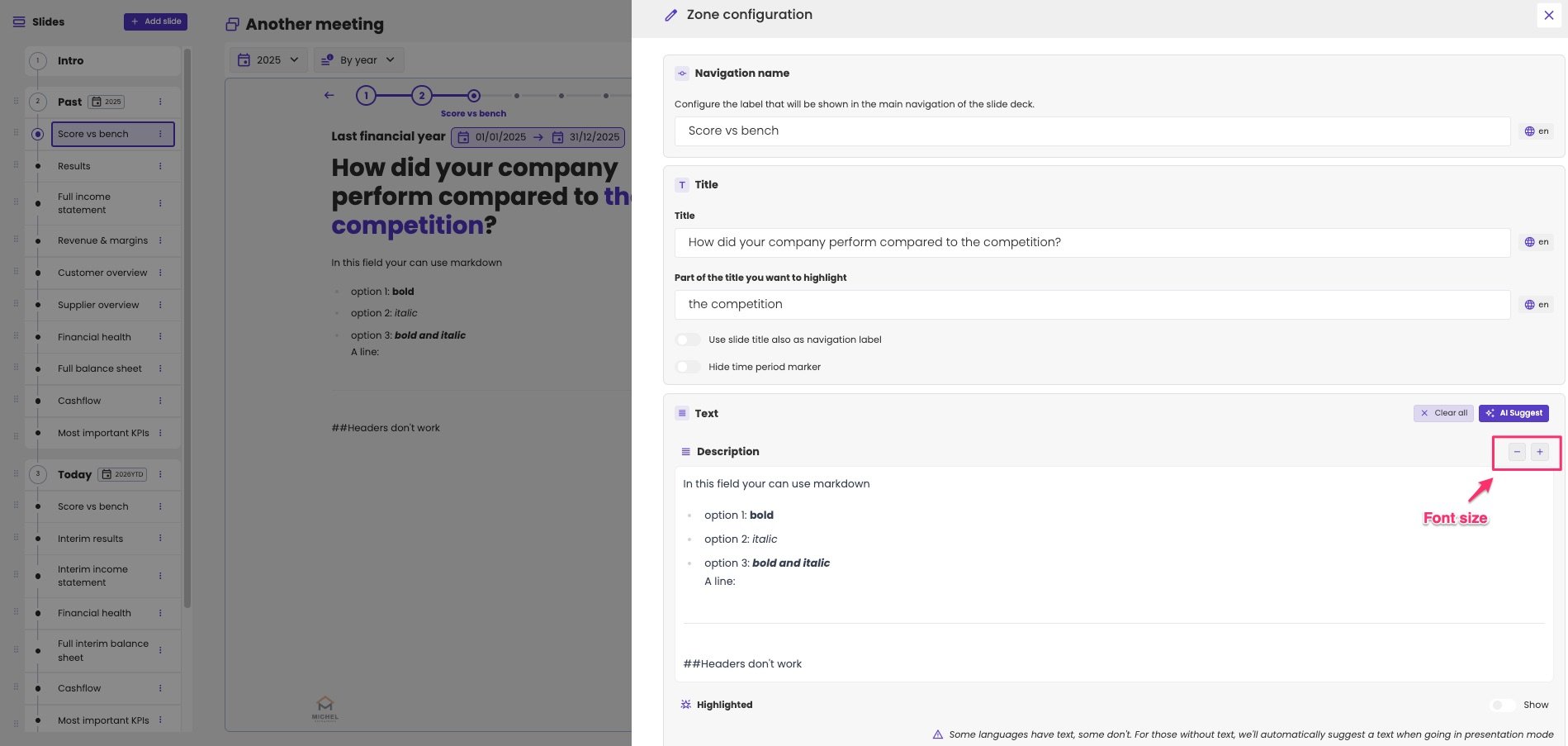
Zone configuration with the Text part: Clear all and AI Suggest, and a Description with the text size buttons − and +, marked Font size. The text reads In this field your can use markdown, with a bullet list of option 1: bold, option 2: italic and option 3: bold and italic, a horizontal line, and ##Headers don't work, shown as plain text. The slide on the left shows the same formatting.

Formatting in the text, and the buttons to change the text size.

Add a conclusion

Below the text, turn on Show next to Highlighted, and type your conclusion. It appears in a box in your accent colour, below the text. Use it for the one or two things your client should remember from the slide.
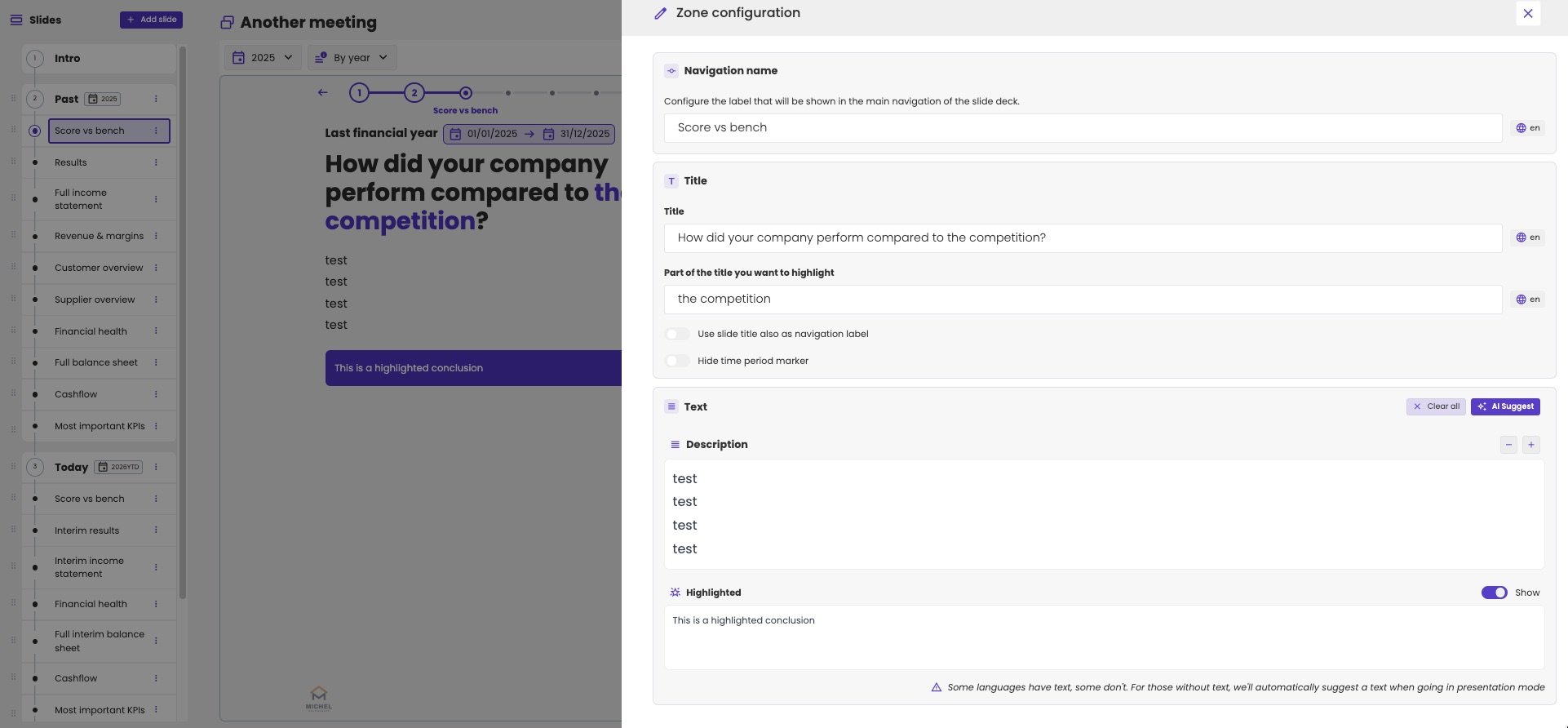
Zone configuration with Highlighted turned on and the text This is a highlighted conclusion. On the slide, the text test four times, and below it a box in the accent colour with This is a highlighted conclusion.

A highlighted conclusion below the text.