

The intro slide
The first slide introduces the meeting. It shows the administration’s name, the meeting title, and a timeline of the sections with their periods. In the meeting editor, click the intro slide to open Intro slide settings.Your firm’s logo
Under General settings, turn Show logo on or off. It shows your firm’s logo on the intro slide, whatever background you choose.The background
Under Background, choose one of three options: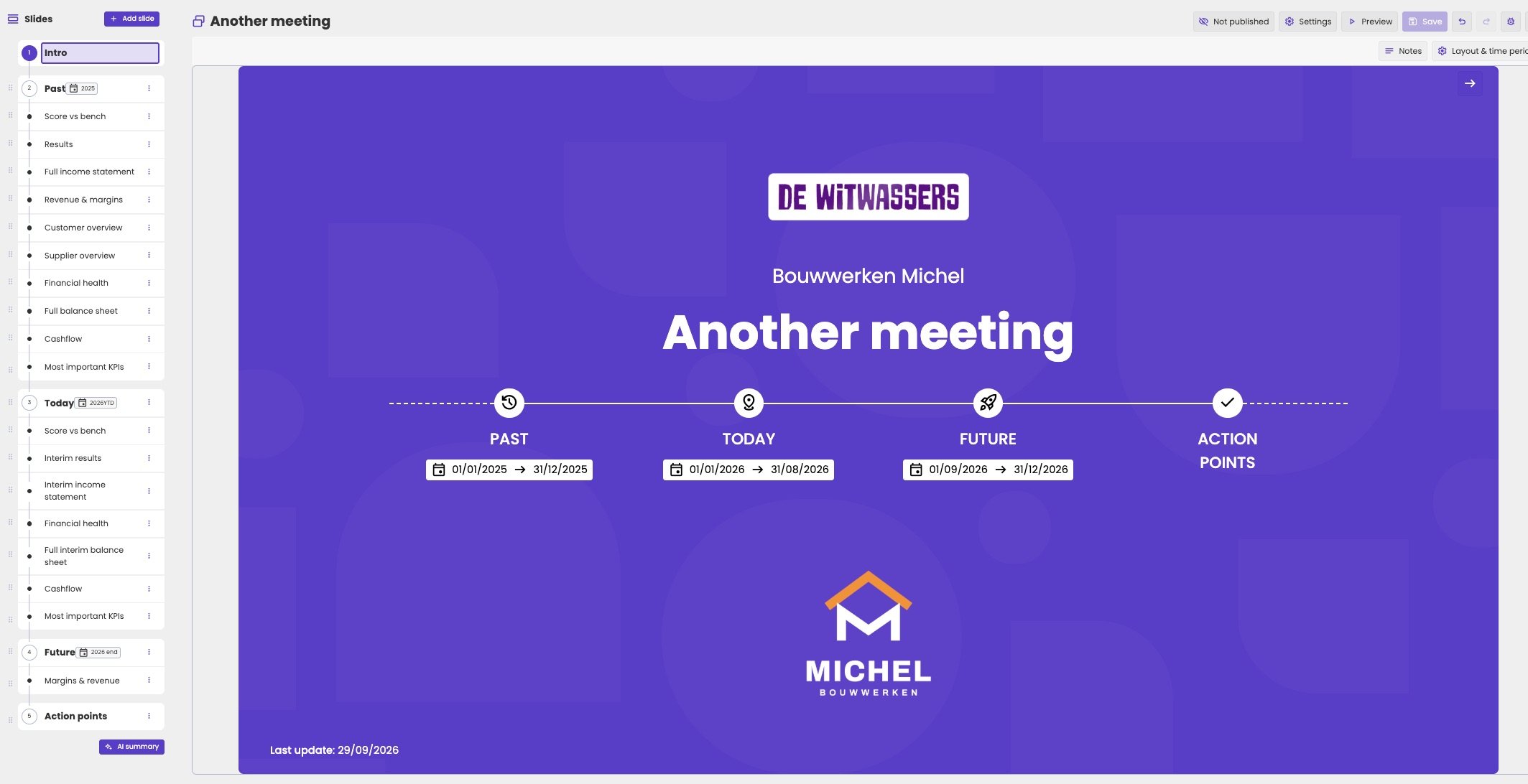
The Default background: your accent colour with aiGust's blocks.
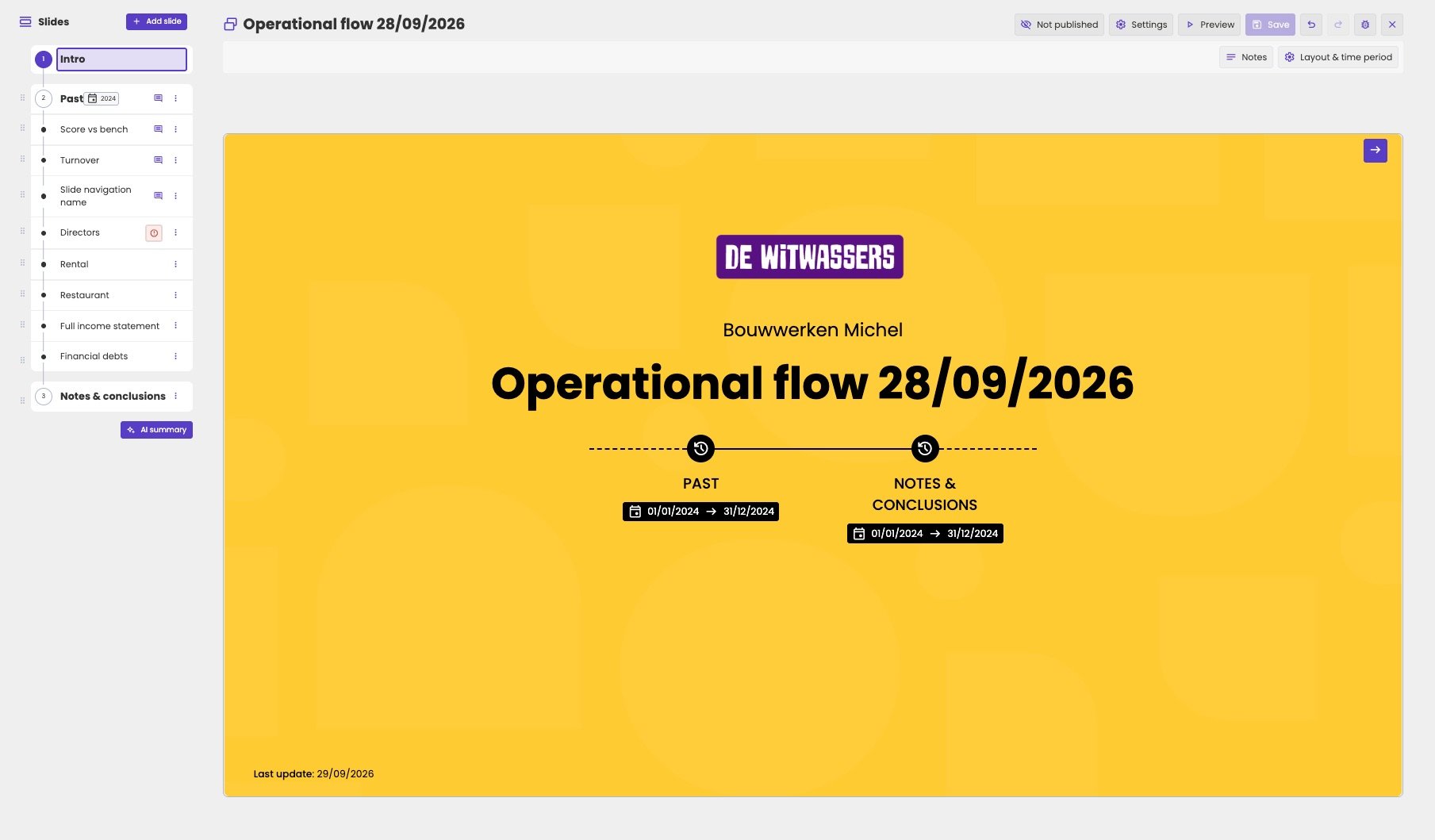
A Color background: aiGust chooses black text on a light colour.
A background image
With Background image, you can use any image you like. aiGust scales it to fit the slide. For the best result, use an image in 16:9, the shape of the slide.- Choose Background image.
- Under Image, click the image to choose another one. The list of your firm’s branding assets opens.
- Choose an image, or click Upload to add a new one. See Branding assets.
- Under Text color, choose a colour that stays readable on your image.
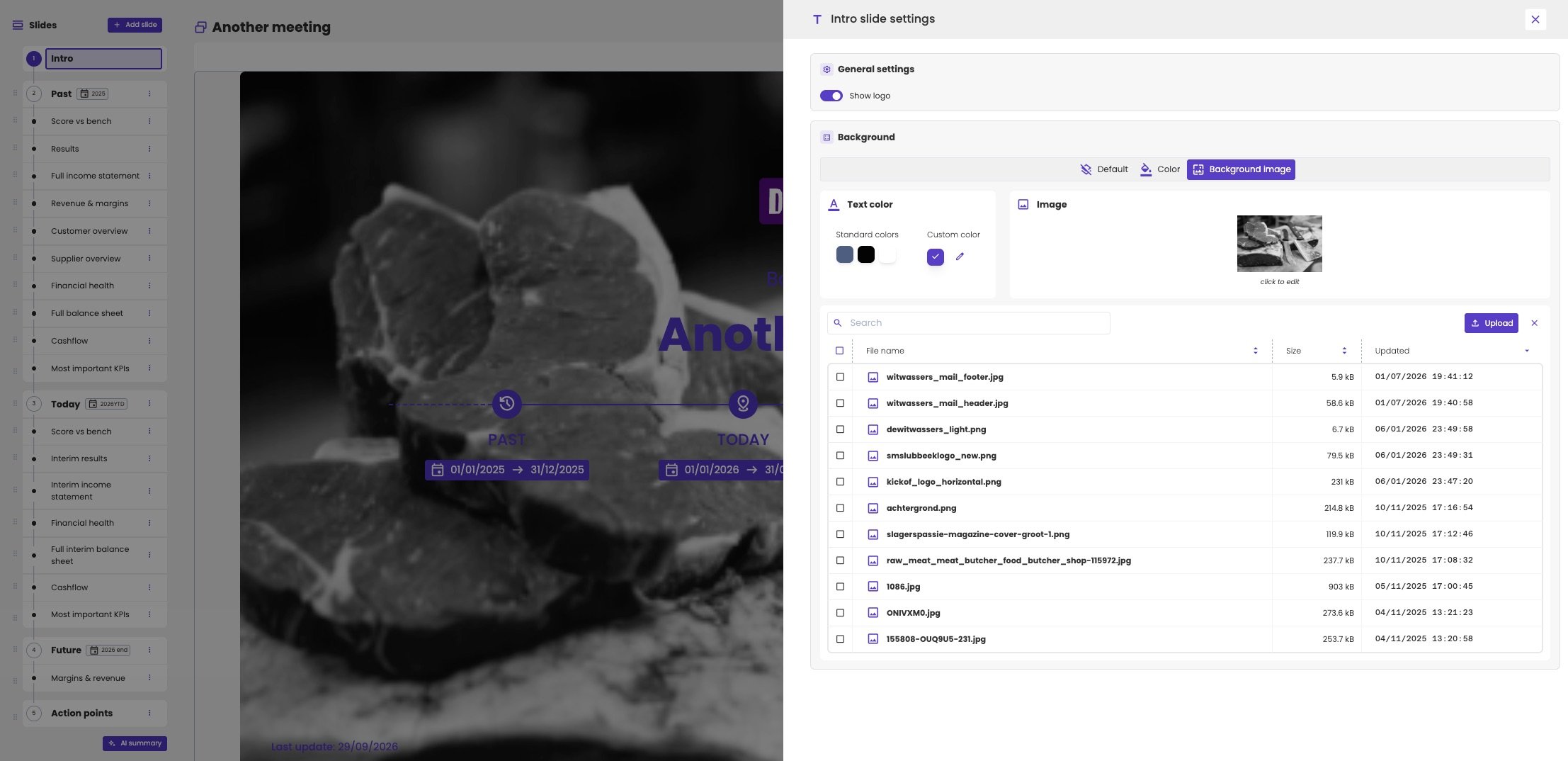
A background image, with the list of images to choose from.
Your client’s logo
You can also show your client’s logo, on the intro slide and in the bottom left corner of every other slide.- Set the logo of the administration. See The administration’s logo.
- In the meeting settings, turn on Show administration logo. See Change the properties.
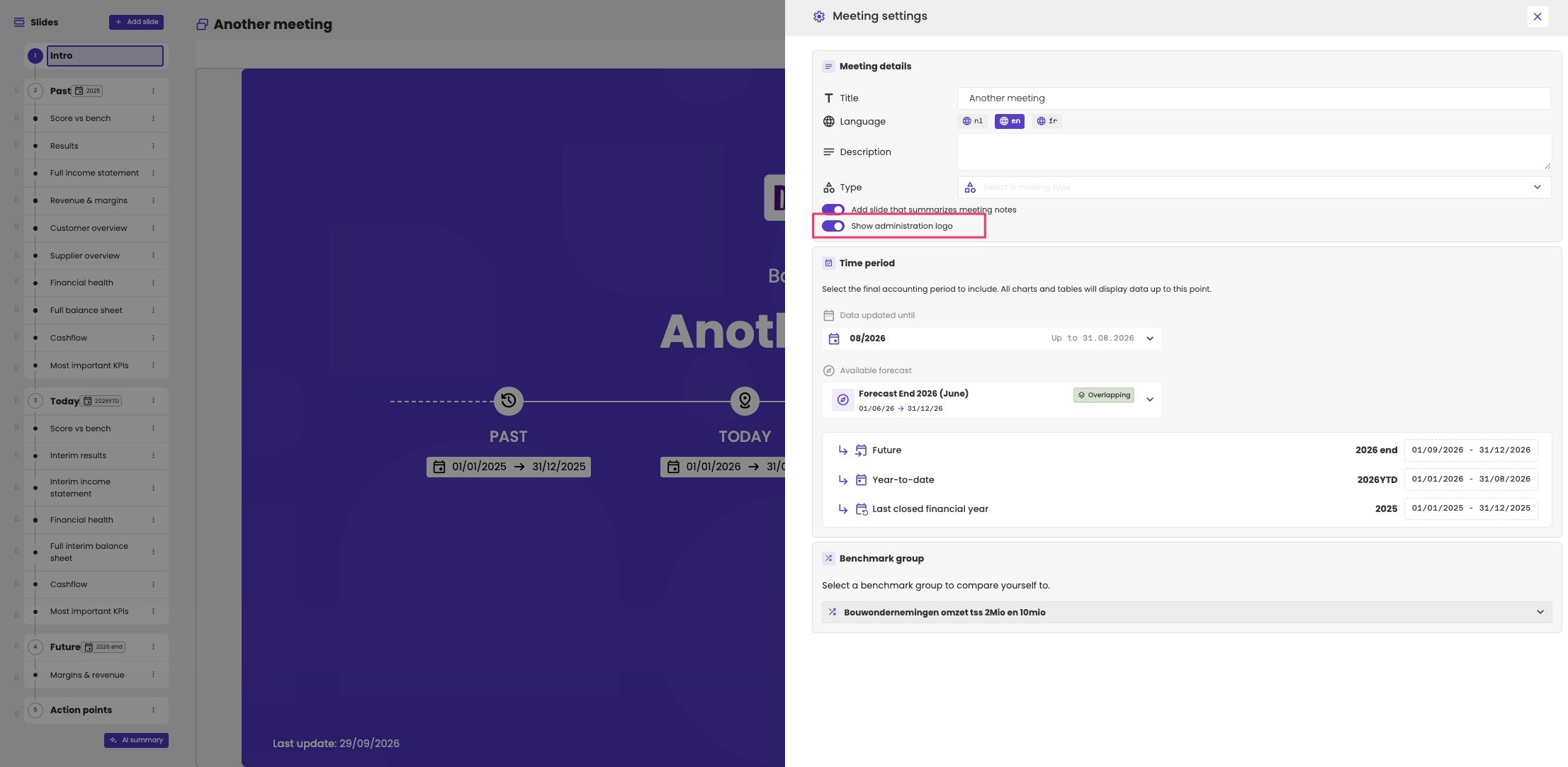
Turn on Show administration logo in the meeting settings.
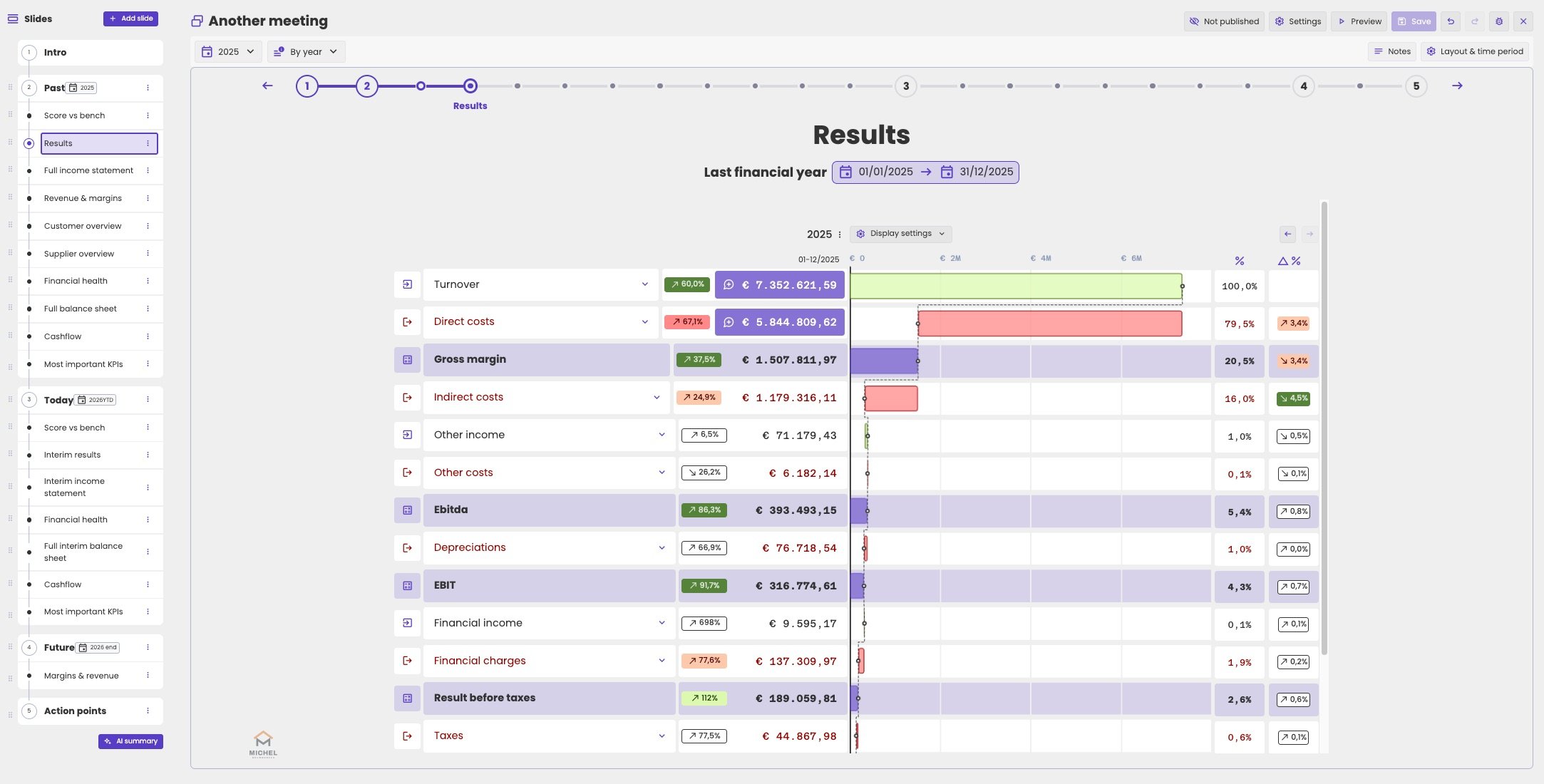
The client's logo in the bottom left corner of a slide.
Other ways to adapt a meeting
- Hide slides that don’t apply to this client. Click the three dots on the slide and choose Hide slide. See Work with slides.
- Highlight part of a title, hide the time period above it, or add a highlighted box below the text. See Titles and text on a slide.