

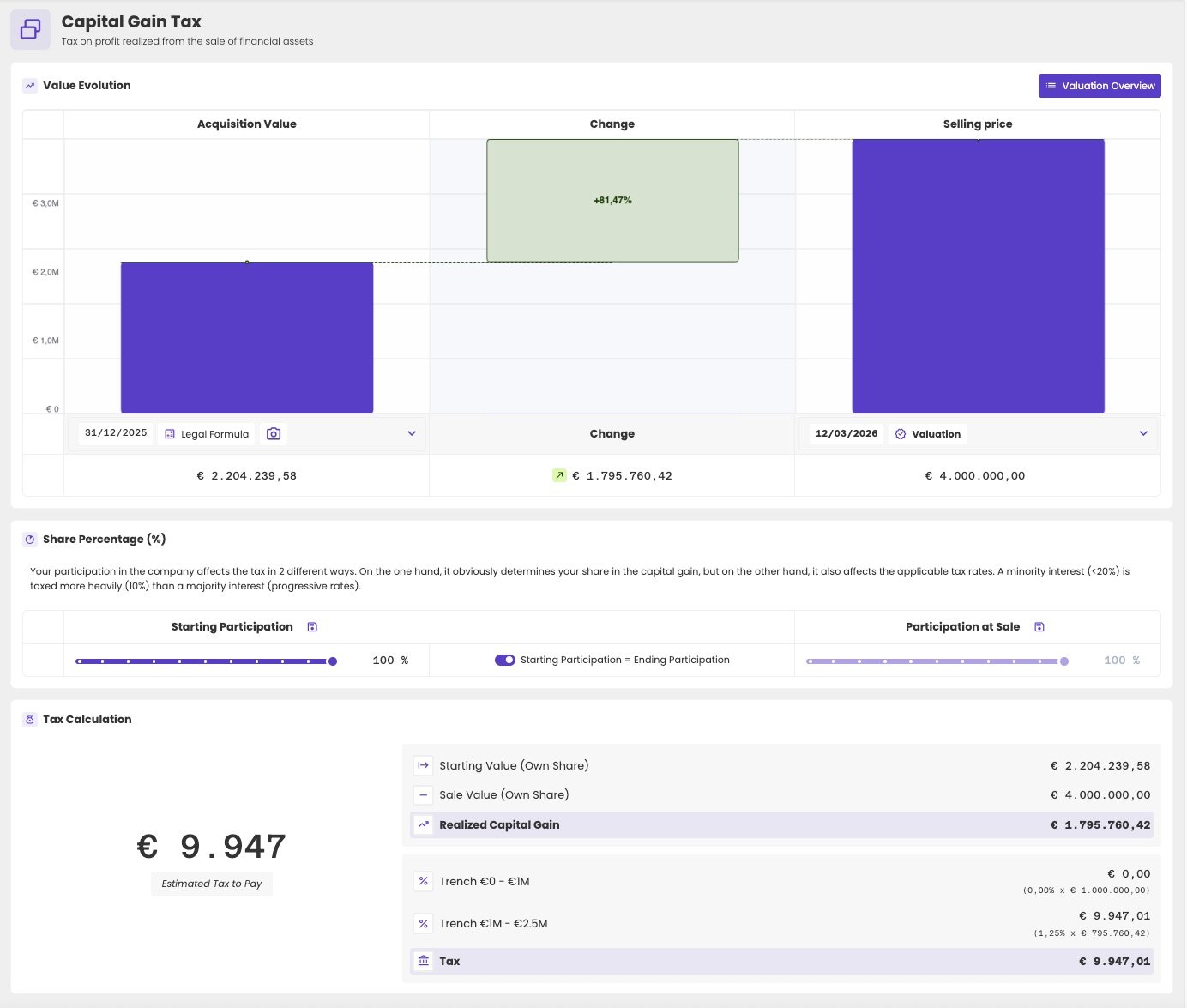
The capital gains tax of an administration.
Choose the acquisition value and the selling price
- Under Acquisition Value, open the dropdown and choose the value at the start. Usually, that’s the value on 31 December 2025, marked with a camera icon.
- Under Selling price, open the dropdown and choose the value of the sale. Or choose Simulate a value. See Simulate a selling price.
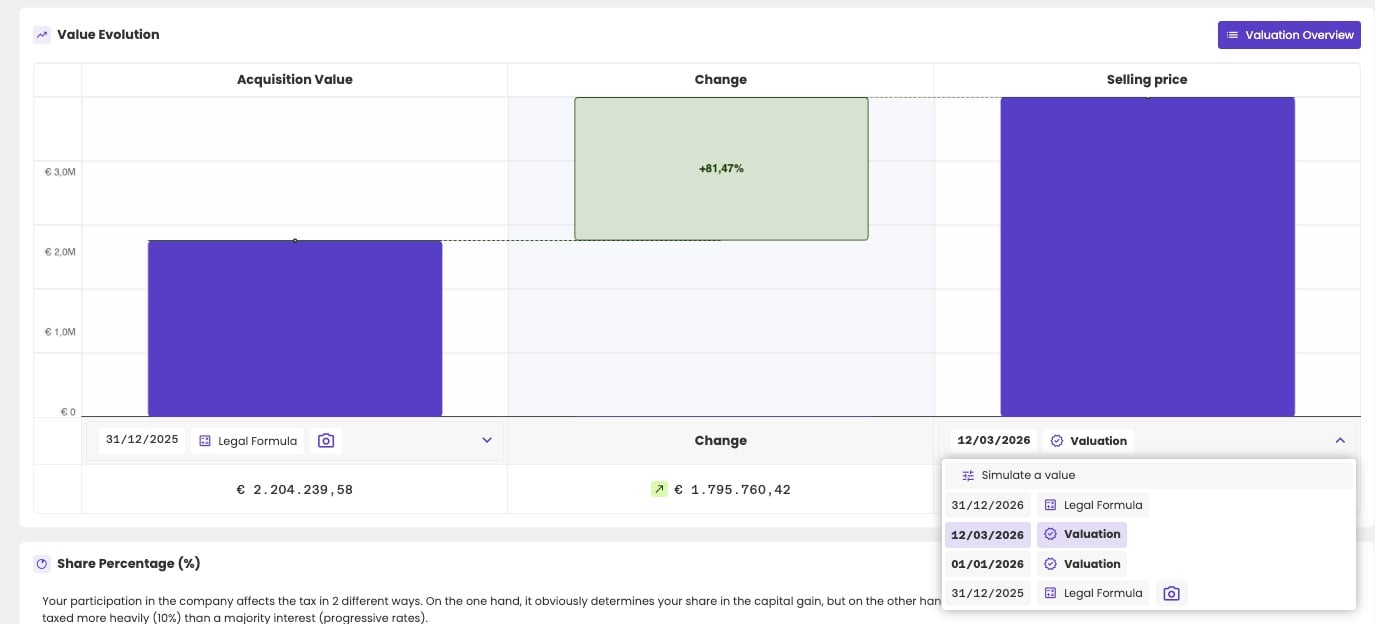
Choose a valuation.
The acquisition value has to come before the sale. If you choose an acquisition value with a later date than the selling price, aiGust shows an error: “The chosen acquisition or start date is after the end date of the valuation. Please check the selected start and end valuation.”
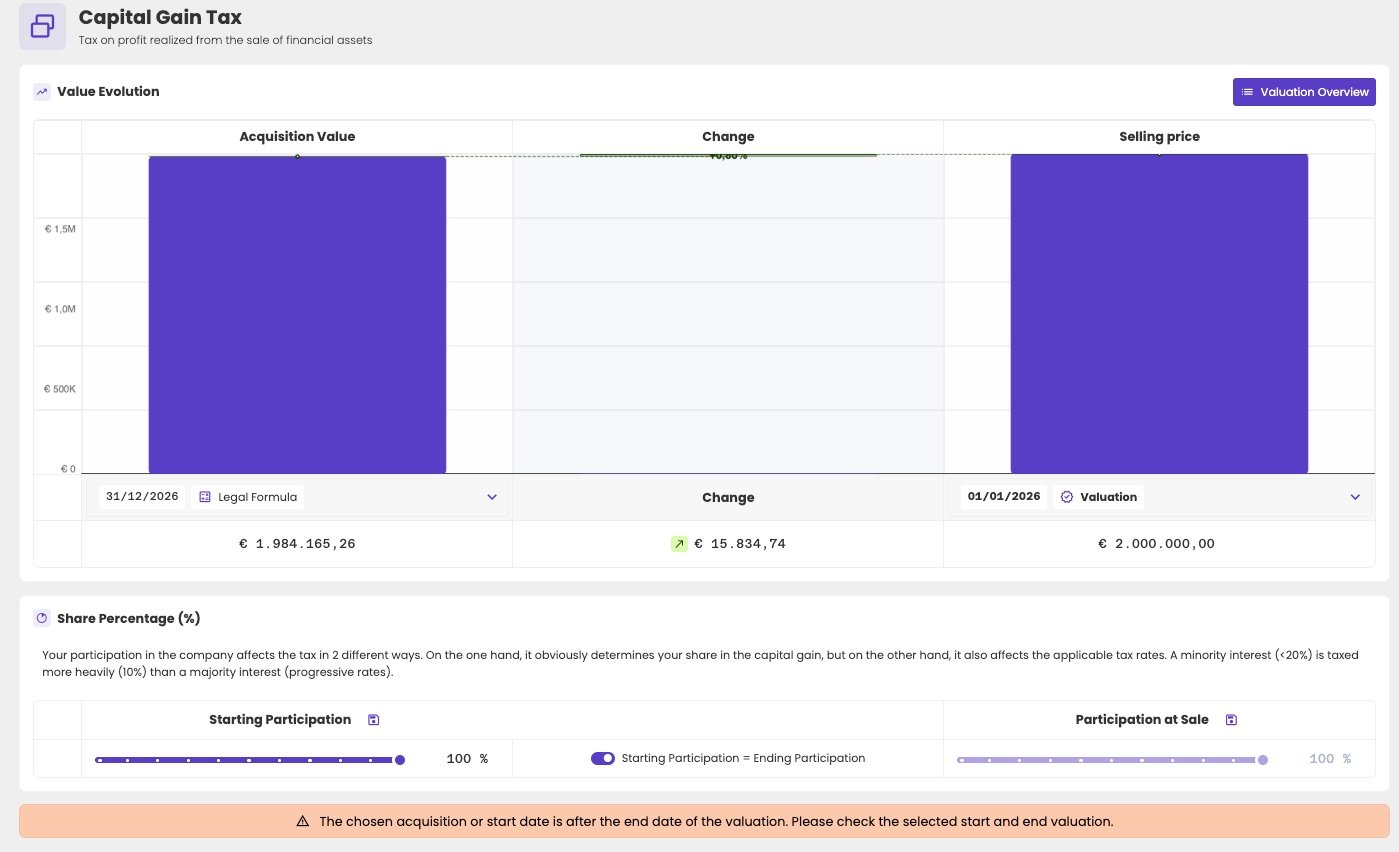
The acquisition value comes after the selling price.
Set the participation
Your client doesn’t always own the whole company, and their part can change over time. Say your client owned 100% in 2022. In 2026, an investor buys new shares, and your client’s part drops to 60%. In 2028, your client sells their 60%. The gain is then the value of your client’s part at the sale, minus the value of their part at the start:- Starting Participation: the part your client owned at the acquisition value.
- Participation at Sale: the part your client sells.
- Below 20%: the minority rate of 10%, with an exemption.
- 20% or more: in trenches, with the first million tax-free.
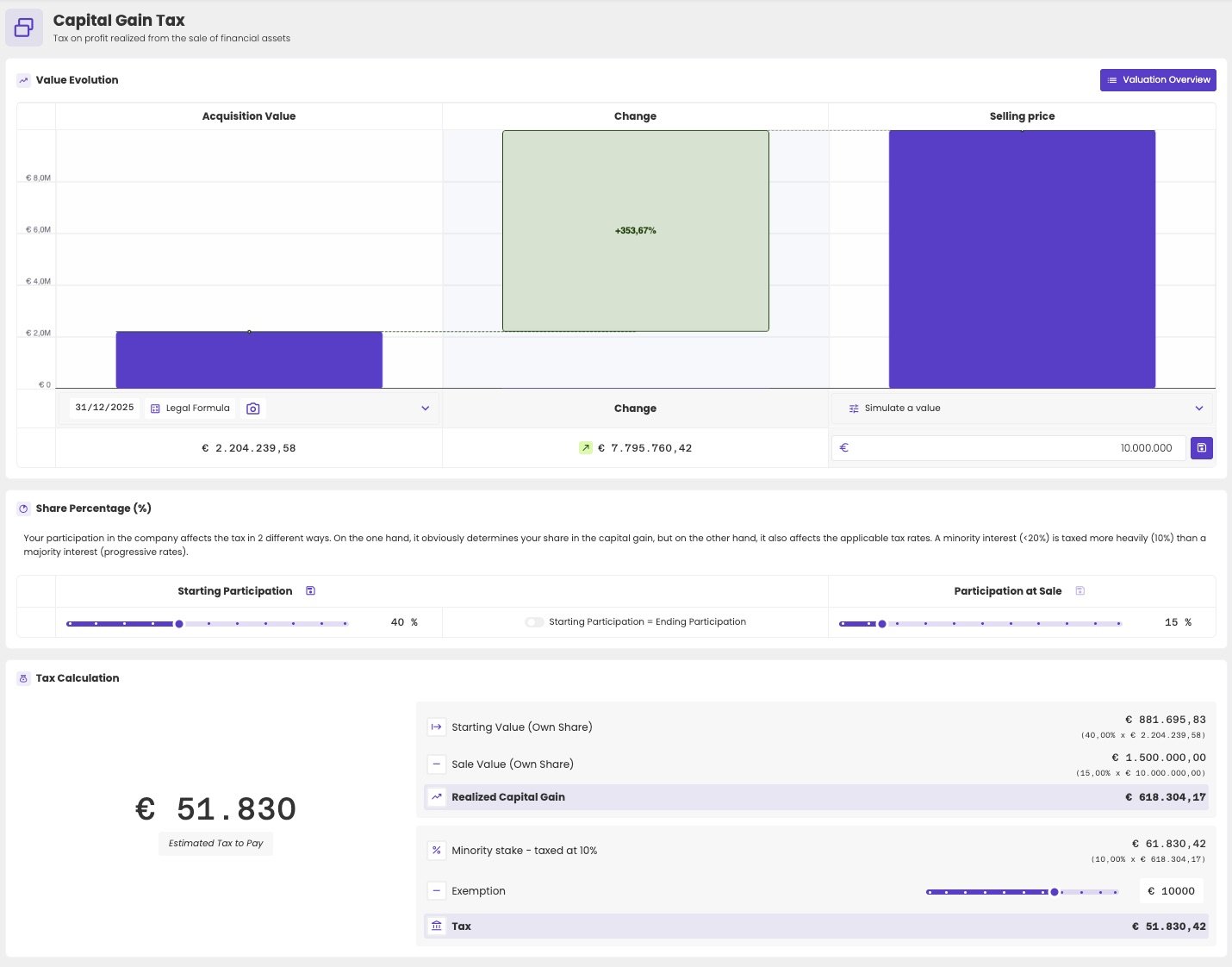
A participation of 40% at the start and 15% at the sale: a minority stake, taxed at 10%.
Read the tax calculation
Tax Calculation shows how aiGust gets to the tax:- Starting Value (Own Share) and Sale Value (Own Share): the values of your client’s part.
- Realized Capital Gain: the difference.
- The tax. With a participation of 20% or more, you see one line per trench, such as Trench €1M - €2.5M. Below 20%, you see Minority stake - taxed at 10% and the Exemption.
- Tax, also shown in large as Estimated Tax to Pay.
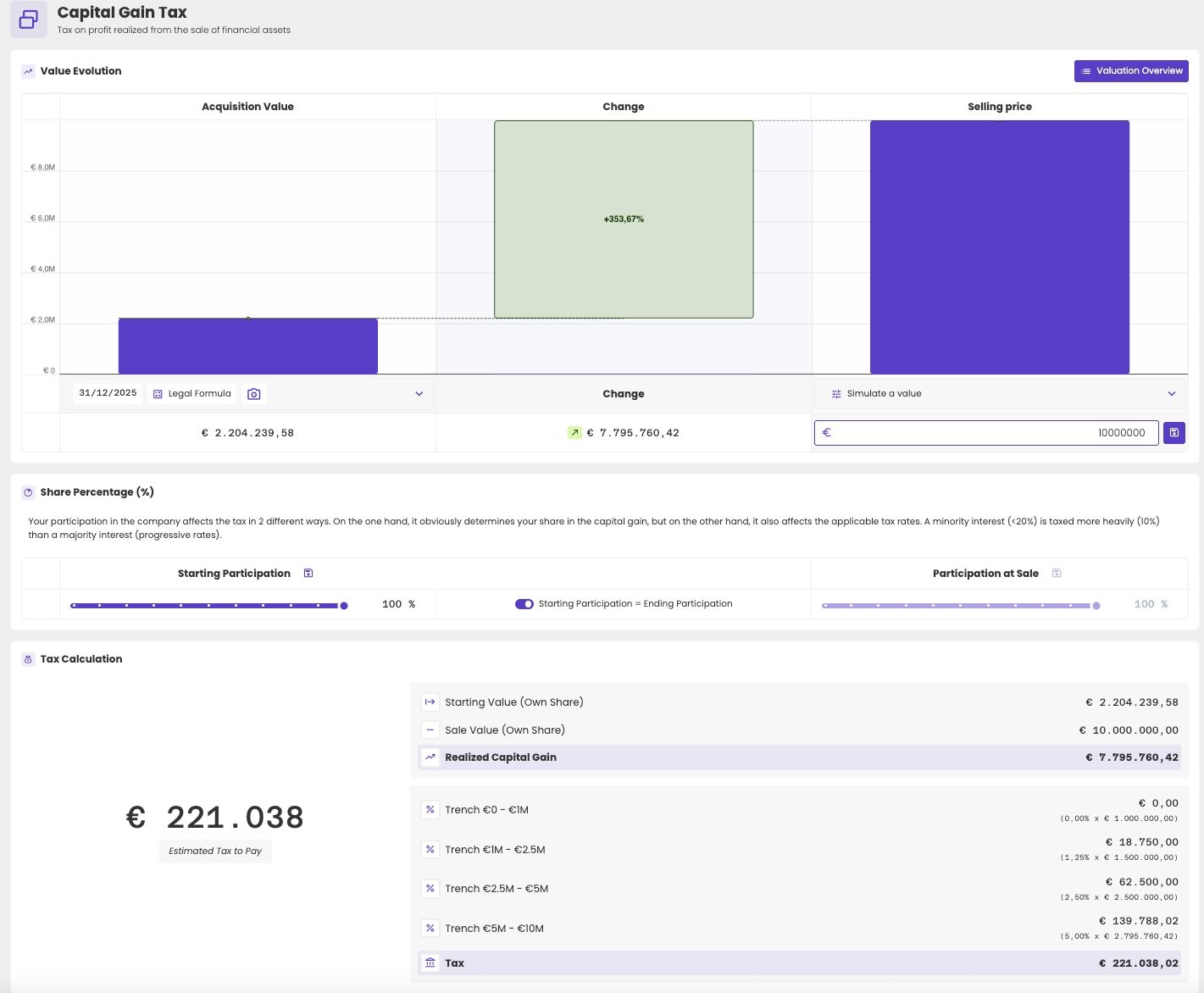
A participation of 100%: the gain is taxed in trenches.
The exemption
With a minority stake, set the Exemption with the slider. It starts at 10,000 euros, and goes up to 15,000 euros. aiGust doesn’t know how much of the exemption your client used this year, or in the past five years. Set it yourself:- Raise it by 1,000 euros for each year in the last five years your client didn’t use the exemption.
- Lower it if your client already used part of it this year, for example on a sale of listed shares.
Simulate a selling price
To see what your client would pay for a given price:- Under Selling price, open the dropdown and choose Simulate a value.
- Enter the price. The tax calculation updates right away.
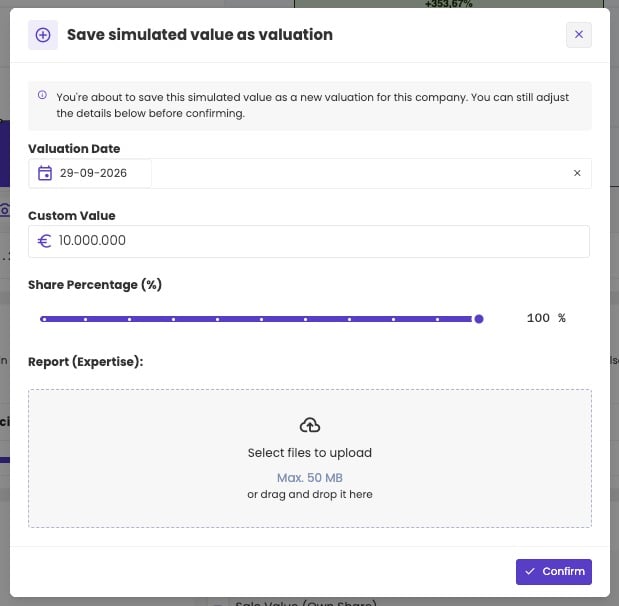
Save a simulated selling price.
Manage your valuations
Click Valuation Overview at the top of Value Evolution. Available Valuations lists all valuations of the administration, with their date, type, value and share percentage. The photo moment is marked Photo Moment.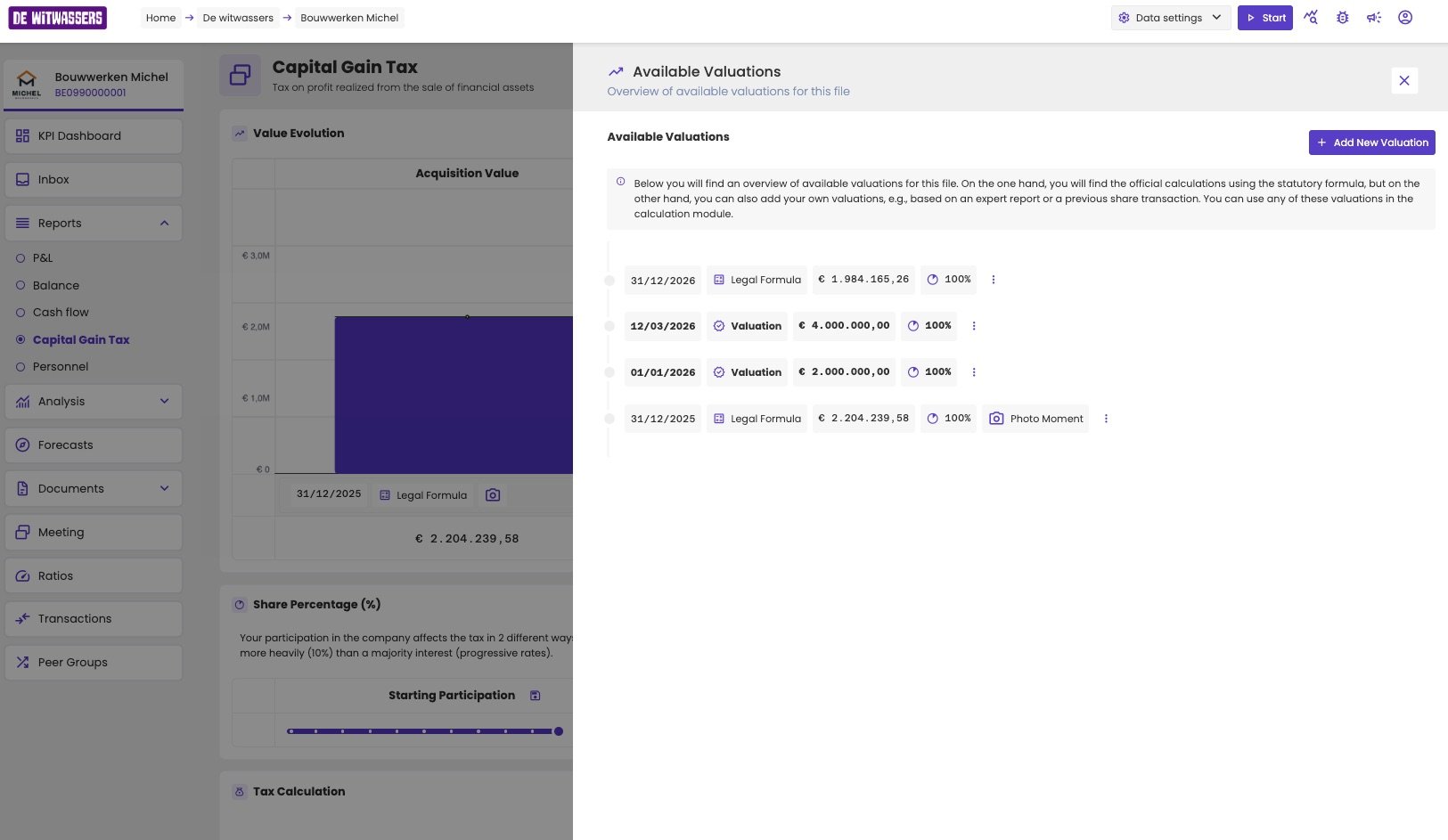
The valuations of an administration.
Add a valuation
When an expert valued the company, or shares changed hands at a known price, add that valuation:- Click Add New Valuation.
- Enter the Valuation Date and the Custom Value.
- Set the Share Percentage (%).
- Optionally, add the report of the expert under Report (Expertise), up to 50 MB.
- Click Confirm.
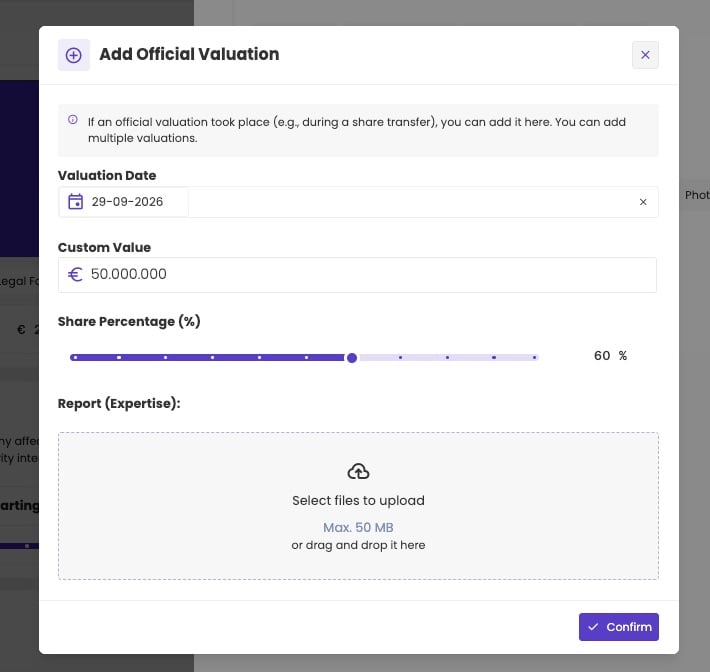
Add a valuation, for example from an expert.
Edit or delete a valuation
Click the three dots next to one of your own valuations, and choose Edit Valuation or Delete Valuation. You can’t edit or delete a Legal Formula valuation.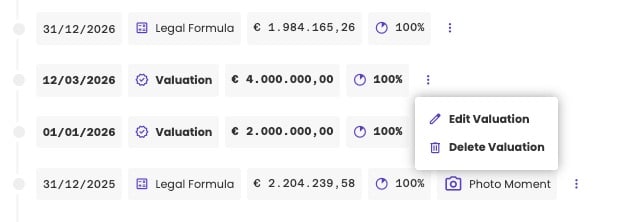
Edit or delete a valuation.