

Sectors and subsectors
Sectors and subsectors are aiGust’s own classification of economic activities. They group NACE codes into categories that make sense when you’re looking for peers. The Construction sector, for example, has subsectors such as electricians, plumbers and roofers. When you create a peer group, you can select a sector or subsector, rather than looking up and combining the right NACE codes yourself. For the full list of sectors and subsectors, with the codes in each, see the sector reference.How aiGust determines the sector
The sector follows from the administration’s NACE code:- aiGust reads the company’s NACE codes from the Crossroads Bank for Enterprises (KBO/BCE). It updates its copy of that database every month. A company often has several NACE codes there.
- aiGust selects one of them as the administration’s NACE code, based on a priority order.
- The NACE code determines the sector and subsector.
Virtual codes
For some activities, NACE codes aren’t detailed enough to find good peers. aiGust therefore adds its own virtual codes:- Medical specialisations: a NACE code doesn’t tell you whether a doctor is a cardiologist or a dermatologist. aiGust adds RIZIV codes, such as
RIZIV-10-S07for ophthalmologists, based on the public data of the RIZIV/INAMI. - Carpentry: NACE code 43320 covers all carpentry. aiGust splits it into
43320_infor interior carpentry and43320_exfor exterior carpentry.
Company types
Company types aren’t an official classification. aiGust uses them to make benchmarks more reliable: you don’t want to compare a freelancer’s management company with a large operating company, even if they’re in the same sector.
A machine-learning model determines the company type from the administration’s figures. It looks at KPIs such as the number of FTE.
Verify and change the sector and company type
aiGust’s classification is a suggestion. As long as it isn’t confirmed, the Please verify the sector and company type pop-up opens each time you open the administration’s dashboard.- Unconfirmed classifications can change. aiGust may classify the administration differently later, for example after a KBO update or new figures.
- Confirmed classifications never change automatically. Only a user can change them.
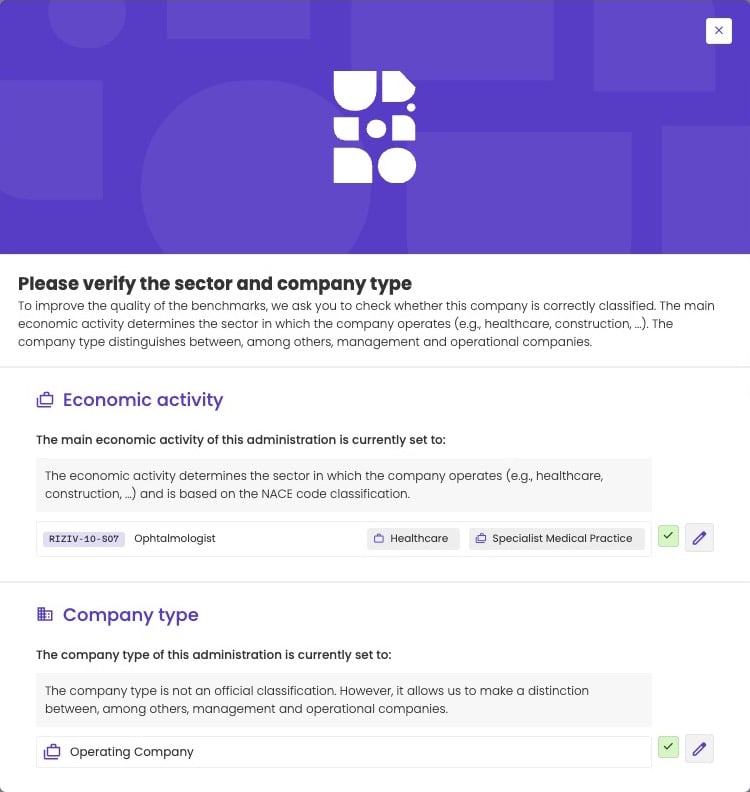
The verification pop-up shows the current economic activity with its sector and subsector, and the company type.
- Economic activity: the NACE code, or virtual code for medical specialists, with the sector and subsector it belongs to.
- Company type.
- If it’s correct, click the check mark to confirm it.
- If it’s wrong, click the pencil to change it. See the steps below.
Change the economic activity
1
Open the edit mode
In the Economic activity part of the pop-up, click the pencil.
2
Choose the right activity
aiGust lists the company’s other NACE codes from the KBO first, marked KBO. Select the one that fits best. If the right activity isn’t listed, search by NACE code, sector or subsector.
3
Save
Click the save button next to the search field. To go back without changing anything, click the undo button.
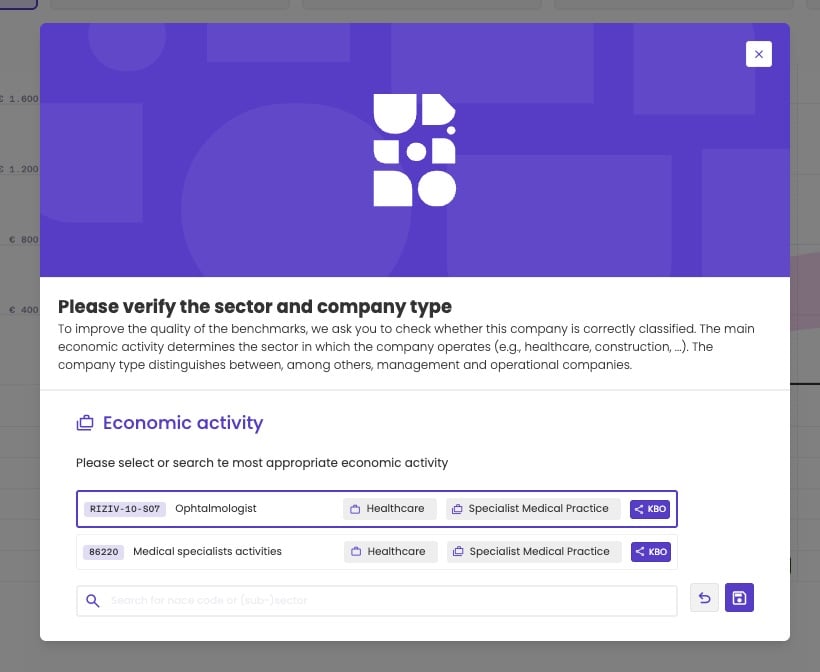
Choosing another economic activity. Codes the company has in the KBO are marked KBO.
Change the company type
In the Company type part of the pop-up, click the pencil and select the right company type.Related pages
How benchmarking works
Why comparing with the right peers matters.
Create peer groups
Use sectors and company types to define a peer group.