

Add a widget
- Open the slide in the meeting editor.
- Click a data zone of the slide layout. Zone configuration opens.
- Under Widget, choose a category: Reports, Charts, Scores, Documents or Other.
- Click the widget, and click Apply.
- Under Widget configuration, set its options, if it has any. Not every widget has options.
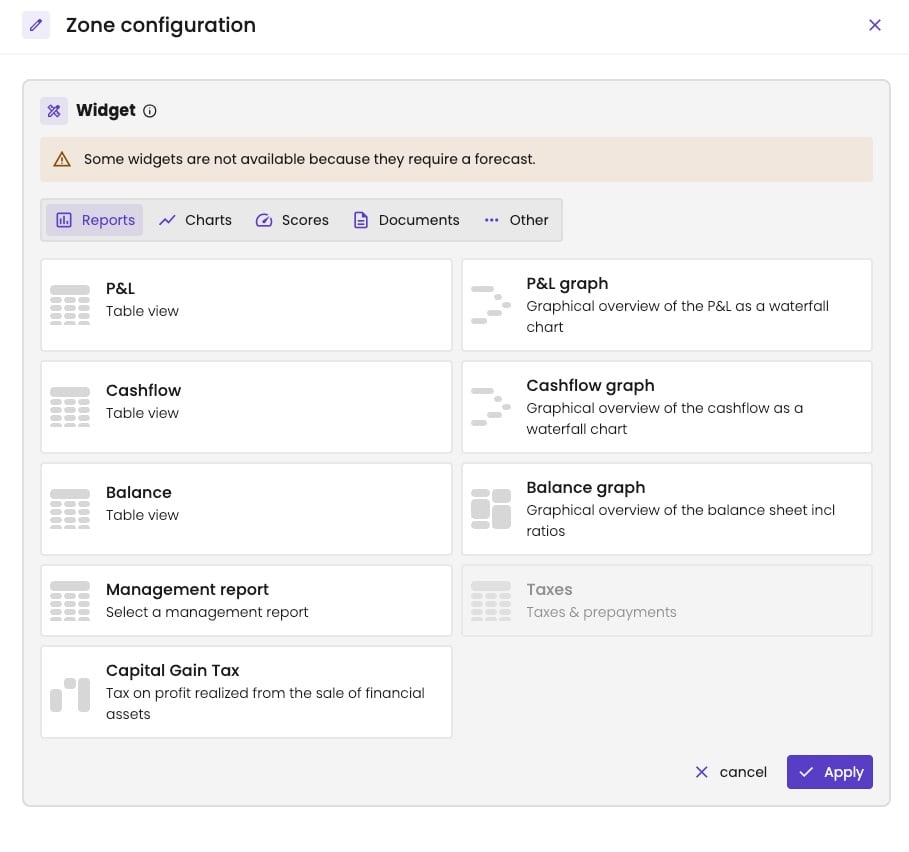
The report widgets you can add to a data zone.

The Management report widget, with its option: the report.
Which figures a widget shows
Data widgets take their figures from:- The meeting: the up-to-date-until date, the peer group and the forecast. See Meeting properties.
- The slide: its time period and reporting level. See Slide settings.