

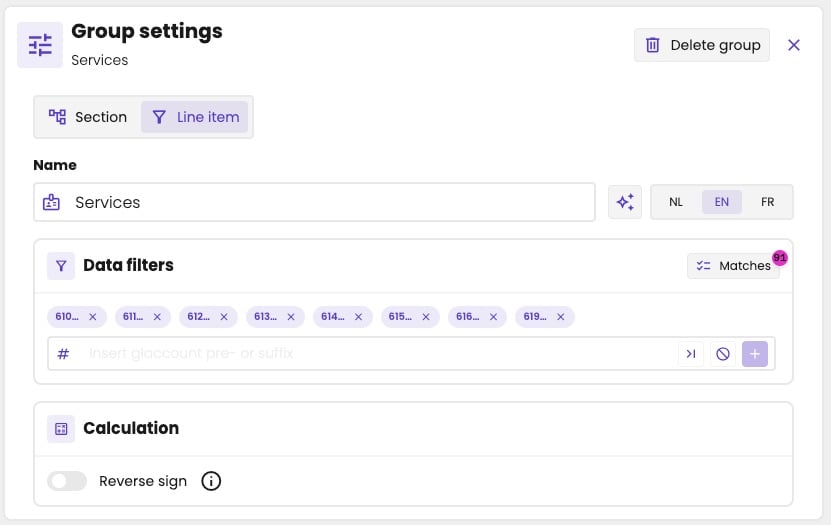
The settings of a line item that holds the accounts starting with 610 to 616 and 619.
Add a filter
- Click the line item, so its Group settings open.
- Under Data filters, enter the first digits of the accounts in Insert glaccount pre- or suffix, for example 70.
- Click + to add the filter.
Starts with, ends with, not
By default, a filter selects the accounts that start with the digits you enter. Two buttons in the field change that, before you click +: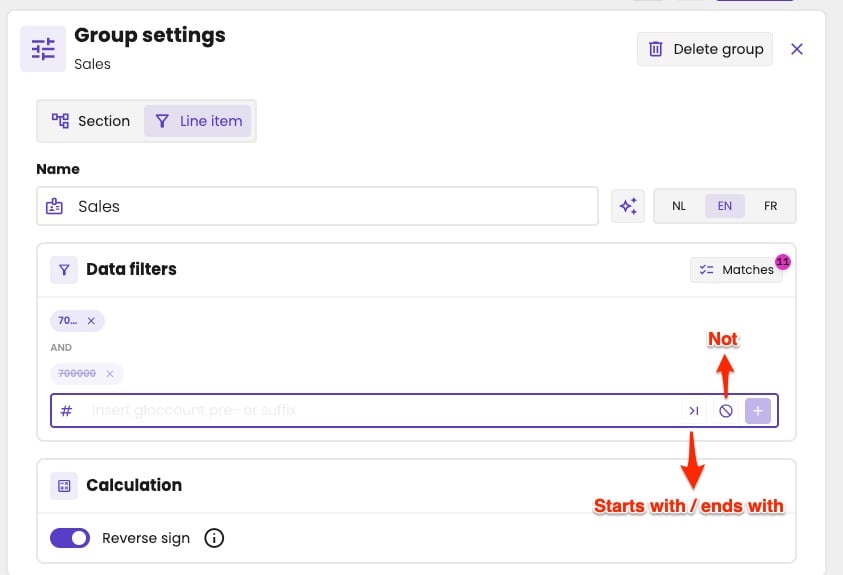
The buttons for ends with and not, next to the field.
- The filters that select accounts add up: an account matches when it meets any of them.
- The “not” filters add up too: an account is left out when it meets any of them.
- The two sets are combined with AND: an account must match a filter, and none of the “not” filters.
- The new line item filters on starts with 700001 and 700002.
- The turnover line item filters on starts with 70 and 71, and not 700001 and not 700002.
Check which accounts match
The badge on Matches shows how many GL accounts match the filters. Click Matches to see them. Double marks an account that’s also in another line item.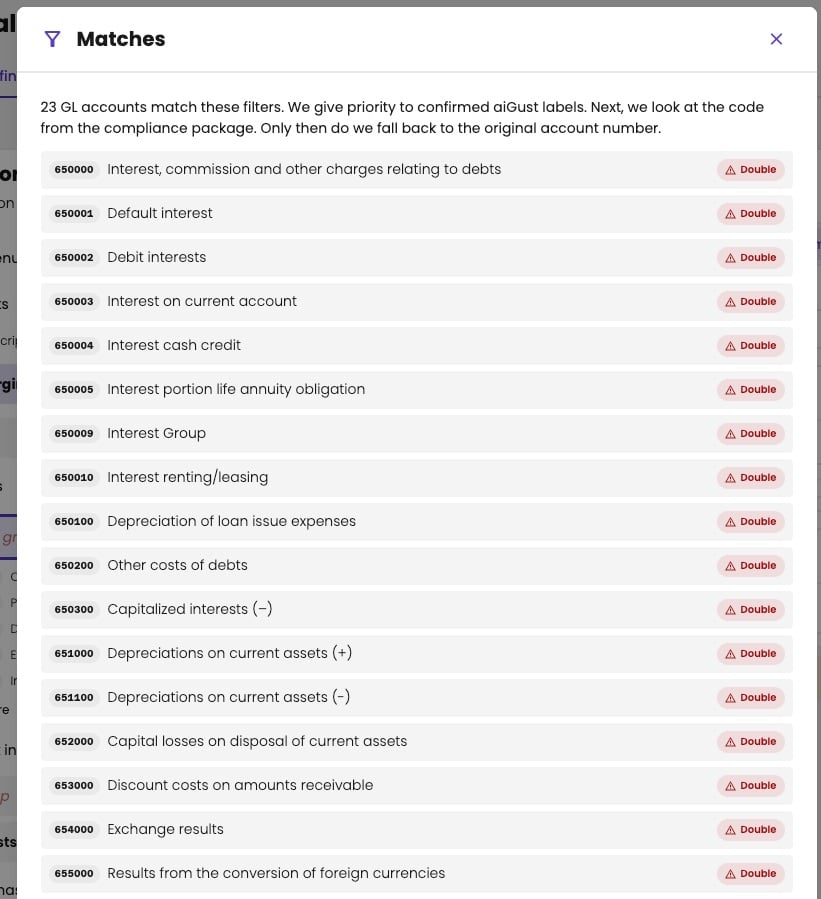
The accounts that match the filters of a line item.
Which code aiGust filters on
aiGust filters on the account code, but not always the one from the bookkeeping. For each account, it uses the first code available, in the same order as for the standard reports:- The code of the confirmed label, once you’ve confirmed or changed the label of the account in aiGust.
- The compliance code: the code from a compliance connector, such as the headings in the Adsolut fiscal files or the Silverfin mapping.
- The account number from the bookkeeping. Most accounts use this one.
Move an account to another line item
You can also drag an account from one line item to another:- Expand the line item, so you see its accounts.
- Drag the account. Only the line items where you can drop it light up.
- Drop it on the other line item.
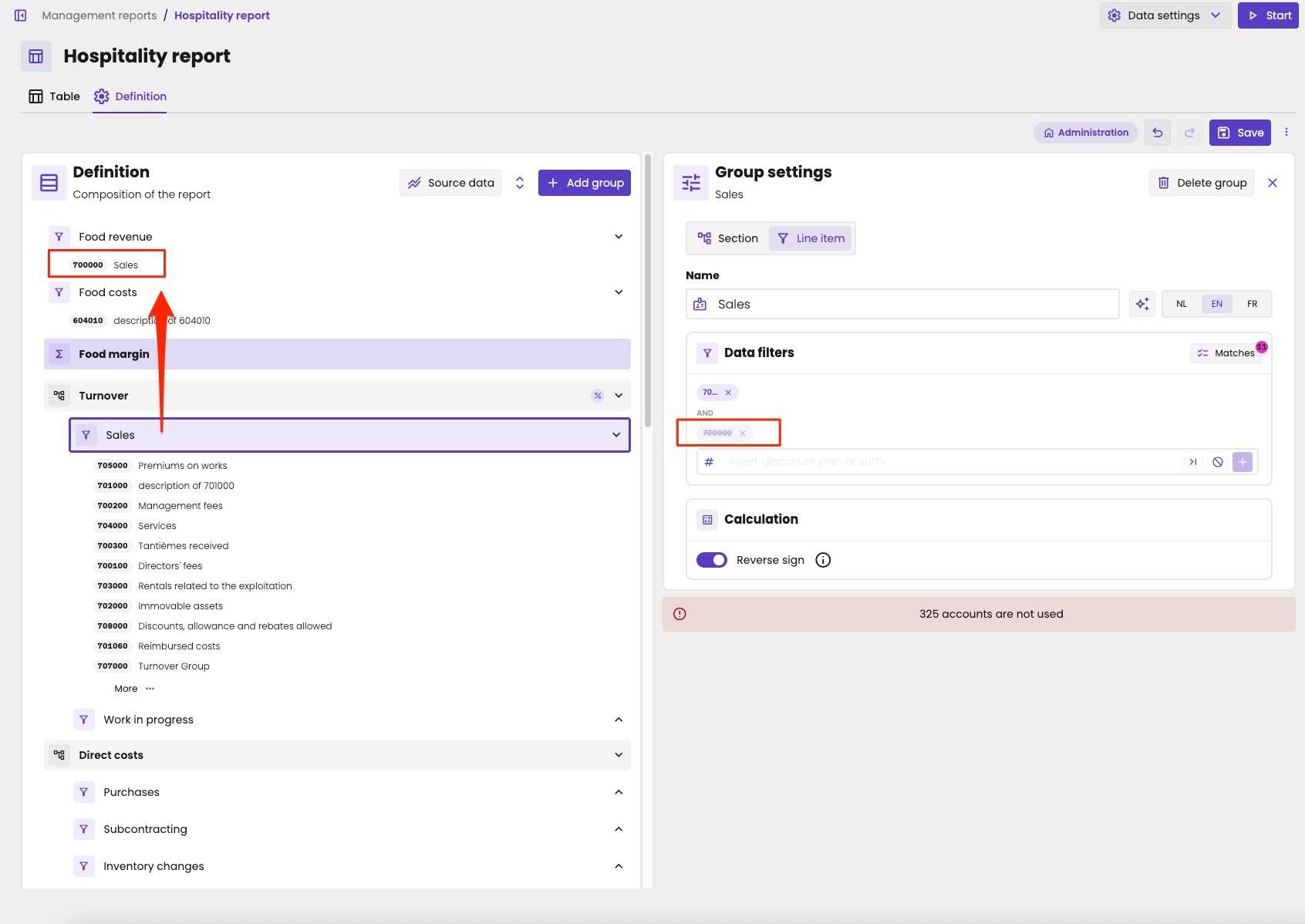
Account 700000 moved from Sales to Food revenue: Sales now leaves it out.
Check the accounts
The bar under the group settings shows whether every GL account of the administration is in the report exactly once:- All accounts are used once, in green: every account is in exactly one line item.
- 325 accounts are not used, in red, for example: those accounts aren’t in any line item, so the report leaves them out.
- 23 accounts are used more than once, in orange, for example: those accounts count in more than one line item.
The accounts are grouped by their first digits. To move an account, drag it in the definition: you can’t drag from the check. See Move an account to another line item.
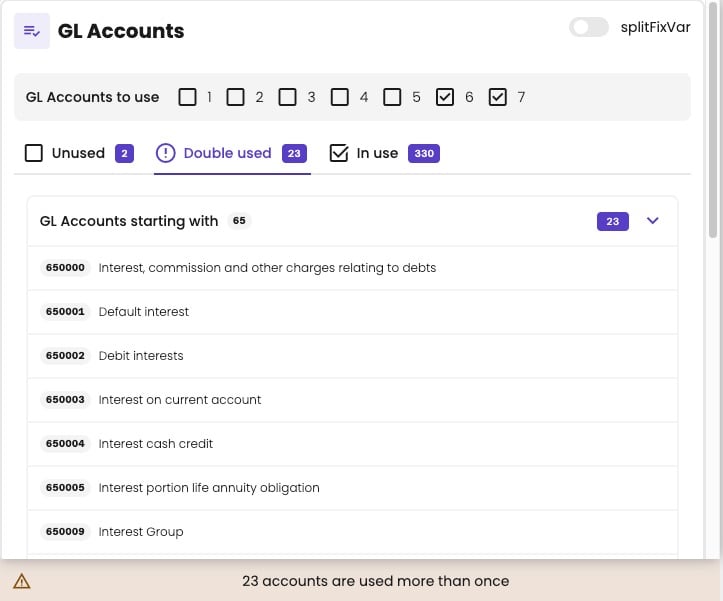
The accounts used in more than one line item.
Leave out account classes
Under GL Accounts to use, clear the account classes the report doesn’t need, such as 1 to 5 for a profit and loss. The check then leaves those accounts out.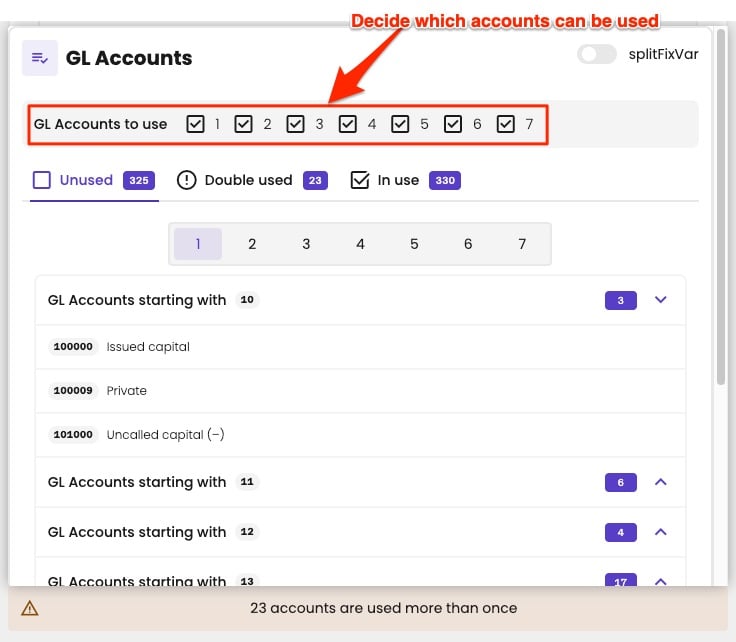
Choose which account classes the check takes into account.
Your choice of account classes is only saved in your browser. Your colleagues, or you in another browser, still see all classes.
Reverse the sign
aiGust doesn’t keep debit and credit apart. Every amount has a sign: debit is positive, credit is negative. Revenue accounts are credit accounts, so their amounts are normally negative. Cost accounts normally have positive amounts. Turn on Reverse sign under Calculation to turn the sign of the line item around. Do this for revenue, for example, so it shows as a positive amount instead of a negative one. Only line items have this setting. Reverse sign and the Operator do different things:- Reverse sign decides how the line item shows: as a positive or a negative amount.
- Operator decides whether a formula adds or subtracts the group.
Split fixed and variable costs
A line item can also filter on whether an account is fixed or variable. You build, for example, a line item Fixed rental costs and a line item Variable rental costs. This is advanced: most reports don’t need it.- Click the bar at the bottom of the group settings, to open the account check.
- Turn on Split fix/var. aiGust then takes the fixed/variable split of the accounts into account.
- Under Data filters of the line item, choose Fixed, Variable or All.
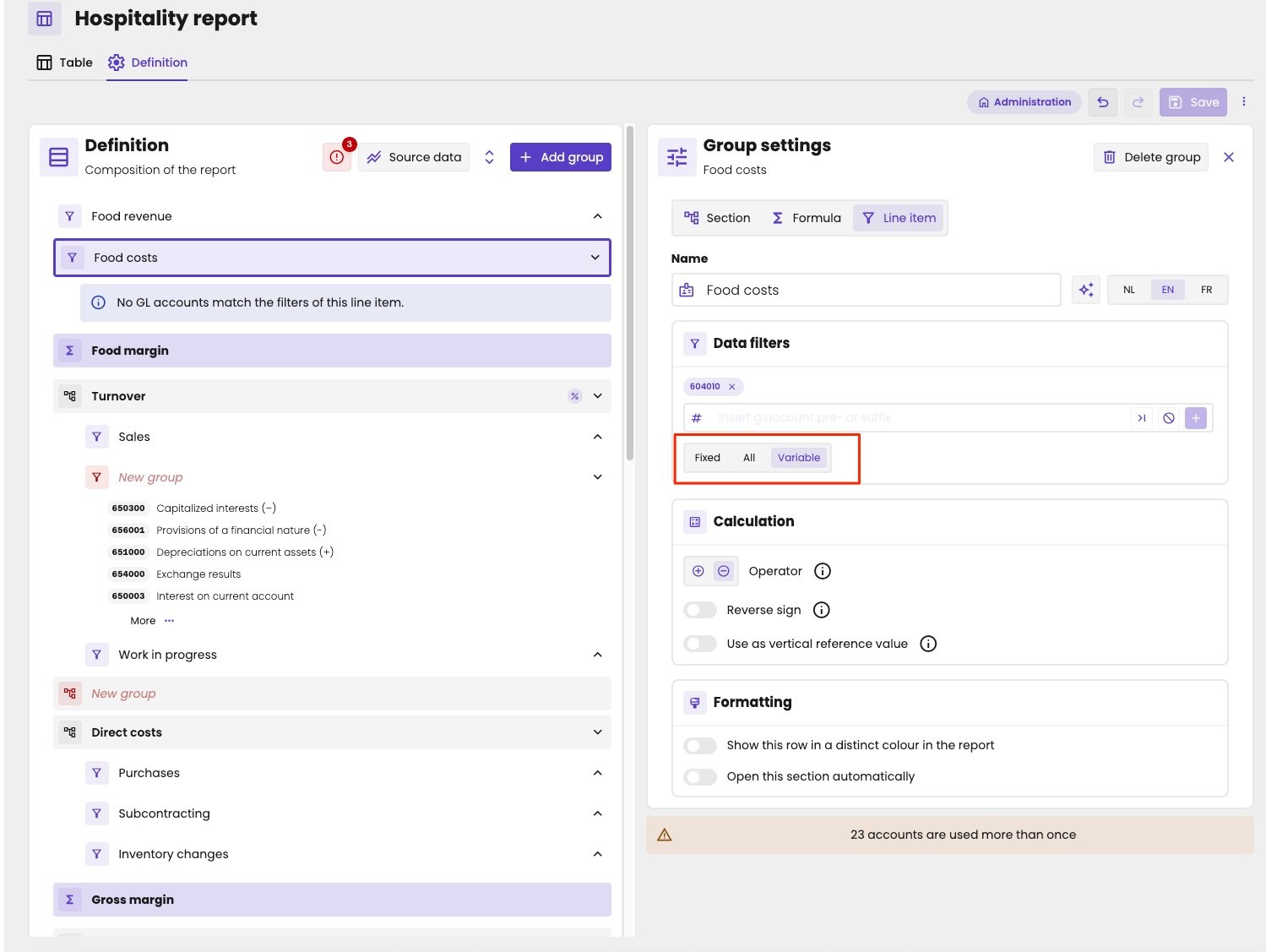
A line item that only holds the variable part of its accounts.
For now, Split fix/var is only saved in your browser. Your colleagues, or you in another browser, have to turn it on again.