> ## Documentation Index
> Fetch the complete documentation index at: https://docs.ai-gust.io/llms.txt
> Use this file to discover all available pages before exploring further.
# Financial periods
> How aiGust structures financial years and financial periods, and how the up-to-date-until date controls what your reports include, the year-to-date comparison and quarters.
Most reports in aiGust show figures per financial year or year to date. Behind the scenes, aiGust keeps the figures per financial period: the smallest unit of time it receives from the connector. It builds the financial year, year-to-date and quarter views from these periods. When an administration has quarters or monthly periods, you can also drill down to them.
This page explains where financial periods come from and how the up-to-date-until date decides which ones count. It also covers how aiGust builds year-to-date comparisons and quarters from them.
## Where financial years and financial periods come from
aiGust imports financial years and their periods through your firm's connectors. How detailed the periods are depends on the type of connector that supplies an administration's data.
| Connector type | Examples | Periods | Detail |
| ---------------------- | -------------------------------- | ------------------------------------------------------------------------------------------ | ------------------------------------ |
| Bookkeeping connectors | Exact Online, Yuki, Octopus, ... | The periods of the financial year as set up in the bookkeeping: usually months or quarters | Down to individual transactions |
| Compliance connectors | Silverfin, Adsolut fiscal files | One period per report created in the compliance tool | Trial balances only, no transactions |
Your firm can connect several systems, so aiGust may find the same administration in more than one of them. aiGust always picks one master source per administration. A bookkeeping connector always takes priority. aiGust only uses a compliance connector if no bookkeeping source is available. For details, see [How administrations are imported](/setup/data/bookkeeping/how-administrations-are-imported).
### Bookkeeping connectors
With a bookkeeping connector, aiGust gets the full financial year with all its periods. Depending on how the administration is set up, a period covers a month, a quarter or the whole year. Within one financial year, periods usually have the same length. A first financial year can be shorter or longer than 12 months.
### Compliance connectors
Firms mainly use compliance connectors like Silverfin and Adsolut fiscal files to close the financial year and prepare the corporate tax return. Many administrations in these tools therefore have a single period of 12 months per year.
In Silverfin, the periods depend on the reporting frequency set for the administration:
* **Monthly or quarterly reporting:** each report becomes a period in aiGust, so you get monthly or quarterly periods.
* **Yearly reporting with an interim report:** each report also becomes a period, which can give unusual periods. For example, an interim report after 7 months splits the year into a period of 7 months and a period of 5 months.
Compliance connectors only deliver trial balances. You can't drill down to transactions for these administrations, and year-to-date or quarter views are often unavailable.
## See the periods of an administration
To see how aiGust has structured an administration's years and periods, open the administration and go to **Settings** › **Financial years**.
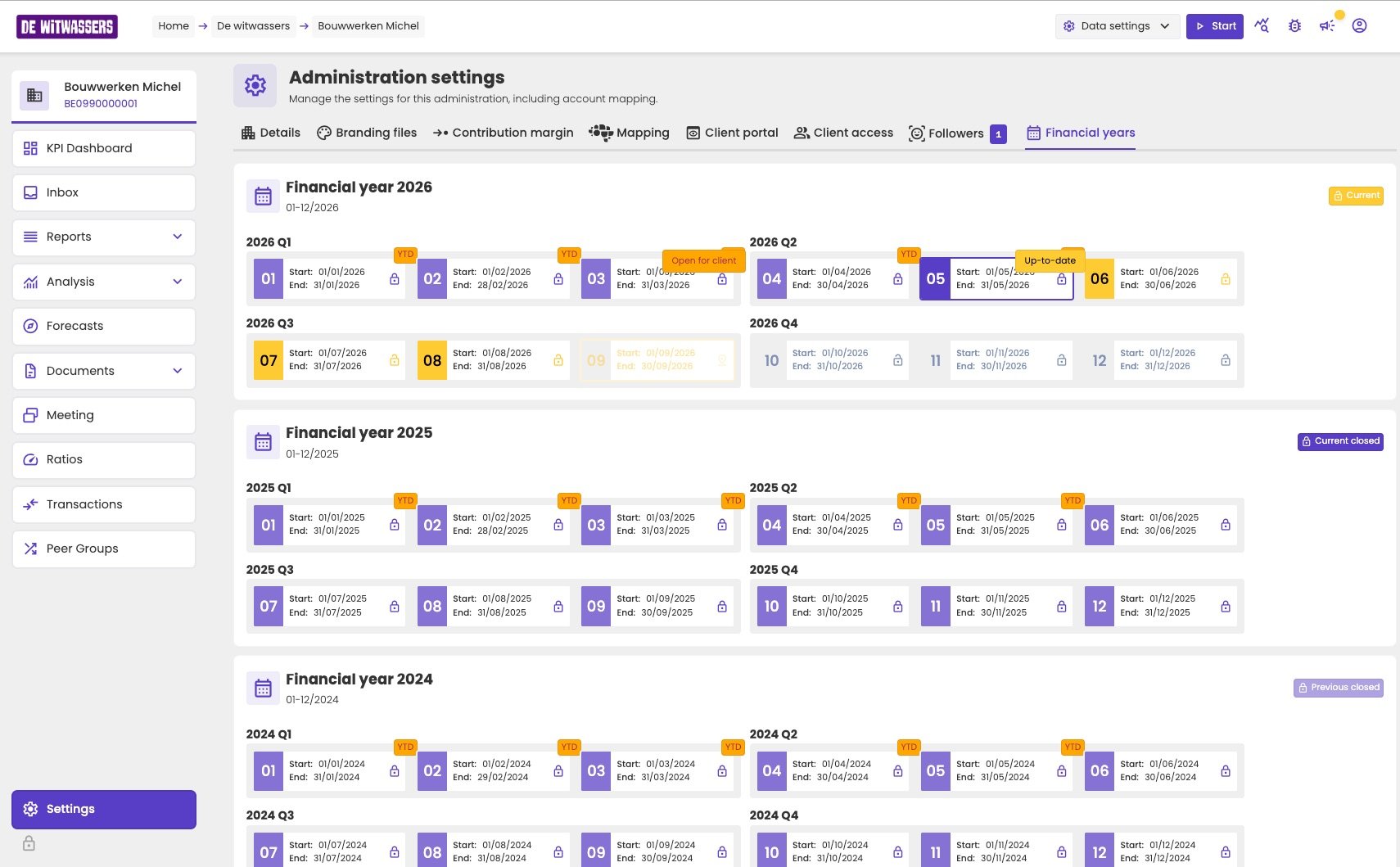 For each financial year, the tab shows:
* **The year's status:** **Current** for the open financial year, **Current closed** for the most recent closed year, and **Previous closed** for older years. See [Closed and open financial years](#closed-and-open-financial-years).
* **Each period with its start and end date,** grouped into the quarters aiGust calculated. See [Quarters](#quarters).
* **Tags on individual periods:**
* **Up-to-date:** the period the administration is up to date until
* **YTD:** the periods included in the year-to-date comparison
* **Open for client:** how far the figures are visible in the [client portal](/setup/client-portal/control-what-clients-see)
The colour of a period card shows its status. The tab uses your firm's brand colours, so the colours may differ from the purple and yellow in the screenshot:
| Card | Status |
| ------------------------------------------------- | ---------------------------------------------------------------------------- |
| Main brand colour (purple in the screenshot) | Closed: the period ends on or before the up-to-date-until date |
| Secondary brand colour (yellow in the screenshot) | Open: the period ends after the up-to-date-until date, but has already ended |
| Lighter card | Future: the period hasn't ended yet |
## The up-to-date-until date
Bookkeeping is rarely complete up to today. On 10 September, for example, the bookkeeping may only be complete up to 31 July. The up-to-date-until date tells aiGust how far an administration's figures are complete, so that reports leave out periods that are still being booked.
You don't pick a free date. You pick a period, and the up-to-date-until date is that period's end date.
Setting the date is up to you:
* **By default, no date is set.** aiGust then uses today's date. Periods that ended before today count as closed, and the period that is still running is left out. On 23 September, for example, August is the last closed period and September isn't included. Those recent periods may not be fully booked yet, so set a date as soon as you start working on an administration.
* **Once set, the date stays the same until someone changes it.** aiGust never moves it forward automatically, not even when new periods come in.
* **aiGust reminds you when the date falls behind.** When you open the administration's dashboard, aiGust checks how far the bookings go. If there are bookings well after the up-to-date-until date, it asks you to move the date forward.
### One date for your firm, one for your client
Each administration has two up-to-date-until dates:
* **For your firm:** everyone at your firm who works on the administration sees figures up to this date.
* **For the client:** users in the [client portal](/setup/client-portal/control-what-clients-see) see figures up to this date.
This way you can work with figures up to July while your client only sees them up to 31 March. On the **Financial years** tab, the client's date is shown with the **Open for client** tag.
### Set the up-to-date-until date
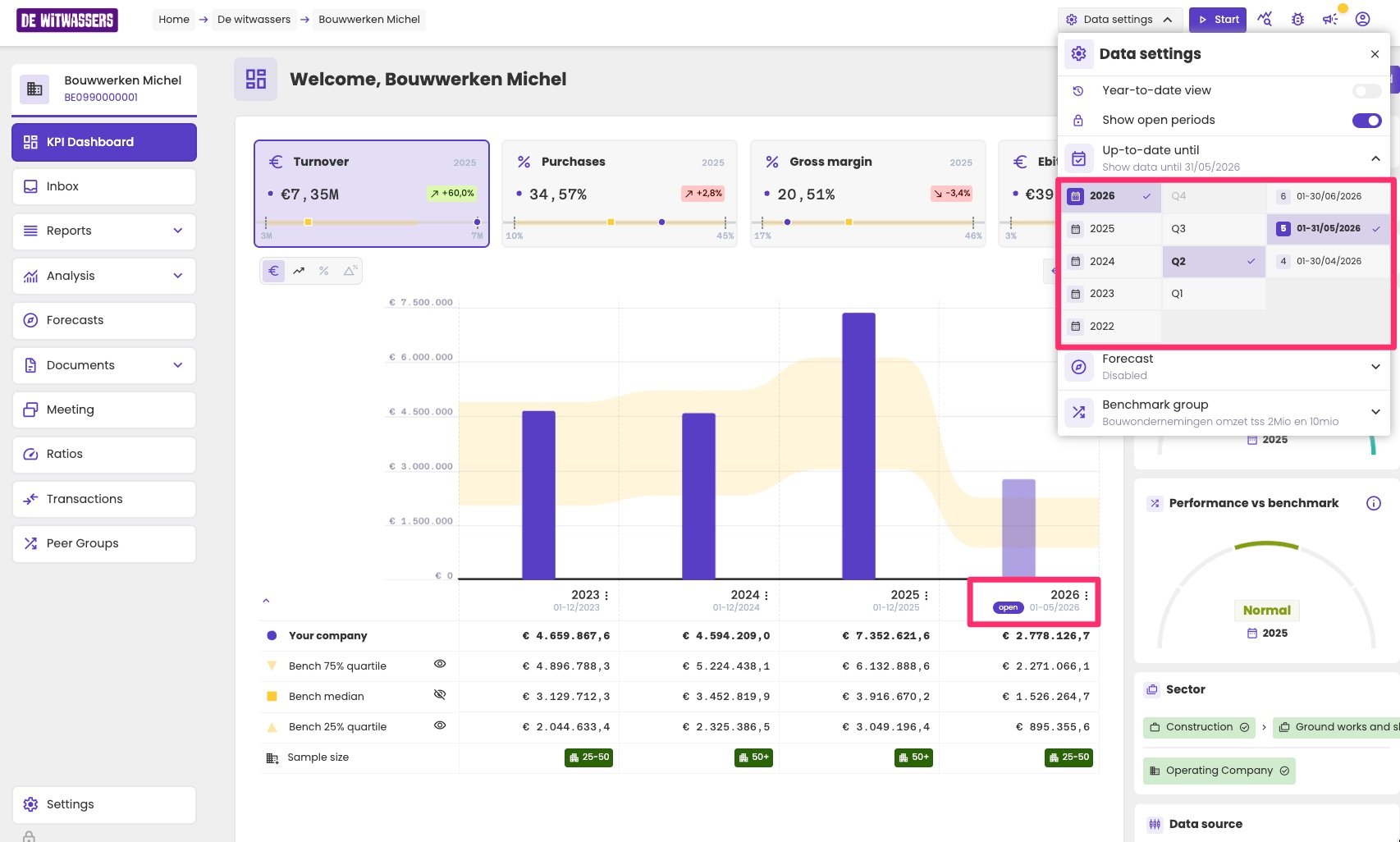
Open the administration and click **Data settings** at the top right of the page.
Click **Up-to-date until**. The line underneath shows the current setting, for example *Show data until 31/05/2026*.
Select the financial year in the first column, then the quarter, then the last period whose bookkeeping is complete.
For each financial year, the tab shows:
* **The year's status:** **Current** for the open financial year, **Current closed** for the most recent closed year, and **Previous closed** for older years. See [Closed and open financial years](#closed-and-open-financial-years).
* **Each period with its start and end date,** grouped into the quarters aiGust calculated. See [Quarters](#quarters).
* **Tags on individual periods:**
* **Up-to-date:** the period the administration is up to date until
* **YTD:** the periods included in the year-to-date comparison
* **Open for client:** how far the figures are visible in the [client portal](/setup/client-portal/control-what-clients-see)
The colour of a period card shows its status. The tab uses your firm's brand colours, so the colours may differ from the purple and yellow in the screenshot:
| Card | Status |
| ------------------------------------------------- | ---------------------------------------------------------------------------- |
| Main brand colour (purple in the screenshot) | Closed: the period ends on or before the up-to-date-until date |
| Secondary brand colour (yellow in the screenshot) | Open: the period ends after the up-to-date-until date, but has already ended |
| Lighter card | Future: the period hasn't ended yet |
## The up-to-date-until date
Bookkeeping is rarely complete up to today. On 10 September, for example, the bookkeeping may only be complete up to 31 July. The up-to-date-until date tells aiGust how far an administration's figures are complete, so that reports leave out periods that are still being booked.
You don't pick a free date. You pick a period, and the up-to-date-until date is that period's end date.
Setting the date is up to you:
* **By default, no date is set.** aiGust then uses today's date. Periods that ended before today count as closed, and the period that is still running is left out. On 23 September, for example, August is the last closed period and September isn't included. Those recent periods may not be fully booked yet, so set a date as soon as you start working on an administration.
* **Once set, the date stays the same until someone changes it.** aiGust never moves it forward automatically, not even when new periods come in.
* **aiGust reminds you when the date falls behind.** When you open the administration's dashboard, aiGust checks how far the bookings go. If there are bookings well after the up-to-date-until date, it asks you to move the date forward.
### One date for your firm, one for your client
Each administration has two up-to-date-until dates:
* **For your firm:** everyone at your firm who works on the administration sees figures up to this date.
* **For the client:** users in the [client portal](/setup/client-portal/control-what-clients-see) see figures up to this date.
This way you can work with figures up to July while your client only sees them up to 31 March. On the **Financial years** tab, the client's date is shown with the **Open for client** tag.
### Set the up-to-date-until date
Open the administration and click **Data settings** at the top right of the page.
Click **Up-to-date until**. The line underneath shows the current setting, for example *Show data until 31/05/2026*.
Select the financial year in the first column, then the quarter, then the last period whose bookkeeping is complete.
 ### What it changes in your reports
aiGust calculates every report from the most detailed level: the amounts per account and business partner for each period. From there it builds the view you ask for, such as financial year or quarters.
The up-to-date-until date decides which periods go into that calculation. Every period after the up-to-date-until date is left out.
**Example:** an administration's financial year runs from 1 January to 31 December, with monthly periods. You set it up to date until period 5 of 2026, which ends on 31/05/2026. aiGust leaves out periods 6 to 12 of 2026. For 2026, your reports show only the revenue and costs of January to May.
### Look back in time
Reports and charts in aiGust have no date range of their own. You never select the time span a chart covers. The up-to-date-until date decides it for every report at once.
This means you can also set the date in the past to see an administration as it was at that moment. Everything follows the new date: which financial year is open, the year-to-date comparison and the quarters.
**Example:** you set the up-to-date-until date to 31/05/2024. aiGust now treats 2024 as the open financial year, with periods 1 to 5 closed. 2023 becomes the most recent closed year. aiGust treats 2025 and 2026 as future years and leaves them out of every report and chart.
This isn't what the date is meant for. aiGust doesn't reset the date for you, so set it back to the latest complete period when you're done.
The up-to-date-until date is shared by everyone at your firm who works on the administration. When you move it back in time, your colleagues see the older figures too. Your client's date doesn't change.
## Closed and open financial years
The up-to-date-until date also decides which periods count as **closed** and which as **open**. Open periods are those after the up-to-date-until date, including periods that are still in the future.
* **Closed financial year:** all of its periods are closed.
* **Open financial year:** the first year after the most recent closed year. It has at least one open period, and can have any number of closed periods.
In the example above, 2025 is the most recent closed year, marked **Current closed**. 2026 is the open year, marked **Current**. Its periods 1 to 5 are closed and periods 6 to 12 are open. This is the situation in the screenshot above.
## Year-to-date periods
A year-to-date (YTD) comparison lets you compare the open year so far with the same stretch of time in earlier years.
### How aiGust finds the YTD periods
1. **The reference period:** from the start of the open financial year up to the up-to-date-until date.
2. **The same window in earlier years:** aiGust shifts that window back in time, one year at a time.
3. **Matching periods:** for each earlier window, aiGust looks for the periods that fall inside it. It then tries to combine them so that together they cover exactly the same span, no more and no less.
**Example:** continuing the example above, the open year 2026 runs from 1 January and the administration is up to date until 31/05/2026. The reference YTD period is 01/01/2026 to 31/05/2026. In 2025, aiGust combines periods 1 to 5 into 01/01/2025 to 31/05/2025. It does the same for 2024 and earlier. On the **Financial years** tab, these periods carry a **YTD** tag.
### When a YTD comparison isn't available
This works well for administrations with monthly periods. A year gets no YTD comparison when its periods can't be combined to cover exactly the reference span. For example:
* **Compliance files with one period per year** have no interim reporting, so there's nothing to compare.
* **Earlier years with quarterly periods** can't be combined into a window that ends mid-quarter, such as 1 January to 31 May.
### Longer financial years
aiGust only uses the open financial year to set the reference period. For earlier years it doesn't look at financial years at all: it searches back in time for stretches that match the reference window. A financial year longer than 12 months can therefore contain two YTD periods. This happens with an extended first financial year, or when the administration changed its closing date.
**Example:** the administration started with an extended first financial year of 24 months, from 01/01/2023 to 31/12/2024. Since then, its financial years follow the calendar year. It's up to date until 31/05/2026, so the reference YTD period is 01/01/2026 to 31/05/2026. Searching back, aiGust finds these YTD periods:
| Financial year | YTD periods |
| ----------------------------------- | --------------------------------------------------- |
| 01/01/2026 – 31/12/2026 (open) | 01/01/2026 – 31/05/2026 (reference) |
| 01/01/2025 – 31/12/2025 | 01/01/2025 – 31/05/2025 |
| 01/01/2023 – 31/12/2024 (24 months) | 01/01/2024 – 31/05/2024 and 01/01/2023 – 31/05/2023 |
The extended first financial year contains two YTD periods, one for each year it spans.
## Quarters
aiGust doesn't import quarters. It builds them from each financial year's periods:
1. It starts at the end of the financial year.
2. It works backwards through the periods, combining them into blocks of 3 months. Each block is a quarter.
3. Periods left over at the start of the year that don't add up to 3 months together form the first quarter, which is then shorter.
The last quarter of a financial year therefore always ends on the year's closing date. Quarters are numbered from 1 upwards, starting with the earliest.
The quarter number is only a label. When aiGust compares a quarter or period with the past, it takes the same stretch of time one year earlier, not the quarter with the same number. A short quarter is therefore compared with an equally short stretch of time.
* **Regular years with monthly or quarterly periods** get four quarters.
* **A first year that is longer or shorter,** or a year in which the closing date changed, gets more or fewer quarters.
* **Years whose periods don't fit into 3-month blocks** get no quarter view. This is often the case for compliance files, for example with a single 12-month period, or periods of 7 and 5 months.
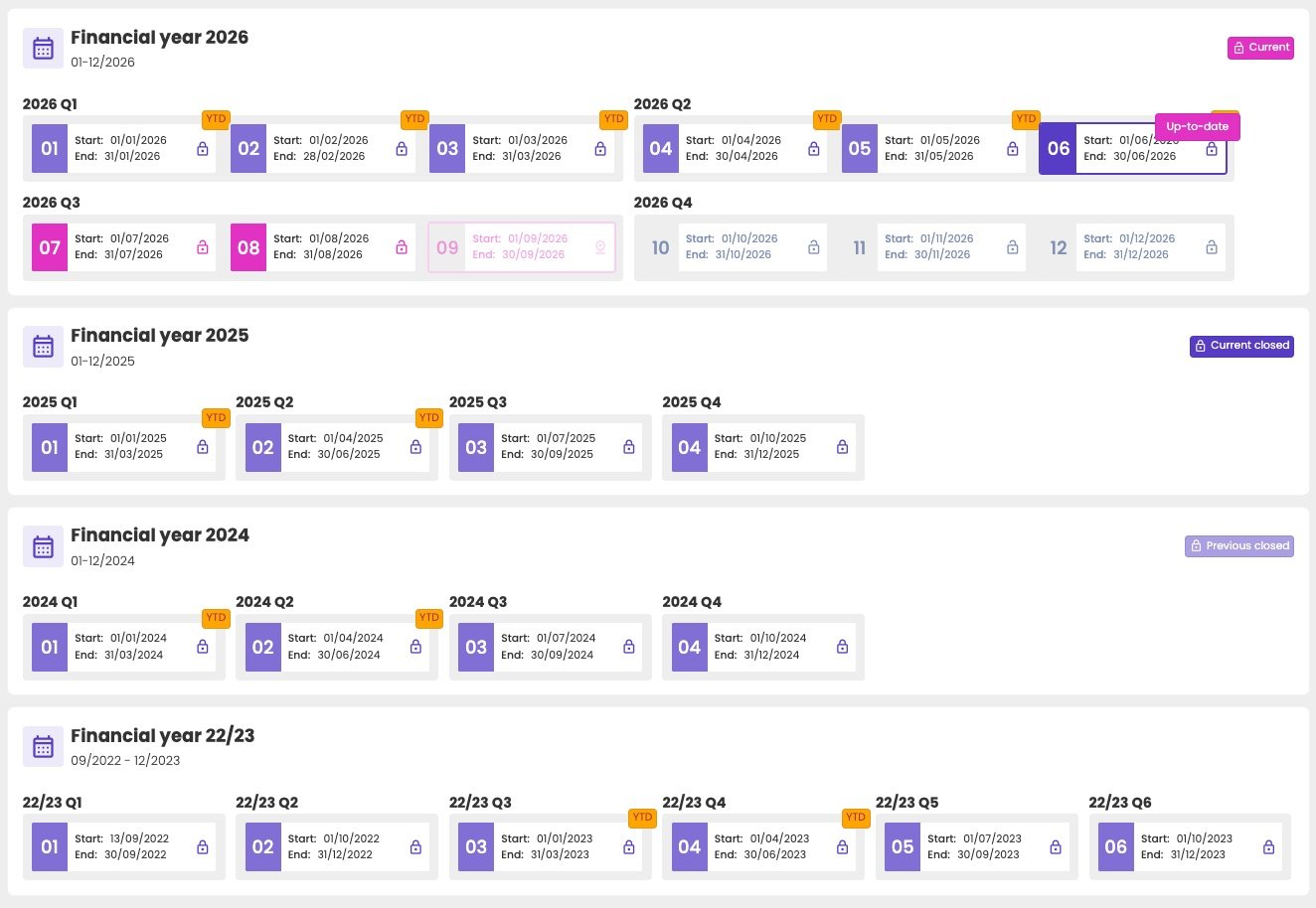
**Example:** an administration's first financial year, 22/23, runs from 13/09/2022 to 31/12/2023, with quarterly periods. Its first period is short: 13/09/2022 to 30/09/2022. Working back from 31/12/2023, aiGust builds five full quarters, from October 2022 to December 2023. The short period of September 2022 is left over and becomes Q1 on its own. The financial year therefore has quarters Q1 to Q6.
### What it changes in your reports
aiGust calculates every report from the most detailed level: the amounts per account and business partner for each period. From there it builds the view you ask for, such as financial year or quarters.
The up-to-date-until date decides which periods go into that calculation. Every period after the up-to-date-until date is left out.
**Example:** an administration's financial year runs from 1 January to 31 December, with monthly periods. You set it up to date until period 5 of 2026, which ends on 31/05/2026. aiGust leaves out periods 6 to 12 of 2026. For 2026, your reports show only the revenue and costs of January to May.
### Look back in time
Reports and charts in aiGust have no date range of their own. You never select the time span a chart covers. The up-to-date-until date decides it for every report at once.
This means you can also set the date in the past to see an administration as it was at that moment. Everything follows the new date: which financial year is open, the year-to-date comparison and the quarters.
**Example:** you set the up-to-date-until date to 31/05/2024. aiGust now treats 2024 as the open financial year, with periods 1 to 5 closed. 2023 becomes the most recent closed year. aiGust treats 2025 and 2026 as future years and leaves them out of every report and chart.
This isn't what the date is meant for. aiGust doesn't reset the date for you, so set it back to the latest complete period when you're done.
The up-to-date-until date is shared by everyone at your firm who works on the administration. When you move it back in time, your colleagues see the older figures too. Your client's date doesn't change.
## Closed and open financial years
The up-to-date-until date also decides which periods count as **closed** and which as **open**. Open periods are those after the up-to-date-until date, including periods that are still in the future.
* **Closed financial year:** all of its periods are closed.
* **Open financial year:** the first year after the most recent closed year. It has at least one open period, and can have any number of closed periods.
In the example above, 2025 is the most recent closed year, marked **Current closed**. 2026 is the open year, marked **Current**. Its periods 1 to 5 are closed and periods 6 to 12 are open. This is the situation in the screenshot above.
## Year-to-date periods
A year-to-date (YTD) comparison lets you compare the open year so far with the same stretch of time in earlier years.
### How aiGust finds the YTD periods
1. **The reference period:** from the start of the open financial year up to the up-to-date-until date.
2. **The same window in earlier years:** aiGust shifts that window back in time, one year at a time.
3. **Matching periods:** for each earlier window, aiGust looks for the periods that fall inside it. It then tries to combine them so that together they cover exactly the same span, no more and no less.
**Example:** continuing the example above, the open year 2026 runs from 1 January and the administration is up to date until 31/05/2026. The reference YTD period is 01/01/2026 to 31/05/2026. In 2025, aiGust combines periods 1 to 5 into 01/01/2025 to 31/05/2025. It does the same for 2024 and earlier. On the **Financial years** tab, these periods carry a **YTD** tag.
### When a YTD comparison isn't available
This works well for administrations with monthly periods. A year gets no YTD comparison when its periods can't be combined to cover exactly the reference span. For example:
* **Compliance files with one period per year** have no interim reporting, so there's nothing to compare.
* **Earlier years with quarterly periods** can't be combined into a window that ends mid-quarter, such as 1 January to 31 May.
### Longer financial years
aiGust only uses the open financial year to set the reference period. For earlier years it doesn't look at financial years at all: it searches back in time for stretches that match the reference window. A financial year longer than 12 months can therefore contain two YTD periods. This happens with an extended first financial year, or when the administration changed its closing date.
**Example:** the administration started with an extended first financial year of 24 months, from 01/01/2023 to 31/12/2024. Since then, its financial years follow the calendar year. It's up to date until 31/05/2026, so the reference YTD period is 01/01/2026 to 31/05/2026. Searching back, aiGust finds these YTD periods:
| Financial year | YTD periods |
| ----------------------------------- | --------------------------------------------------- |
| 01/01/2026 – 31/12/2026 (open) | 01/01/2026 – 31/05/2026 (reference) |
| 01/01/2025 – 31/12/2025 | 01/01/2025 – 31/05/2025 |
| 01/01/2023 – 31/12/2024 (24 months) | 01/01/2024 – 31/05/2024 and 01/01/2023 – 31/05/2023 |
The extended first financial year contains two YTD periods, one for each year it spans.
## Quarters
aiGust doesn't import quarters. It builds them from each financial year's periods:
1. It starts at the end of the financial year.
2. It works backwards through the periods, combining them into blocks of 3 months. Each block is a quarter.
3. Periods left over at the start of the year that don't add up to 3 months together form the first quarter, which is then shorter.
The last quarter of a financial year therefore always ends on the year's closing date. Quarters are numbered from 1 upwards, starting with the earliest.
The quarter number is only a label. When aiGust compares a quarter or period with the past, it takes the same stretch of time one year earlier, not the quarter with the same number. A short quarter is therefore compared with an equally short stretch of time.
* **Regular years with monthly or quarterly periods** get four quarters.
* **A first year that is longer or shorter,** or a year in which the closing date changed, gets more or fewer quarters.
* **Years whose periods don't fit into 3-month blocks** get no quarter view. This is often the case for compliance files, for example with a single 12-month period, or periods of 7 and 5 months.
**Example:** an administration's first financial year, 22/23, runs from 13/09/2022 to 31/12/2023, with quarterly periods. Its first period is short: 13/09/2022 to 30/09/2022. Working back from 31/12/2023, aiGust builds five full quarters, from October 2022 to December 2023. The short period of September 2022 is left over and becomes Q1 on its own. The financial year therefore has quarters Q1 to Q6.
 ## Related pages
Switch reports between financial year, year-to-date, quarter and period view.
How aiGust picks the master data source for an administration.
## Related pages
Switch reports between financial year, year-to-date, quarter and period view.
How aiGust picks the master data source for an administration.